
PROBLEM
Feature Report widget does not reflect Table widget filtering in ArcGIS Experience Builder
Description
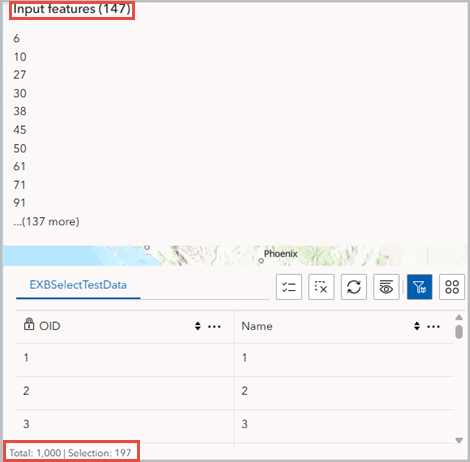
In ArcGIS Experience Builder, the Table and Map widgets reflect the same set of features during interaction, but the Feature Report widget displays a mismatched features count, as shown in the image below.
Cause
The Table widget has the 'Filter by map extent' option enabled, which filters features based on the current map extent, while the Feature Report widget continues to use the full dataset. Although the Map widget updates to reflect the same filtered features as the Table widget, the Feature Report widget does not inherit this behavior. As each widget is working with a different subset of features, their outputs become misaligned.
Solution or Workaround
As a workaround, select one of the options below.
Disable 'Filter by map extent' in the Table widget
Note:
If filtering by map extent is not essential, disable the behavior so all widgets use the same dataset.
- Open the ArcGIS Experience Builder web experience.
- Add the Table widget to the web app.
- Click the Table widget to open the Table panel.
- In the Table panel, on the Content tab, under Mode, toggle off the Filter by map extent button.
- Save, preview, and publish the experience.
Filter the Table widget data using the Filter widget
- Open the ArcGIS Experience Builder web experience.
- Add the Filter widget to the web app.
- Click the Filter widget to open the Filter panel.
- Create a clause set to list records of selected data in the Filter widget.
- On the Content tab of the Filter widget, click New filter.
- In the Create new filter panel, click Select data and select a feature layer. In this example, the feature layer is the same as the Map widget's.
- Under SQL Expression, click SQL Expression Builder.
- In the SQL Expression Builder window, click Add clause.
- Configure the clause to list records from the selected field.
- For the Field input box, select a field.
- For the Operator input box, select a functional operator. In this example, the is at most operator is selected.
- Click Select source type and select Unique.
- Click More input settings > Ask for values. This enables records from the selected field to be displayed in a list.
- Click OK to close the SQL Expression Builder window.
- Select the filtered features on the canvas using the Select by rectangle tool.
- On the builder toolbar, click Live view.
- On the canvas, click the Filter widget and toggle on the button.
- Click and drag Select by rectangle to draw a rectangle across the filtered features.
- Save, preview, and publish the web app.
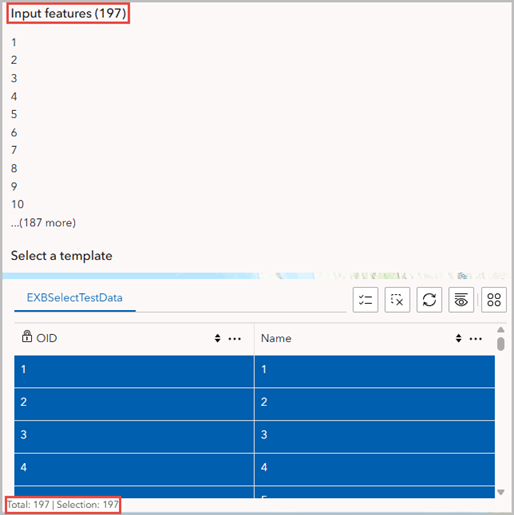
The image below shows the number of the correct features on the Feature Report and Table widgets.
Article ID: 000039167
- ArcGIS Online
- ArcGIS Experience Builder
Get support with AI
Resolve your issue quickly with the Esri Support AI Chatbot.


Related Information
Discover more on this topic

Search for related information

Find training related to this topic

Explore ideas and give feedback
Get help from ArcGIS experts
Start chatting now