
Frequently asked question
Can the ArcGIS Experience Builder Map widget display pop-ups for multiple features simultaneously?
No, the Map widget in ArcGIS Experience Builder does not support displaying pop-ups for multiple selected features simultaneously. As an alternative, multiple Map widgets can be added and configured to display pop-ups for several features simultaneously across separate map views, enabling side-by-side comparisons. However, this workaround is best suited for a small number of features, as each Map widget requires significant page space. The following steps describe the workflow to configure multiple Map widgets for a simultaneous feature pop-up display.
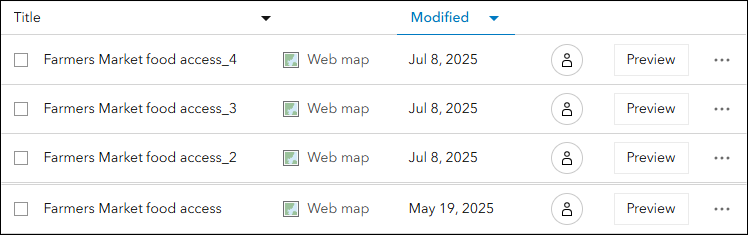
- To display pop-ups for features within the same web map, create multiple copies of the map in ArcGIS Online Map Viewer corresponding to the number of required pop-ups. Refer to ArcGIS Online: Save maps (Map Viewer) for instructions. Skip this step if using different web maps for each widget.
The image below shows multiple copies of the same web map saved in the ArcGIS Online Content page.
- Add and configure the Map widget in ArcGIS Experience Builder.
- In ArcGIS Experience Builder, click Create new, select the preferred template, and click Create.
- In the Insert widget panel, on the New tab, under the Map centric group, drag and drop the Map widget onto the canvas. To configure the Map widget, refer to ArcGIS Experience Builder: Map widget for more information.
- In the Map panel, on the Content tab, under Options, check the Show pop-up upon feature selection check box. This automatically opens the pop-up when clicking the feature on the map.
- Repeat Steps 2(b) to 2(c) for each additional map copy or different web map.
- Configure the position and size of the Map widgets as preferred. Refer to ArcGIS Experience Builder: Change style settings for more information.
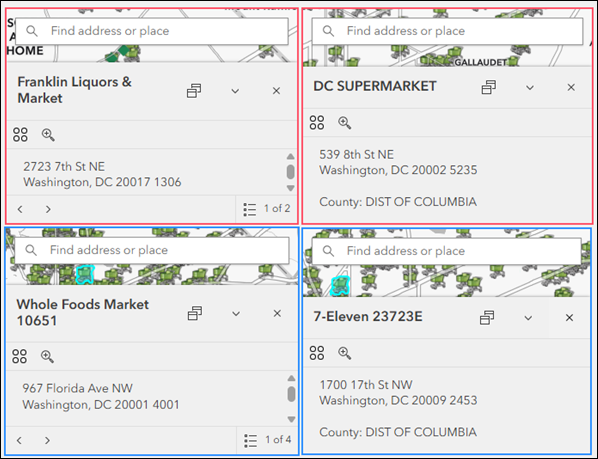
The image below shows multiple feature pop-ups simultaneously displayed across different Map widgets after clicking the desired feature in each map.
Article ID: 000037032
- ArcGIS Online
- ArcGIS Experience Builder
Get support with AI
Resolve your issue quickly with the Esri Support AI Chatbot.


Related Information
Discover more on this topic

Search for related information

Find training related to this topic

Explore ideas and give feedback
Get help from ArcGIS experts
Start chatting now