
Frequently asked question
Can pop-ups be displayed in map tours in ArcGIS StoryMaps?
No, pop-ups cannot be displayed in map tours in ArcGIS StoryMaps. By default, map tours support interactivity; hovering over the selected title displays the title field on the map and descriptive text is displayed in the narrative panel. However, there are limitations and they can be restrictive when key attributes must be displayed through pop-ups to strengthen the narrative.
As a workaround to the limitations, create a pop-up using a sidecar block with a web map added to the media panel.
- Open Map Viewer and create a web map to be displayed in the map tour.
- Add the feature layer with the configured pop-ups to the map. Refer to Steps 1 through 4 in ArcGIS Online: Browse layers for instructions.
- Save the map. Refer to ArcGIS Online: Save maps (Map Viewer) for instructions.
- In ArcGIS StoryMaps, on the Stories page, select the preferred story card to open the story.
- In the story builder, add a sidecar block to the story. Refer to Steps 1 through 3 in ArcGIS StoryMaps: Add a sidecar to a story for instructions. In this example, the Floating layout is selected in Step 3.
- Add the web map to the sidecar media panel.
- On the media panel, click the Add drop-down arrow and click Map.
- In the Add a map window, select the newly created web map in Step 1.
- In the Adjust map appearance window, adjust the map extent as required for the first slide and click Save.
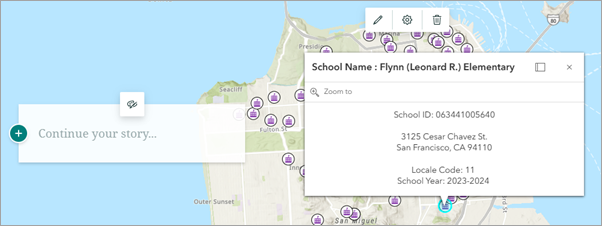
A pop-up is displayed when a feature in the sidecar media panel is clicked.
- Configure the remaining sidecar properties as required to create the map tour. For instructions, refer to Steps 4 through 6 provided in any of the workarounds found in FAQ: Can data-driven map tours be populated from multipoint feature layers in ArcGIS StoryMaps?.
Article ID: 000038062
- ArcGIS Online
- ArcGIS StoryMaps
Get support with AI
Resolve your issue quickly with the Esri Support AI Chatbot.


Related Information
Discover more on this topic

Search for related information

Find training related to this topic

Explore ideas and give feedback
Get help from ArcGIS experts
Start chatting now