
HOW TO
Apply bold text formatting in ArcGIS StoryMaps map tours
Summary
In ArcGIS StoryMaps, map tours provide immersive experiences by combining media and descriptive text to showcase features on a map. In long descriptive paragraphs, bold formatting provides emphasis on key details and strengthens the story’s flow. For example, the scientific name of a bird in a sighting map tour or the name of a geological formation in a geology map tour in bold are highlighted. This article provides the workflows for applying bold text formatting to a map tour in ArcGIS StoryMaps.
Procedure
Apply bold formatting using HTML tags
This workflow applies bold text formatting using HTML tags and is applicable when ‘Start with a feature service’ is selected to populate a data-driven map tour.
- Open the story with the map tour block on the story map’s edit page.
- Apply the bold text formatting to the feature layer attribute table using HTML tags.
- On the slide panel, click Edit data source.
- In the Edit data source dialog box, on the Data tab, under Feature layer, click View item details.
- On the item details page of the feature layer, click the Data tab.
- On the Data tab, in the attribute table, locate and double-click the attribute value to be formatted as bold. In this example, the Description field value of the third record is selected.

- In the selected cell, insert the following text formatting tags to apply bold formatting to the text. Replace [value] with the desired text.
<b>[value]</b>
- Press Enter to apply the bold formatting.
The following is a sample HTML tag for applying bold text formatting to the first few words in a string.
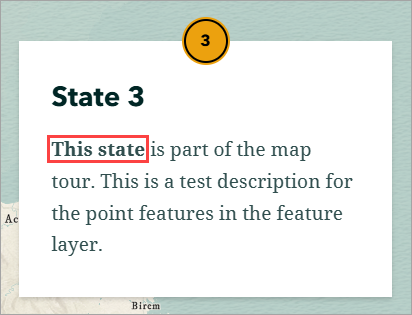
<b>This state</b> is part of the map tour.
The bold text formatting is applied to the attribute table.

- On the story map’s edit page, refresh the page to apply the changes.
The bold text formatting is reflected in the map tour.
Apply bold formatting using the text formatting menu
This workflow applies bold text formatting using the text formatting menu and is applicable when ‘Start from scratch’ or ‘Upload photos’ is selected to populate the map tour.
- Open the story with the map tour block in the story map’s edit page.
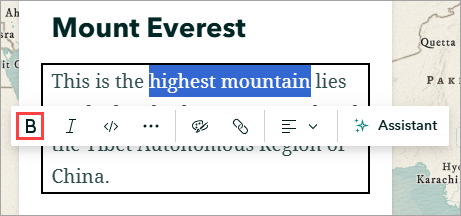
- Apply the bold text formatting to the text. Refer to Steps 1 and 2 in ArcGIS StoryMaps: Format and convert text for instructions. In Step 2, click Bold
 from the text formatting toolbar.
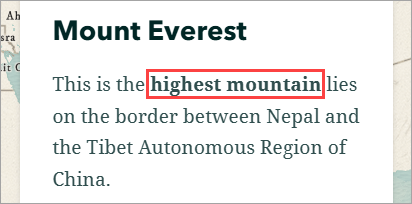
The bold text formatting is reflected in the map tour.
Article ID: 000037623
- ArcGIS Online
- ArcGIS StoryMaps
Get support with AI
Resolve your issue quickly with the Esri Support AI Chatbot.


Related Information
Discover more on this topic

Search for related information

Find training related to this topic

Explore ideas and give feedback
Get help from ArcGIS experts
Start chatting now