
Frequently asked question
Can dynamic numbering be displayed in ArcGIS Dashboards list elements?
No, it is not possible to display dynamic numbering in ArcGIS Dashboards list elements in both ArcGIS Online and the ArcGIS Enterprise portal. By default, list elements only display feature attributes and are rendered independently, which prevents sequential ordering of records. Dynamic numbering can be useful in interpreting ranked data, such as ordering visible points on a map by the number of reported cases in crime analysis. As a workaround, use the rowindex profile variable through advanced formatting in a table element to create dynamic numbering.
- Sign in to ArcGIS Online or the ArcGIS Enterprise portal.
- Add a field to the intended feature layer. Refer to Portal for ArcGIS: Add a field or ArcGIS Online: Add a field for instructions. Select any of the options under the Numbers category when selecting the data type. In this example, the new field is ‘Numbering’.
- Add a table element in ArcGIS Dashboards.
- Open the dashboard edit page.
- Add a table element to the dashboard. Refer to Steps 4 through 6 in ArcGIS Dashboards: Add elements for instructions. In Step 6, click Table.
- In the Select a layer window, click Browse all layers and select the feature layer from Step 2.
- Configure the table element as a table from features.
- In the configuration window of the table, on the Data tab, under Settings, for Table type, click Features.
- For Value fields, click the Add field drop-down arrow and select the newly added field from Step 2.
- Repeat Step 4(b) and select the other fields as required. In this example, two additional fields are added to the table.
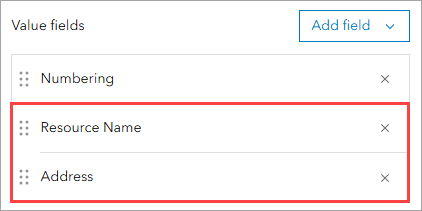
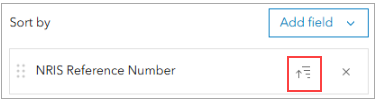
- For Sort by, click the Add field drop-down arrow and select the sorting fields for the dynamic numbering. In this example, the reference field is added as the sorting field.
- Click the sorting icon next to the field and select Sort ascending or Sort descending to select the order if necessary.
- Configure the expression for the dynamic numbering.
- Enable advanced formatting for the table. Refer to Steps 1 through 2 in ArcGIS Dashboards: Enable advanced formatting in a table for instructions.
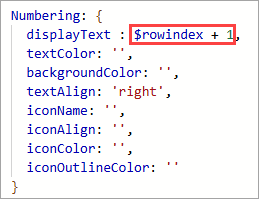
- In the editor, replace the existing content in the displayText property line of the newly added field with the following rowindex variable:
$rowindex + 1
Below is the newly added field row’s expression in the advanced formatting editor, showing the displayText property.
-
- Click Done.
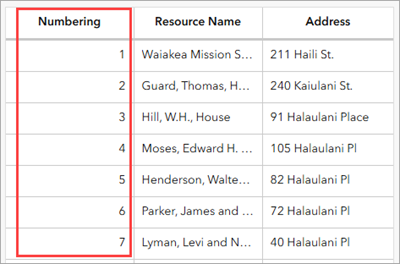
The dynamic numbering is added to the table element in the dashboard edit page.
- In the dashboard layout panel, click Save
 > Save to save the changes.
 - In ArcGIS Dashboards, refresh the dashboard view page to reflect the changes.
Article ID: 000038833
- ArcGIS Online
- Portal for ArcGIS
- ArcGIS Dashboards
Get support with AI
Resolve your issue quickly with the Esri Support AI Chatbot.


Related Information
Discover more on this topic

Search for related information

Find training related to this topic

Explore ideas and give feedback
Get help from ArcGIS experts
Start chatting now