
HOW TO
Display images from URLs stored in ArcGIS Dashboards list elements attribute
Summary
In ArcGIS Dashboards, storing images as URLs in an attribute field simplifies access control and improves performance by reducing the overall data size in hosted layers. Incorporating these images within the list element enhances data comprehension by providing visual context alongside attribute information. However, when the URL field is referenced directly in the list element, the link is displayed as text rather than as an image.
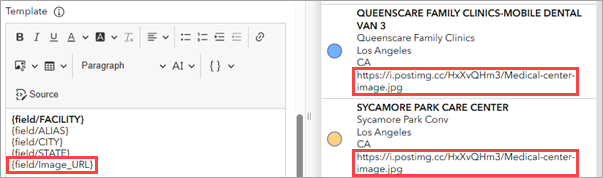
This behavior can be modified using advanced formatting, which enables the list to display images directly from the referenced URLs, and this article provides the workflow.
Procedure
- Open the dashboard edit page.
- On the dashboard view, hover over the ellipsis in the upper-left of the list element and click Configure
 .
. - Enable advanced formatting for the list element. Complete Steps 1 and 2 in ArcGIS Dashboards: Enable advanced formatting in a list.
- In the advanced formatting editor, highlight the content and remove the existing expression.
- Specify the advanced formatting Arcade expressions.
- Define a variable to reference the image URL within the HTML image tag. Paste the following expression into the editor and replace <variable name> with the desired variable name and <field name> with the attribute field storing the URLs.
var <variable name> = '<p><img src="' + $datapoint.<field name> + '"/></p>';
- Return the variable as an attribute. Paste the following expression into the editor and replace <variable name> with the variable specified in Step 5(a).
return {
  attributes: {
    <variable name>
  }
};
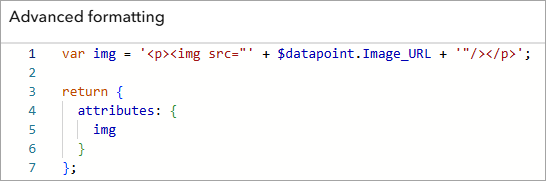
The following code block shows the complete expression in the editor.
var img = '<p><img src="' + $datapoint.Image_URL + '"/></p>';

return {
  attributes: {
    img
  }
};
- Customize the HTML formatting to display the newly added attribute in the list element.
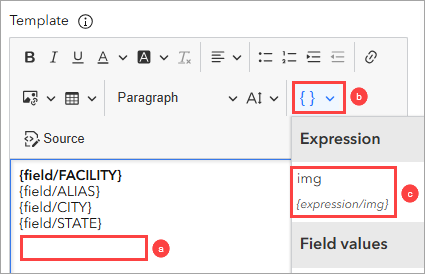
- Under Template, in the editor, place the blinking cursor at the desired location. In this example, the cursor is positioned below the last listed attribute.
- Click the Insert
 drop-down arrow.
 - Under Expression, select the newly added attribute from the drop-down list. In this example, the new attribute is set as 'img'.
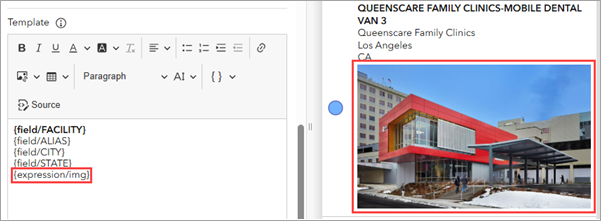
The new attribute is added to the editor and the images are displayed in the preview area.
- Click Done.
- In the dashboard layout panel, click Save
 > Save to save the changes.
 - In ArcGIS Dashboards, refresh the dashboard view page to reflect the changes.
Article ID: 000038525
- ArcGIS Dashboards
Get support with AI
Resolve your issue quickly with the Esri Support AI Chatbot.


Related Information
Discover more on this topic

Search for related information

Find training related to this topic

Explore ideas and give feedback
Get help from ArcGIS experts
Start chatting now