
常见问题
常见问题解答:是否能够在 ArcGIS Experience Builder 中仅为单个设备模式添加启动画面?
否,无法在 ArcGIS Experience Builder 中仅为单个设备模式添加启动画面。 “设置为启动画面”选项仅在窗口设置为“固定”模式时可用,并且无法将处于“固定”模式的窗口移至待处理列表。 待处理列表旨在暂时隐藏已配置微件;当将微件移至该列表时,只能隐藏锚定到微件的窗口。
借助将已配置微件添加至待处理列表的功能,体验能够针对不同的设备模式(桌面、平板和移动)显示不同的用户界面。 为了提升用户在使用 web 体验时的体验,针对不同的用户界面,可能需要通过窗口显示附加说明。 为此,需要使用“按钮”、“卡片”或“图像”微件来锚定窗口。 唯一的缺点在于:该窗口无法显示为启动画面,必须单击已添加的微件,才能显示该窗口。
要仅向一种设备模式添加锚定窗口,请按照以下步骤进行操作: 在此工作流中,该窗口将以移动设备模式显示。
- 打开 ArcGIS Experience Builder 体验。
- 单击页面
 按钮以打开页面面板。
 - 在同一面板中,单击窗口选项卡。
- 在窗口选项卡上,单击添加窗口
 按钮,然后选择合适的窗口模板。 有关详细信息,请参阅 ArcGIS Experience Builder:模板。
Note:
By default, all templates are set to the Fixed mode when selected, except for the Tooltip and Steps templates, which are set to the Anchored mode. If a template that is set to the Fixed mode is selected, be sure to change the default mode to Anchored; otherwise, the window selection will not be available for Step 12.
- 在构建器工具栏上,单击编辑页面以适应小屏幕设备
 按钮以在移动模式下查看体验。
 - 单击页面布局旁的自定义按钮以启用移动模式的自定义设置。
Note:
By changing to the Custom mode, the added widget following this step is available in the mobile view only. For the desktop and tablet views, the widget is automatically added to the pending list.
- 当是否确定启用?对话框出现提示,单击确定。
Note:
On the Window configuration panel, under Close options, check the Click outside to close Window check box if necessary.
- 在工具栏上,单击插入
 按钮以打开插入微件面板。
 - 在插入微件面板的新建选项卡的页面元素下,将按钮微件拖放到画布上。
- 在按钮微件面板的内容选项卡上,单击设置链接按钮以打开设置链接窗格。
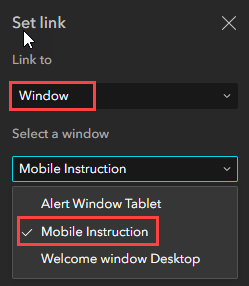
- 在设置链接窗格中,对于链接至,单击下拉菜单并选择窗口。
- 对于选择窗口,单击其下方的下拉菜单,然后选择要锚定到“按钮”微件的窗口。
Note:
An experience can have many windows (anchored to widgets) to display different information for different device modes. Renaming a window when configuring it might be convenient to perform Step 12.
- 单击确定。
- 在构建器工具栏中,单击保存和实时视图以在移动模式下保存并查看体验。
文章 ID: 000032531
获得人工智能支持
使用 Esri Support AI Chatbot 快速解决您的问题。


相关信息
发现关于本主题的更多内容

Search for related information

Find training related to this topic

Explore ideas and give feedback
获取来自 ArcGIS 专家的帮助
立即开始聊天