
PROBLEM
Subsurface profile displays incorrectly in ArcGIS Pro
Description
When bathymetry data stored locally in an Excel file is imported to ArcGIS Pro and processed for visualization using interpolation, the resulting subsurface profile is incorrectly displayed. Instead of representing actual subsurface depths, the profile appears above the reference surface, creating a misleading visualization.
Cause
The depth values are stored as positive numbers. Most depth-measuring devices record depth as a positive distance and do not convert the measurements into negative values, which are required to represent elevations below the reference surface.
Solution or Workaround
- Open the ArcGIS Pro project.
- Create a point feature class from coordinates and depths stored on the local drive using the XY Table To Point tool.
- Add a new field to the newly created point feature layer.
- In the Contents pane, right-click the point feature layer and click Attribute Table.
- In the attribute table, click Add Field to open the fields view.
- Configure the new field with the Double data type. Refer to ArcGIS Pro: Create a field and apply a domain and default value for instructions and more information.
- On the Fields tab, in the Manage Edits group, click Save. Close the fields view.
- Convert the depth values to represent elevation below the reference surface.
- In the attribute table, right-click the newly created field and select Calculate Field to configure the expression.
- In the Calculate Field dialog box, for Expression, type the following expression and replace <Field name> with the depth field in the expression box.
"-" + str(!<Field name>!)
- Click OK to apply the expression.
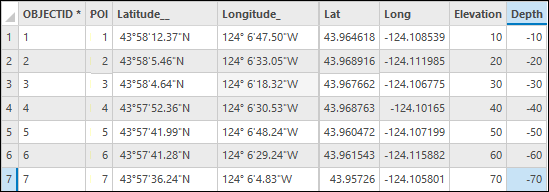
The attribute table below shows the field populated with negative depth values.
Article ID: 000039162
- ArcGIS Pro
Get support with AI
Resolve your issue quickly with the Esri Support AI Chatbot.


Related Information
Discover more on this topic

Search for related information

Find training related to this topic

Explore ideas and give feedback
Get help from ArcGIS experts
Start chatting now