
PROBLEM
Near Me widget overlaps Map widget tools on small screens in ArcGIS Experience Builder
Description
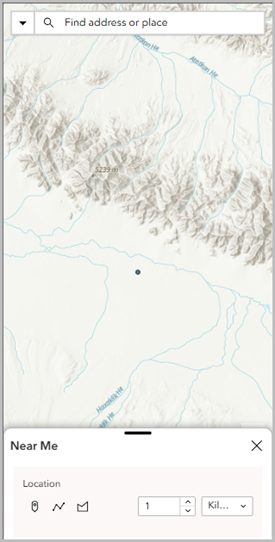
In ArcGIS Experience Builder, when the Near Me widget is placed inside the Widget Controller widget and viewed on small screen layouts, opening the Near Me widget obscures the Map widget tools, including the Locate tool, as demonstrated in the Map widget image below.
Cause
This is expected behavior. On small screen layouts, widgets opened from the Widget Controller overlay the Map widget instead of resizing or reflowing the layout. As a result, map tools such as Locate become inaccessible when the Near Me widget is opened. This behavior only occurs on small screens and does not affect medium or large screens, or configurations where the Near Me widget is placed outside the Widget Controller.
Solution or Workaround
Use one of the options below to prevent the Near Me widget from overlapping the Map widget's tools.
Add the Near Me widget directly to the page layout
Instead of embedding the Near Me widget within the Widget Controller widget, where it opens as an overlay panel, add the Near Me widget to the page layout. This keeps the widget visible and prevents it from obscuring the Map widget and its tools, especially on small screen layouts. Refer to ArcGIS Experience Builder: Insert widgets for more information.
Separate the Widget Controller widget from the small screen layout using the Custom layout
- Open the experience in ArcGIS Experience Builder.
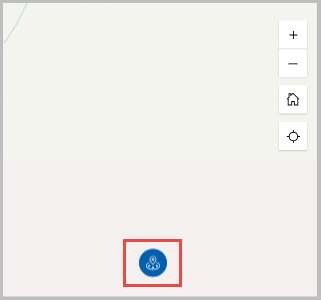
- On the small screen layout, click the Custom button on the side of the screen and click OK.
- Click the Map widget on the canvas and drag it upward.
- Click the Widget Controller widget on the canvas and drag it below the Map widget onto the small screen layout.
- Click Save to save the configuration.
Note:
When a 'Blank fullscreen' or 'Blank scrolling page' template is used, the Auto layout is enabled for medium and small screens, keeping widgets synchronized with the large-screen layout and automatically arranged. To create a separate layout for medium or small screens, click Custom next to the page or window layout, then manually arrange and resize widgets for the selected device. Refer to ArcGIS Experience Builder: Refine layouts for all devices for more information.
Use the Fixed Panel widget to host the Near Me widget
- Open the experience in ArcGIS Experience Builder.
- On the Insert widget panel, search for the Fixed Panel widget, and drag and drop it onto the canvas.
- On the Insert widget panel, search for the Near Me widget, and drag and drop it onto the Fixed Panel widget.
- Configure the Near Me widget to add analysis.
- Click the Near Me widget on the canvas to open the panel.
- On the Content tab, under Analysis Settings, click the map.
- In the map pane, click Add Analysis and click OK.
- Adjust the position of the Fixed Panel widget using the Custom button. Refer to ArcGIS Experience Builder: Add and manage pages for more information.
- Click the Custom button next to the small screen layout and click OK.
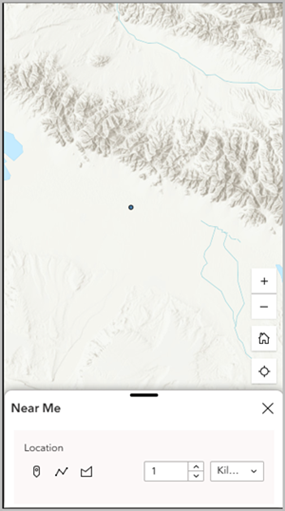
- Select and resize the Fixed Panel widget on the canvas so as to not obscure the Locate tool.
- Click Save to save the configurations.
Note:
The Fixed Panel widget can be used as an alternative when a widget must remain continuously accessible. Unlike the Widget Controller, the Fixed Panel keeps widgets visible and prevents overlay behavior.
The Map widget image below shows the Locate tool is visible on the canvas.
Article ID: 000039500
- ArcGIS Experience Builder
Get support with AI
Resolve your issue quickly with the Esri Support AI Chatbot.


Related Information
Discover more on this topic

Search for related information

Find training related to this topic

Explore ideas and give feedback
Get help from ArcGIS experts
Start chatting now