
PROBLEM
Map filters affect all pages in ArcGIS Experience Builder
Description
In ArcGIS Experience Builder, filters applied to a Map widget on one page automatically apply to all Map widgets on other pages. This prevents the creation of page-specific filtered views while maintaining a single data source.
Cause
The Map widgets are connected to the same web map data source. As a result, any filter applied to one widget is applied globally to all pages using the same map instead of it being isolated to a single page.
Solution or Workaround
- Open the ArcGIS Experience Builder web experience.
- Add the same web map multiple times as separate data sources.
- On the canvas, click the Map widget to open the Map panel.
- In the Map panel, click Select map.
- In the Select data panel, click Add new data.
- In the Add data window, navigate to and select the web map. Click Done.
- Repeat Steps 2(c) through (d) to add the same web map as many times as required.
- Close the panel.
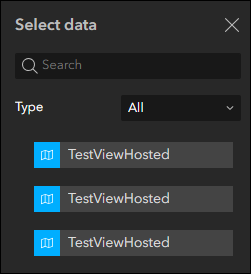
- Optionally, rename each web map for clarity.
- Click the Data tab.
- In the Data panel, click the More button next to the web map and select Rename.
- Specify the name and press Enter to apply the changes.
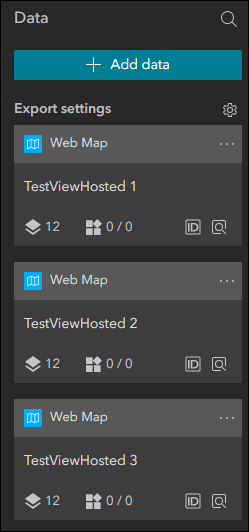
- Assign the appropriate web map to each page.
- Navigate to each page.
- Click the Map widget to open the Map panel.
- Click Select map to open the Select data panel and select the corresponding web map.
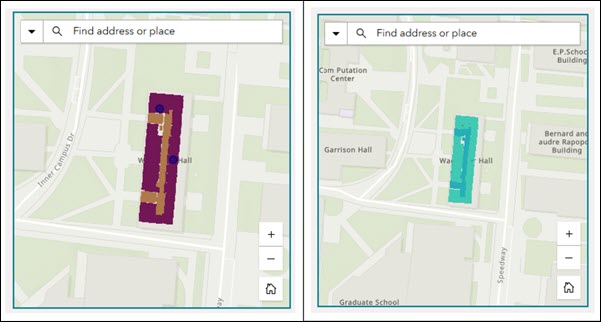
- Configure the filters independently for each Map widget. Refer to ArcGIS Experience Builder: Filter widget for more information.
The map displays the different filtered views on each page.
Article ID: 000039280
- ArcGIS Experience Builder
Get support with AI
Resolve your issue quickly with the Esri Support AI Chatbot.


Related Information
Discover more on this topic

Search for related information

Find training related to this topic

Explore ideas and give feedback
Get help from ArcGIS experts
Start chatting now