
HOW TO
Limit an operational tile layer's visible area using a sketch feature in Map Viewer
Summary
In ArcGIS Online or the ArcGIS Enterprise portal, tile layers consist of prerendered image tiles used for static data visualization, with no underlying data. Therefore, they cannot be clipped using standard geoprocessing tools.
In some cases, an operational tile layer must be displayed within a custom visible extent, such as showing only a relevant portion of a high-resolution imagery tile layer to reduce visual clutter and highlight a specific area without affecting other map layers. This effect can be achieved using sketch layers with blend modes in Map Viewer.
This article provides the workflow to limit the visible area of an operational tile layer using a sketch feature in Map Viewer.
Procedure
- Open the web map with the tile layer in Map Viewer. Refer to ArcGIS Online: Find and open a map or Portal for ArcGIS: Find and open a map for instructions.
- Create a sketch feature to specify the desired visual extent.
- On the Contents (dark) toolbar, click Add
 > Create sketch layer
  .
. - On the sketch tool, click Rectangle
 and draw the feature on the map according to the desired extent. Refer to ArcGIS Online: Add rectangles and circles or Portal for ArcGIS: Add rectangles and circles for instructions. In Step 2, choose Rectangle
  .
.
- On the Contents (dark) toolbar, click Add
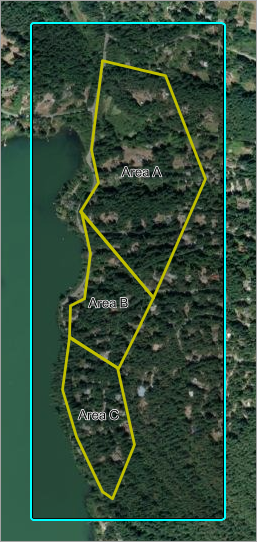
The rectangle sketch feature is added to the map.
- Group the tile layer with the sketch layer.
- In the Layers pane, on the tile layer, click Options
 > Group
  .
. - On the sketch layer, click Options
 > Move
  .
. - Select the newly created group and click OK.
- In the Layers pane, on the tile layer, click Options
- Configure the appearance and the blend mode for the sketch layer.
- In the Layers pane, expand the group layer and click the sketch layer.
- In the Properties pane, under Sketch features, on the newly added sketch feature, click Edit
 .
. - In the Sketch pane, under Style, for Fill transparency, remove the existing value and type 0.
- On the Settings (light) toolbar, click Properties
 .
. - In the Properties pane, under Appearance, click the Blending drop-down arrow and select Destination Atop under Compositing from the drop-down list. Refer to ArcGIS Online: Compositing or Portal for ArcGIS: Compositing for more information.
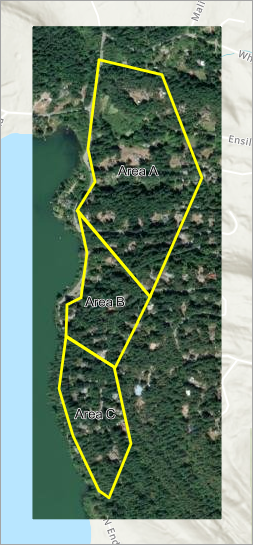
The tile layer is visually limited to the area defined by the sketch feature on the web map.
- Click Save and open
 > Save
  to save the changes.
Note:
Optionally, save the configured group layer as an item to be used on other web maps. Refer to ArcGIS Online: Save a layer or Portal for ArcGIS: Save a layer for instructions.
Article ID: 000039046
- ArcGIS Online
- Portal for ArcGIS
- ArcGIS Enterprise
Get support with AI
Resolve your issue quickly with the Esri Support AI Chatbot.


Related Information
Discover more on this topic

Search for related information

Find training related to this topic

Explore ideas and give feedback
Get help from ArcGIS experts
Start chatting now