
HOW TO
Create polygon features from a raster layer using supervised classification in ArcGIS Pro
Summary
Supervised classification is an image classification method used in remote sensing and GIS to categorize pixels in a raster image into specific land cover classes (such as water, vegetation, urban, or soil) based on samples defined by the user. Digitizing polygons from a raster created through supervised classification provides more precise and detailed visualization of land cover and surface features as it enhances the interpretation, spatial analysis, and mapping of the surface patterns. This article provides the workflow to create polygon features from a raster layer using supervised classification in ArcGIS Pro.
Procedure
Note:
This workflow requires the Image Analyst license or the Spatial Analyst license.
- Open the ArcGIS Pro project.
- Configure a classification method and schema for the raster layer using the Image Classification Wizard tool. Refer to ArcGIS Pro: Image Classification Wizard for more information.
- In the Contents pane, select the raster layer.
- On the Imagery tab, in the Image Classification group, click Classification Wizard.
- On the Configure page, for Classification Method, select Supervised from the drop-down list.
- For Classification Schema, select Use default schema from the drop-down list.
Note:
If an existing sample is available, select an appropriate one from the Classification Schema and Training Samples drop-down lists to maintain consistency in the classification process.
-
- For Output Location, specify a location for the output raster layer.
- Click Next.
- On the Segmentation page, click Next.
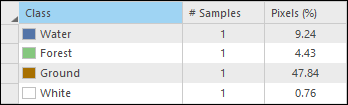
- Define the samples for each land cover class. If necessary, add new classes and create training samples. Refer to ArcGIS Pro: Training Samples Manager tools for detailed instructions and more information. The image below shows an example.
- On the Train page, specify the classification method. Refer to ArcGIS Pro: Train for instructions. Click Run.
- On the Classify, Merge Classes, and Reclassifier pages, keep the default settings unless modifications are required. Click Finish to complete the process.
- Convert the reclassified raster layer to a polygon layer. Refer to ArcGIS Pro: Raster to Polygon for more information.
- Symbolize the polygon layer. Refer to ArcGIS Pro: Apply symbology to feature layers for instructions and more information.
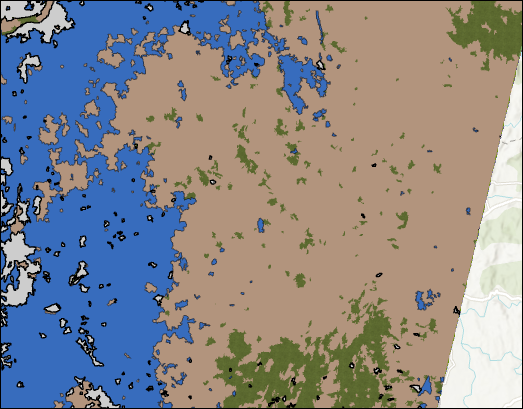
The map below illustrates the polygon features created from the supervised classified raster.
Article ID: 000038717
- ArcGIS Pro
Get support with AI
Resolve your issue quickly with the Esri Support AI Chatbot.


Related Information
Discover more on this topic

Search for related information

Find training related to this topic

Explore ideas and give feedback
Get help from ArcGIS experts
Start chatting now