
ERROR
Unable to transfer items, recipient cannot manage groups that the items are shared with
Error Message
In the ArcGIS Enterprise portal or ArcGIS Online, transferring an item to another user returns the following error message:
Error:
Unable to transfer items, recipient cannot manage groups that the items are shared with.

Cause
The target user is not a member of one or more groups associated with the item. In the ArcGIS Enterprise portal or ArcGIS Online, the new owner must be a member of all shared groups and have the appropriate role to preserve item permissions during the transfer.
Solution or Workaround
- Use the webpage Inspect tool to identify the groups the item is shared with.
- In the ArcGIS Enterprise portal or ArcGIS Online, on the Content tab, right-click the page and select Inspect from the drop-down menu.
- Attempt to transfer the ownership of the item to return the error message.
- In the Inspect window, click the Network tab and type reassign into the Filter box.
- In the Name column, click reassign.
- Click the Response tab.
- Copy each of the group IDs from the comma-separated list displayed in the error message.

Note:
Alternatively, view the item's shared groups on the item page on the Overview tab in the Sharing section.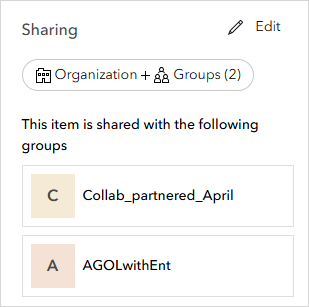
- In the ArcGIS Enterprise portal or ArcGIS Online, on the Groups tab, in the Search my groups search box, paste the copied group ID.
- Add the target user to the group with the appropriate roles. Refer to Portal for ArcGIS: Manage group membership and roles for instructions.
Article ID: 000035085
- ArcGIS Online
- Portal for ArcGIS
- ArcGIS Enterprise
Get support with AI
Resolve your issue quickly with the Esri Support AI Chatbot.


Related Information
Discover more on this topic

Search for related information

Find training related to this topic

Explore ideas and give feedback
Get help from ArcGIS experts
Start chatting now