
问题
问题:ArcGIS Pro、AllSource、Drone2Map 和 RealityStudio 需要 Microsoft Edge WebView2 Runtime
描述
Note:
To configure ArcGIS Pro versions 2.9 - 3.2 to use the WebView2 Evergreen Runtime, follow the steps in the article: How To: Configure the ArcGIS Pro Chromium WebView2 control to use the WebView2 Evergreen Runtime
自下列版本起,这些 Esri 软件产品需要安装 Microsoft Edge WebView2 Runtime,而不再依赖之前提供的固定版本 WebView2:
- ArcGIS Pro 3.3
- ArcGIS AllSource 1.2
- ArcGIS Drone2Map 2024.1
- ArcGIS Reality Studio 2024.2
在联网的 Windows 10 和 Windows 11 计算机上:
自 2023 年 1 月起,Microsoft Edge WebView2 Runtime 是所有 Windows 11 设备以及所有运行 Windows 10 2018 年 4 月更新或更高版本的 Windows 10 设备的预装软件包。 这意味着,如果您在安装了 Microsoft 支持的 Windows 10 或 Windows 11 操作系统的联网计算机上使用 ArcGIS Pro、AllSource、Drone2Map 或 Reality Studio,则无需执行任何操作;这些软件包将使用此 WebView2 Runtime 安装,并且 Microsoft 会定期通过标准 Windows 更新为 Runtime 提供修补程序和安全修复。
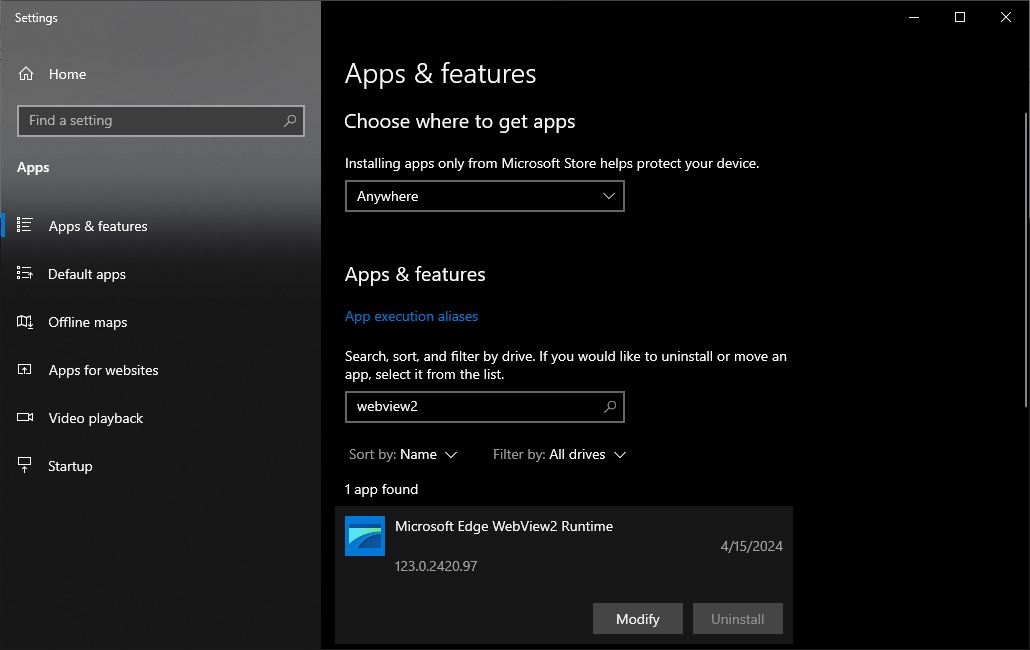
请注意,如果您的 Windows 10 或 Windows 11 计算机未联网,则您的计算机上可能未安装 WebView2 Runtime。 要确认您的 Windows 用户是否已安装 Microsoft Edge WebView2 Runtime,请在 Windows 计算机上打开“应用程序和功能”窗口,然后搜索“WebView2”。 如果您的 Windows 用户拥有安装权限,则 WebView2 Runtime 应显示在结果中,如下图所示:
在 Windows Server 计算机上:
与受支持的 Windows 10 和 11 版本不同,受支持 Windows Server 版本的计算机并未预装 WebView2 Evergreen Runtime 软件包。
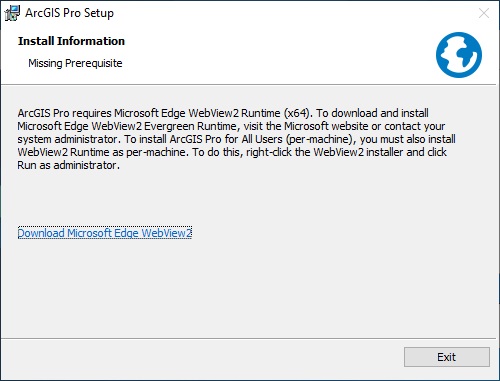
当尝试在未安装 WebView2 Runtime 的受支持 Windows Server 计算机上安装 ArcGIS Pro 3.3、AllSource 1.2、Drone2Map 2024.1 和 Reality Studio 2024.2 或更高版本时,在阻止安装继续进行之前,将显示以下警告,如下图所示:
"ArcGIS Pro/AllSource/Drone2Map/Reality Studio requires Microsoft Edge WebView2 Runtime (x64). To download and install Microsoft Edge WebView2 Evergreen Runtime, visit the Microsoft website or contact your system administrator. To install ArcGIS Pro for All Users (per-machine), you must also install WebView2 Runtime as per-machine. To do this, right-click the WebView2 installer and click Run as administrator."
原因
自 ArcGIS Pro 3.3 及更高版本,以及上文列出的 Drone2Map、AllSource 和 Reality Studio 版本起,用户需要使用 Microsoft 提供的 Evergreen Installer 安装 WebView 2,可通过以下链接找到此安装程序:WebView 2 Evergreen Installer
解决方案或解决方法
通过单独安装 Edge WebView2 Runtime,可以解决在安装 ArcGIS Pro、AllSource、Drone2Map 和/或 RealityStudio 时显示的警告。 可以通过以下工作流来完成:
- 使用所选搜索引擎搜索“Microsoft Edge WebView2 Runtime”并选择顶部结果。
- 搜索“Evergreen Standalone Installer”下载选项 - 选择“x64”选项以开始下载安装程序。
- 下载完成后,您必须以正确的模式运行安装程序,ArcGIS Pro 才能识别该组件:
- 如果在安装 ArcGIS Pro、AllSource、Drone2Map 或 Reality Studio 时选择了“Anyone who uses this computer”模式,则将执行按计算机安装。 此为默认安装模式,需要管理员权限。 要执行 Edge WebView2 Runtime 的匹配按计算机安装,请右键点击“MicrosoftEdgeWebView2RuntimeInstallerX64.exe”文件并选择“以管理员身份运行”。
- 如果在安装 ArcGIS Pro、AllSource、Drone2Map 或 Reality Studio 时选择了“Only for me”模式,则将执行该软件的按用户安装,可以在按用户或按计算机模式下安装 Edge WebView2 Runtime。 要执行 Edge WebView2 Runtime 的按用户安装,请双击“MicrosoftEdgeWebView2RuntimeInstallerX64.exe”文件以开始安装 Runtime。
完成 Microsoft Edge WebView2 Runtime 安装后,即可正常安装这些 ArcGIS 产品。
文章 ID: 000032557
获得人工智能支持
使用 Esri Support AI Chatbot 快速解决您的问题。


相关信息
发现关于本主题的更多内容

Search for related information

Find training related to this topic

Explore ideas and give feedback
获取来自 ArcGIS 专家的帮助
立即开始聊天