
PROBLEM
Unable to query Boolean fields in the Select Layer By Attribute tool
Description
In ArcGIS Pro, when running the Select Layer By Attribute tool on a Boolean field, the following error message is returned:
Error:
ERROR 999999: Something unexpected caused the tool to fail.
Cause
This is a known limitation in ArcGIS Pro. Boolean fields are not natively supported. When read from a database, Boolean fields are displayed as short integer values in the attribute table, but they do not behave as true numeric fields. This mismatch causes the Select Layer By Attribute tool to fail.
Solution or Workaround
As a workaround, create a new short integer field data type with a coded value domain and run the Select Layer By Attribute tool.
- Open the ArcGIS Pro project containing the polygon feature layer.
- Create a new short integer field data type in the attribute table and add a coded value domain. Refer to ArcGIS Pro: Create a field and apply a domain and default value for more information.
- In the Contents pane, right-click the feature layer and click Attribute Table.
- Click Add to open the Fields view.
- For Field Name, specify a name for the new field. In this example, the field name is set to Has_Data.
- For Data Type, click the drop-down arrow and select Short.
- For Domain, click the drop-down arrow and select <Add New Coded Value Domain>.
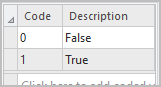
- In the Domains view, in the Code column, click the domain value code cell, and insert a value for the domain. In this example, the value is set to 0.
- In the Description column, double-click the empty cell, and insert a value for the domain. In this example, the value is set to False.
- Repeat Steps 2(f) and 2(g) to insert a second code of value 1 and the description as True. Click Save.
- On the Fields ribbon tab, under the Manage Edits group, click Save.
- In the attribute table, under the newly created field, double-click the <Null> cells, and select True or False. Alternatively, refer to How To: Apply the coded value domain description to a field in ArcGIS Pro to batch populate the new field with the coded domain values.
- Run the Select Layer By Attribute tool using the new field. Refer to ArcGIS Pro: Select Layer By Attribute (Data Management) for more information.
- On the ribbon, click the Analysis tab.
- On the Analysis tab, in the Geoprocessing group, click Tools.
- In the Geoprocessing pane, search for and select the Select Layer By Attribute tool.
- In the Select Layer By Attribute pane, for Input Rows, click the drop-down arrow and select the polygon feature layer.
- For Selection Type, click the drop-down arrow and select New selection.
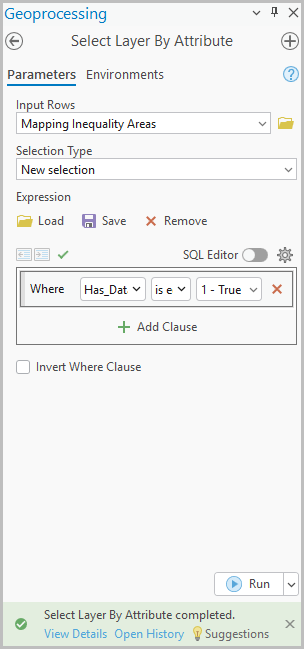
- For SQL Expression, click Add Clause if necessary, and define the clause. In this example, the clause is set to 'Has_Data is equal to 1 - True'.
- Click Run.
The image below shows the Select Layer By Attribute tool run successfully when querying the new short integer field.
Article ID: 000038064
- ArcGIS Pro
Get support with AI
Resolve your issue quickly with the Esri Support AI Chatbot.


Related Information
Discover more on this topic

Search for related information

Find training related to this topic

Explore ideas and give feedback
Get help from ArcGIS experts
Start chatting now