
PROBLEM
Unable to hide fields in ArcGIS Instant Apps forms
Description
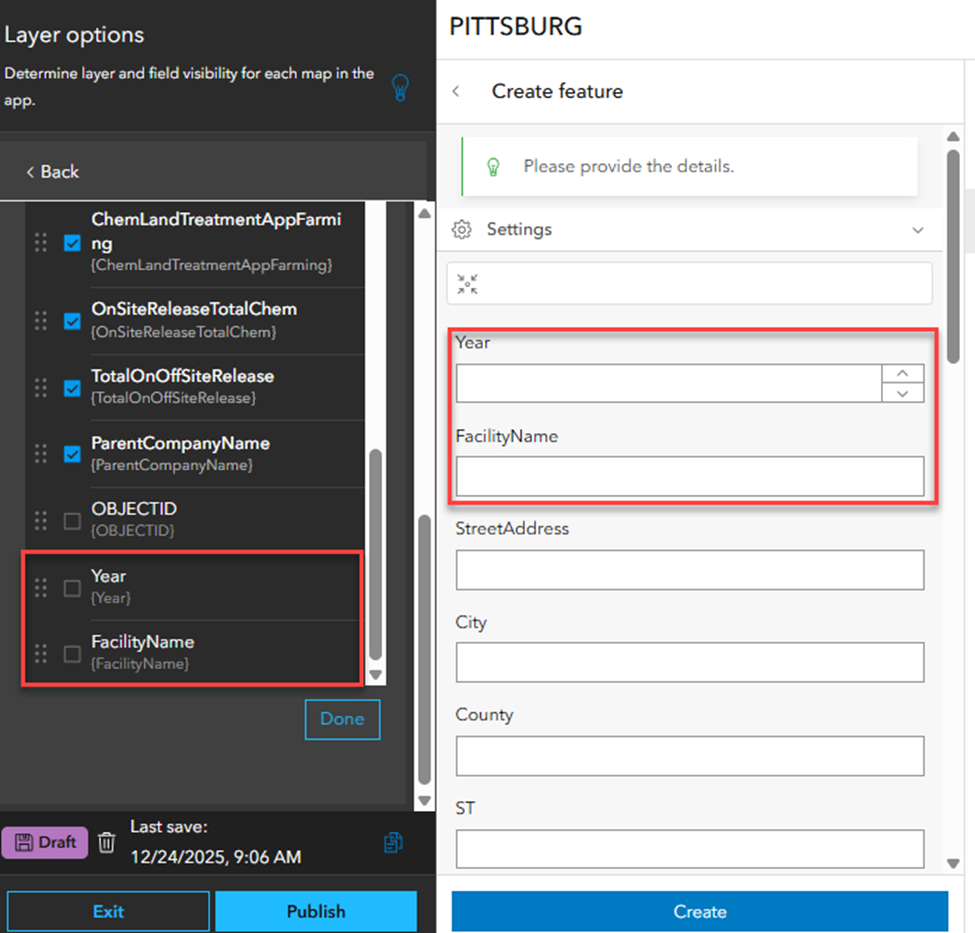
Fields remain visible when creating or editing a feature in ArcGIS Instant Apps forms even though field visibility is disabled in the layer visibility settings.
For example, the ‘Create feature’ pane below displays the Year and FacilityName fields although field visibility is disabled in the 'Layer options' pane of the Instant Apps Manager template.
Cause
The layer visibility settings do not control which fields are displayed in Edit or 'Create feature'. Layer visibility only affects the field display in the attribute table. So hiding fields in 'Layer options' does not hide the fields in the form.
Solution or Workaround
Select fields through form configuration for the layers in Map Viewer
In Map Viewer, configure a form for attribute editing and select the required fields to present them as form elements. Refer to ArcGIS Online: Configure a form for more information. Refresh the existing ArcGIS Instant Apps to reflect the changes in field visibility.
Note:
Optionally, configure the form using ArcGIS Field Maps Designer. Refer to ArcGIS Field Maps: Build the form for more information.
Article ID: 000039759
- Configurable Web Apps
Get support with AI
Resolve your issue quickly with the Esri Support AI Chatbot.


Related Information
Discover more on this topic

Search for related information

Find training related to this topic

Explore ideas and give feedback
Get help from ArcGIS experts
Start chatting now