
PROBLEM
The Unselect Highlighted tool behaves unexpectedly in ArcGIS Pro
Description
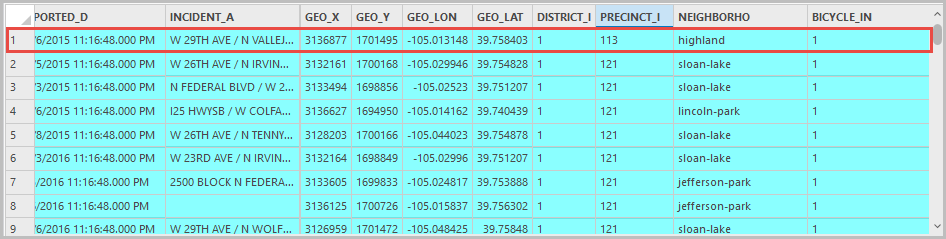
In ArcGIS Pro 3.4 through 3.6, the Unselect Highlighted tool behaves unexpectedly when removing highlighted rows from the current selection set. The tool removes incorrect rows from the attribute table, and in some cases, the highlighted rows are not removed after clicking the tool.
The image below shows the deleted row still appearing in the attribute table.
Cause
This is currently a known limitation in ArcGIS Pro 3.4 through 3.6 as per BUG-000173727. When the table is sorted, ArcGIS Pro reindexes the display order of the records. However, the highlight indices are not realigned with the underlying ObjectIDs. As a result, when Unselect Highlighted is used, the application removes the wrong subset of selected features because it interprets the highlighted row positions incorrectly.
Solution or Workaround
Use Select By Attributes to remove the rows
- Open the project with the feature layer.
- In the Contents pane, right-click the feature layer and click Attribute Table.
- In the attribute table, press the Ctrl + A keys to highlight all records.
- On the attribute table toolbar, click Select By Attributes to open the Select By Attribute geoprocessing tool.
- In the Select By Attributes dialog box, for Selection Type, click the drop-down arrow and select Remove from the current selection.
- For SQL expression, click Add Clause and define the clause.
- Click Apply > OK.
Create a new layer from the selection features
Create a new feature layer from the selected features in ArcGIS Pro. In this example, the selected features are the rows to keep. Refer to ArcGIS Pro: Make a selection layer from selected features for instructions.
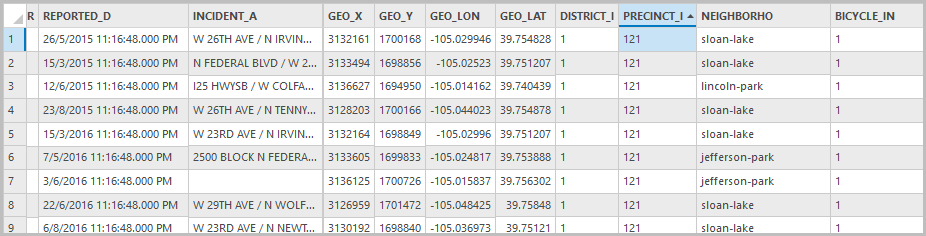
The image below shows the accurate fields in the attribute table.
Article ID: 000038950
- ArcGIS Pro
Get support with AI
Resolve your issue quickly with the Esri Support AI Chatbot.


Related Information
Discover more on this topic

Search for related information

Find training related to this topic

Explore ideas and give feedback
Get help from ArcGIS experts
Start chatting now