
PROBLEM
The locator source is displayed in the Map Layers widget when the Search widget is used in ArcGIS Experience Builder
Description
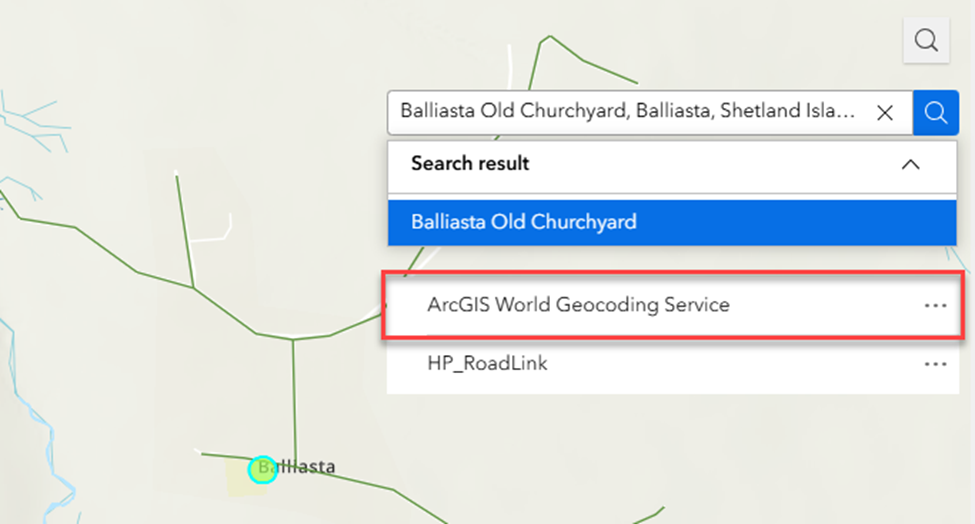
In ArcGIS Experience Builder, when searching for a location in the Search widget where the source interacts with a Map widget, the locator source is displayed in the Map Layers widget. This disrupts the user experience and creates challenges for end users.
The web experience below shows the locator source, ArcGIS World Geocoding Service, is displayed in the Map Layers widget when the Search widget is used in ArcGIS Experience Builder.
Cause
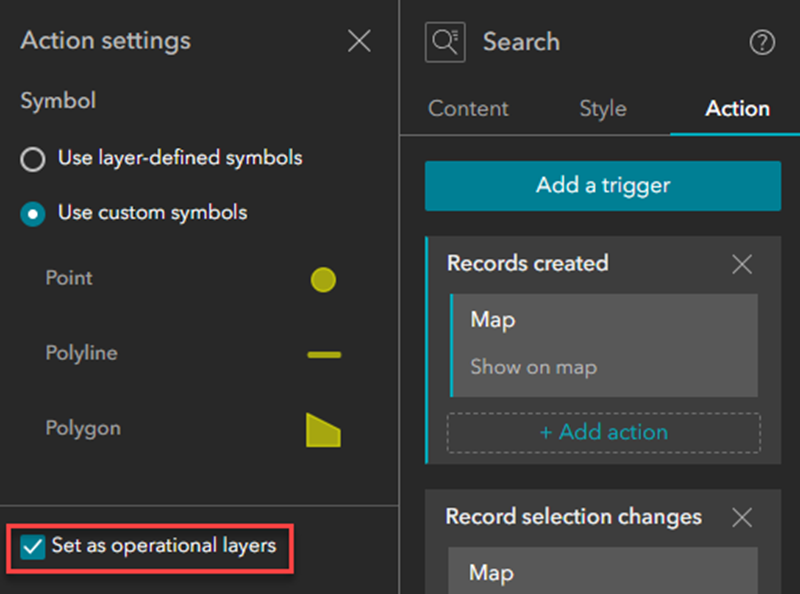
- In the Search panel, the 'Set as operational layers' check box is checked by default because the 'Records created' trigger runs the 'Show on map' action.
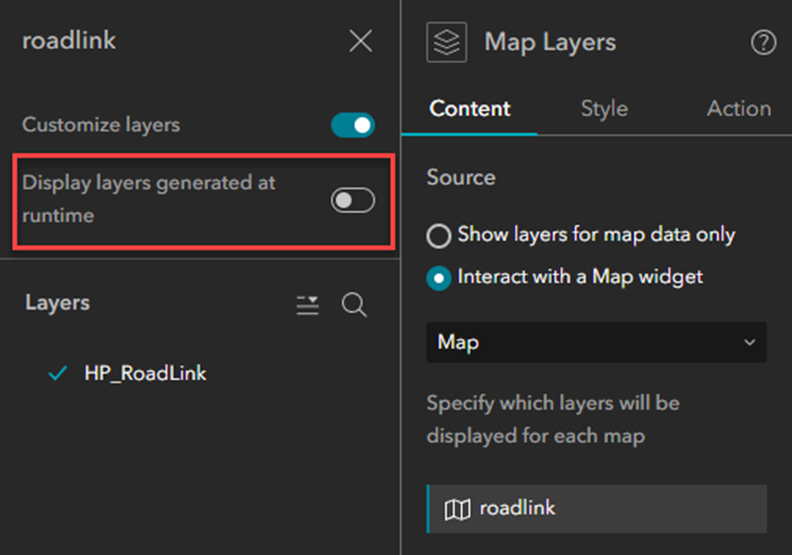
- In the Map Layers panel, the 'Display layers generated at runtime' option is toggled on by default. This causes temporary layers, including locator source results, to be displayed even if they are not set as operational layers.
Solution or Workaround
Depending on the cause, the workarounds described below are applicable.
Uncheck the 'Set as operational layers' check box in the Search panel
- Open the ArcGIS Experience Builder web experience.
- Click the Search widget to open the Search panel.
- In the Search panel, on the Action tab, under Records created, click Show on map.
- Under Action settings, uncheck the Set as operational layers check box.
- Save, preview, and publish the web app.
Toggle 'Display layers generated at runtime' off in the Map Layers panel
- Open the ArcGIS Experience Builder web experience.
- Click the Map Layers widget to open the Map Layers panel.
- In the Map Layers panel, on the Content tab, under Source, select the layer. In this example, roadlink is selected.
- Under the selected layer, toggle Display layers generated at runtime off.
- Save, preview, and publish the web app.
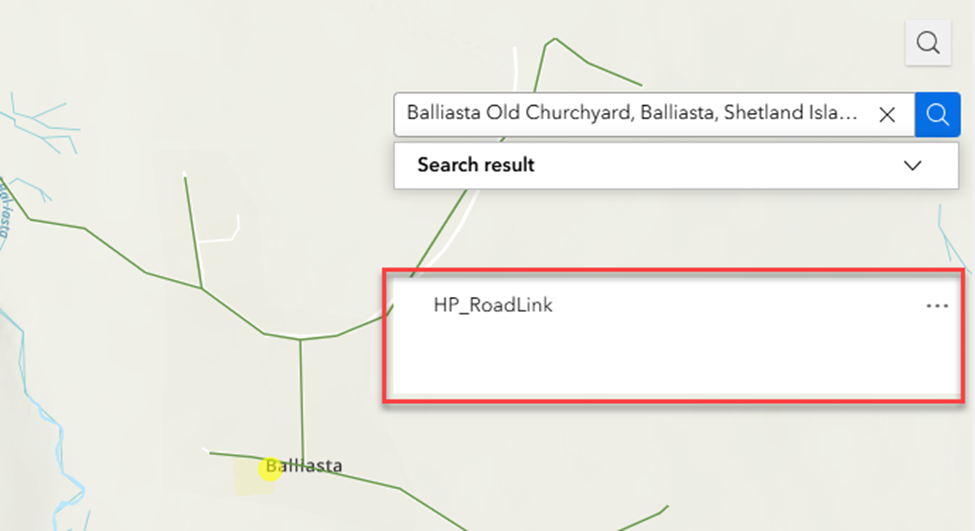
The web experience below shows the Map Layers widget displaying only the feature layers when the Search widget is used in ArcGIS Experience Builder.
Article ID: 000036345
- ArcGIS Online
- ArcGIS Enterprise
- ArcGIS Experience Builder
Get support with AI
Resolve your issue quickly with the Esri Support AI Chatbot.


Related Information
Discover more on this topic

Search for related information

Find training related to this topic

Explore ideas and give feedback
Get help from ArcGIS experts
Start chatting now