
PROBLEM
Paste Special returns null values in ArcGIS Pro
Description
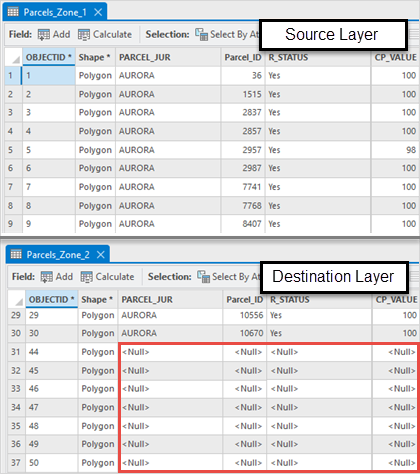
In ArcGIS Pro, when using Paste Special, the attribute values are not copied to the destination feature layer's attribute table. Instead, the attribute table displays null values, as shown in the image below.
Cause
- The source and destination feature classes have different schemas. ArcGIS Pro only transfers the field values from one feature class to another when the fields match.
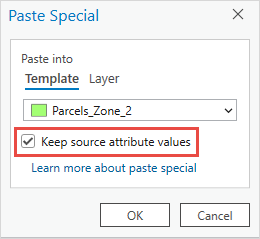
- The ‘Keep source attribute values’ option is not checked.
Solution or Workaround
Depending on the cause, the workarounds described below are applicable.
Modify or import the schema
Use the Fields view to compare the schemas of the source and destination feature classes. Then, modify the schema of the destination feature class to ensure it matches the schema of the source feature class.
- Open the ArcGIS Pro project.
- Open the Fields view to compare the schemas of the source and destination feature classes.
- Modify the schema of the destination feature class to match the schema of the source feature class by performing one of the following workflows:
- Rename the field to match the copied field. Refer to ArcGIS Pro: Edit a field's name and alias for instructions.
- Change the data type of the field to match the copied field. Refer to How To: Change the data type of an existing field in ArcGIS Pro for instructions.
- Create a new feature class and import the schema from the source feature class. Refer to How To: Import a schema from a feature class to a new feature class in ArcGIS Pro for instructions.
- If the source layer has a domain applied, apply a similar domain to the destination layer's field. Refer to ArcGIS Pro: Create a field and apply a domain and default value for instructions.
- Copy the features from a feature layer and use Paste Special to paste the features to another feature layer. Refer to ArcGIS Pro: Paste to a specified layer for instructions.
Note:
To transfer attributes between feature layers without altering the schema, use the Append tool. Refer to How To: Append feature classes that have different schemas in ArcGIS Pro for further instructions.
Keep the source attribute values when pasting the features
In the Paste Special dialog box, check the Keep source attribute values check box. This option ensures the attribute values are pasted into the matching fields of the destination layer. Refer to the first workaround to match the schemas of the source and destination layers.
Article ID: 000033264
- ArcGIS Pro 3 1
- ArcGIS Pro 3 3
- ArcGIS Pro 3 2
Get support with AI
Resolve your issue quickly with the Esri Support AI Chatbot.


Related Information
Discover more on this topic

Search for related information

Find training related to this topic

Explore ideas and give feedback
Get help from ArcGIS experts
Start chatting now