
PROBLEM
Fields missing or incorrect results returned when Summarize Within is used in ArcGIS Pro
Description
In ArcGIS Pro, some fields in the attribute table are missing from the Summary Fields drop-down menu when the Summarize Within geoprocessing tool is used, as shown in the attribute table and Summarize within pane below.
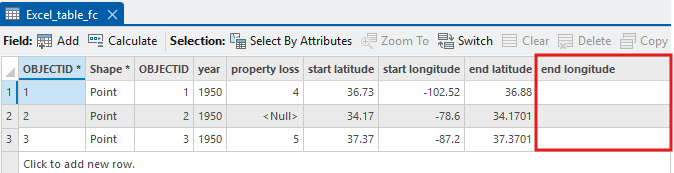
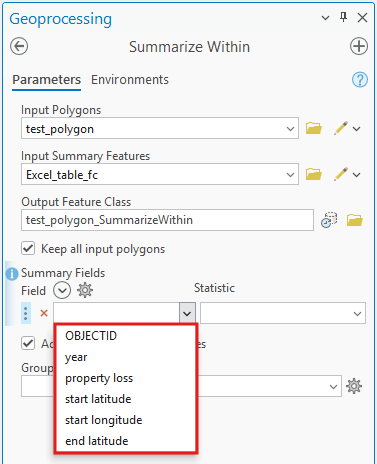
In some instances, selecting an available field and running the tool returns incorrect results.

Cause
- The Summary Fields parameter only supports numeric field types in the attribute table.
- The selected numeric field contains null values, which are treated as empty values and excluded from the calculations when the tool is run.
Solution or Workaround
Depending on the cause, the following workarounds are applicable.
Create a numeric field and copy values from the original field
- In ArcGIS Pro, open the project containing the existing feature class.
Note:
Optionally, export the feature class to create a copy of the data.
- On the ribbon, click the Analysis tab, and click Tools.
- In the Geoprocessing pane, search for and click Add Field (Data Management Tools).
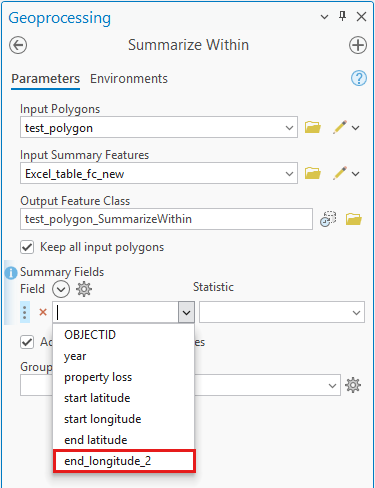
- Add a new field with a numeric data type to the attribute table of the feature class using the Add Field tool. Refer to ArcGIS Pro: Numbers for more information. In this example, the field is named end_longitude_2.
Note:
Optionally, delete or hide the old empty field from the attribute table before changing the alias of the new field to match the old field.
Note:
Add new fields with a numeric data type using the Add Fields (multiple) tool when there are multiple empty or non-numeric fields in the attribute table.
- Copy the original field values to the newly added field. Refer to How To: Copy field values to another field in ArcGIS Pro for instructions.
The Summarize Within pane below shows the new field is available for selection from the Summary Fields drop-down menu.
Replace the null values with zero in the attribute table
- Open the project in ArcGIS Pro.
- Use the Calculate Field tool to convert the null values to zero.
- Open the attribute table of the feature class, right-click the header of the field and click Calculate Field.
- In the Calculate Field window, for Input Table, select the feature layer from the drop-down menu.
- For Field Name (Existing or New), select the newly created field from the drop-down menu.
- For Expression Type, select Python from the drop-down menu.
- For Expression, copy the code below and paste it in the expression box. Replace <FieldName> by double-clicking the field in the Fields list.
0 if !<FieldName>! is None else !<FieldName>!
- Click Apply > OK. All the numeric fields with null values are converted to zero.
Note:
Alternatively, change all the empty fields to numeric fields. For example, set the null values to zero in Excel before exporting the table to ArcGIS Pro.
The attribute table below shows the correct summary results.

Article ID: 000037627
- ArcGIS Pro
Get support with AI
Resolve your issue quickly with the Esri Support AI Chatbot.


Related Information
Discover more on this topic

Search for related information

Find training related to this topic

Explore ideas and give feedback
Get help from ArcGIS experts
Start chatting now