
PROBLEM
Editing issues with hover-enabled Card widget in ArcGIS Experience Builder
Description
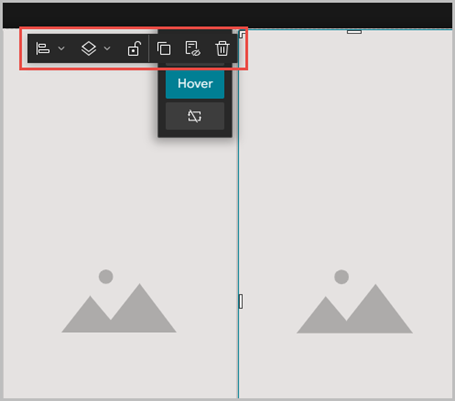
When editing a Card widget with the Hover state enabled, the widget’s toolbar overlaps the Default and Hover state buttons for Card widgets positioned at the edge of the canvas, preventing state switching.
Additionally, when the Hover state is enabled in a Card widget with a Classic template, Text widgets nested within it cannot be edited regardless of their position on the canvas.
The Card widget below shows the editing toolbar obstructing the Default state button.
Cause
- When ‘Lock Layout’ is toggled off, the widget’s toolbar is fully displayed upon selection, overlapping the state options for widgets on the canvas edge. This is currently a known limitation.
- The text editing issue is as designed. When the Hover state is manually enabled, the Auto layout is automatically selected, where text content cannot be edited. Enabling the Hover state causes it to override the Default state; consequently, text edits made in the Default state are not retained when Hover is active.
Solution or Workaround
Depending on the cause, the workarounds below are applicable.
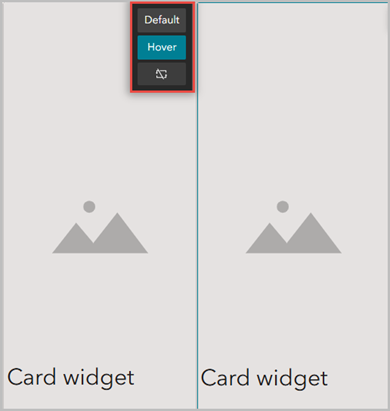
Lock the layout to hide the widget's toolbar before switching states
- Open the ArcGIS Experience Builder web experience.
- Toggle Lock layout on.

- On the canvas, click the Card widget and click Default.
- Toggle Lock layout off to continue editing.
- Click Save.
Note:
Ensure Lock layout is toggled off before applying the workarounds below.
Toggle the Hover state off and edit the Text widget
- Open the ArcGIS Experience Builder web experience.
- On the canvas, click the Card widget to open the widget's configuration panel.
- On the Content tab, navigate to the Hover section, and toggle Enable hover off.
- Make the edits in the Text widgets.
- On the Content tab, navigate to the Hover section, and toggle Enable hover on.
Note:
If the Custom layout is selected, use the Linked to button to apply changes to the other state or isolate edits to the current state. Refer to ArcGIS Experience Builder: Card widget.
- Click Save.
Edit the Text widget outside the Card widget
- Open the ArcGIS Experience Builder web experience.
- Click and drag the Text widget from within the Card widget to a location outside the Card widget on the canvas.
- Make the necessary edits, then drag the Text widget back to its original location within the Card widget.
- Repeat Steps 2 through 3 for other Text widgets, if required.
- Click Save.
Article ID: 000039289
- ArcGIS Online
- ArcGIS Experience Builder
Get support with AI
Resolve your issue quickly with the Esri Support AI Chatbot.


Related Information
Discover more on this topic

Search for related information

Find training related to this topic

Explore ideas and give feedback
Get help from ArcGIS experts
Start chatting now