
PROBLEM
Conditional label expressions result in blank labels in ArcGIS Pro
Description
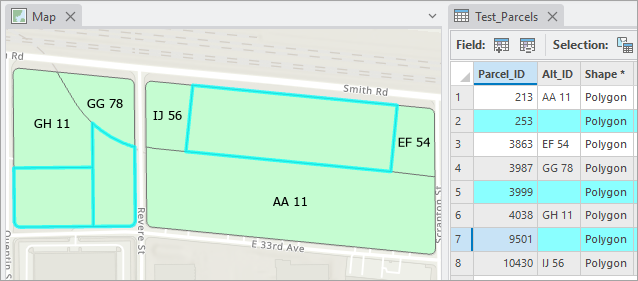
In ArcGIS Pro, when a label expression includes a condition to compare and display only the non-null value from two fields, some labels are not displayed.
In this example, an expression is configured to label features using the non-null value from the Alt_ID or Parcel_ID field, with priority set on Alt_ID when both fields contain values. However, when Alt_ID attributes are empty, the expression fails to display the Parcel_ID value, resulting in blank labels.
Cause
This behavior is expected when the main field contains only spaces, which ArcGIS Pro treats as valid non-null values. As a result, labels appear blank because the attribute has no visible characters.
Solution or Workaround
Refer to any of the following workarounds to display the labels correctly in the map view using conditional label expressions.
Incorporate the DefaultValue and Trim functions in the label Arcade expression
This workaround incorporates the DefaultValue function to display the non-null value for the labels and the Trim function to remove spaces from the blank attributes.
- Open the ArcGIS Pro project.
- Specify the label expression.
- In the Contents pane, right-click the desired feature layer and click Labeling Properties….
- In the Label Class pane, ensure Arcade is chosen for Language.
- For Expression, in the expression box, type the code provided below to apply non-null values for the labels while removing spaces from the blank attribute values using the DefaultValue and Trim functions. Replace <field_a> with the main labeling field and <field_b> with the secondary labeling field.
DefaultValue(Trim(<field_a>),<field_b>)
- Click Verify
 .
. - Click Apply.
Use if conditions in the label Arcade expression
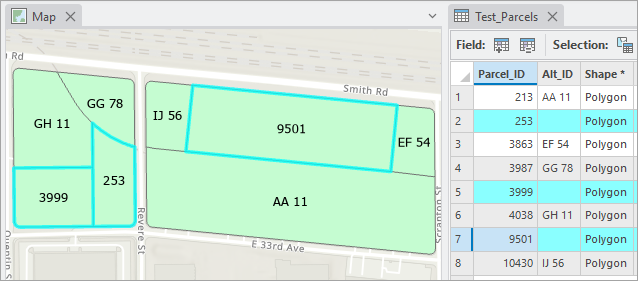
This workaround incorporates the if conditional properties in the expression to display only the non-null values for the labels.
- Open the ArcGIS Pro project.
- Specify the label expression.
- In the Contents pane, right-click the desired feature layer and click Labeling Properties….
- In the Label Class pane, ensure Arcade is chosen for Language.
- For Expression, in the expression box, type the code provided below to return only the non-null values for the labels using an if condition. Replace <field_a> with the main labeling field and <field_b> with the secondary labeling field.
if (IsEmpty(<field_a>)) {
    return <field_b>;
} else {
    return <field_a>;
}
Note: Labels might be duplicated due to the labeling engine configurations. To remove the duplicated labels, click Conflict resolutionon the Position tab of the Label Class pane, then click the Remove duplicate labels drop-down arrow and select Remove all from the drop-down list. Refer to ArcGIS Pro: Repeat labels along and within features for more information.
- Click Verify
 .
. - Click Apply.
The image below shows the labels in the map view.
Replace the blank attributes with null values before applying the conditional label expression
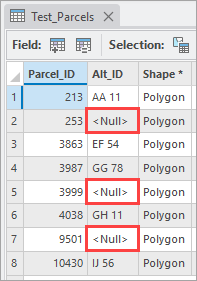
This workaround automatically replaces the blank attributes with null values using Calculate Field, allowing conditional labeling to return the labels correctly.
- Open the ArcGIS Pro project.
- Replace the blank attributes with null values using Calculate Field.
- In the Contents pane, right-click the feature layer and click Attribute Table.
- In the attribute table, right-click the field with the blank attributes and click Calculate Field.
- In the Calculate Field window, click the Expression Type drop-down arrow and click Python.
- For Expression, in the expression box, type the code provided below to replace the blank attributes with null values. Replace <field_a> with the name of the field containing the blank attributes.
None if !<field_a>!.strip() == "" else !<field_a>!
- Click Verify
 .
. - Click Apply to apply the expression.
- Click OK to close the window.
The blank attributes are replaced with null values.
- Specify the label expression.
- In the Contents pane, right-click the desired feature layer and click Labeling Properties….
- In the Label Class pane, ensure Arcade is chosen for Language.
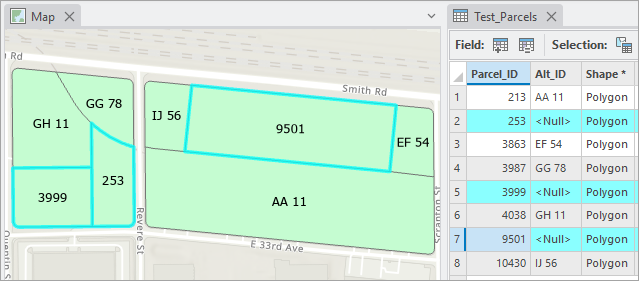
- For Expression, in the expression box, type the code provided below to return only the non-null values for the labels using the DefaultValue function. Replace <field_a> with the main labeling field and <field_b> with the secondary labeling field.
DefaultValue(<field_a>,<field_b>)
- Click Verify
 .
. - Click Apply.
The image below shows the labels in the map view.
Article ID: 000037065
- ArcGIS Pro
Get support with AI
Resolve your issue quickly with the Esri Support AI Chatbot.


Related Information
Discover more on this topic

Search for related information

Find training related to this topic

Explore ideas and give feedback
Get help from ArcGIS experts
Start chatting now