
PROBLEM
Basemap appears darker in ArcGIS Instant Apps
Description
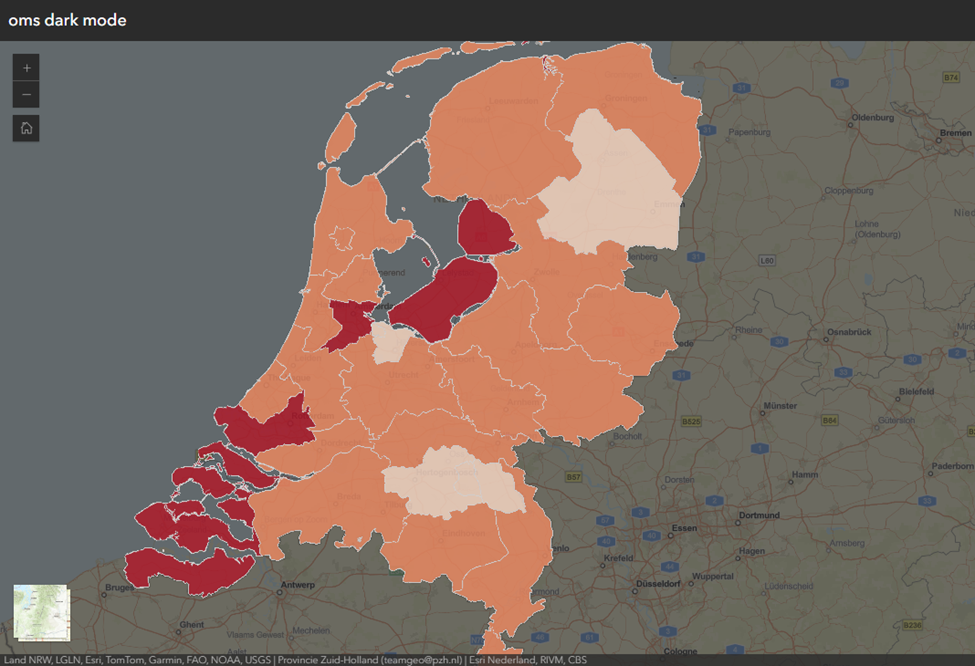
In the ArcGIS Instant Apps Basic (Media Map) template, enabling the dark mode in theme configuration applies a dark interface and background, improving visual comfort in low-light environments. However, in some cases, when dark mode is enabled, the basemap appears darker, as demonstrated in the image below.
Cause
Transparency is applied to the basemap in the Map Viewer web map. When dark mode is enabled in the ArcGIS Instant Apps web app, the dark background blends with the transparent basemap, causing the basemap to appear darker and reducing overall visibility.
Solution or Workaround
Change to light mode in the theme configuration
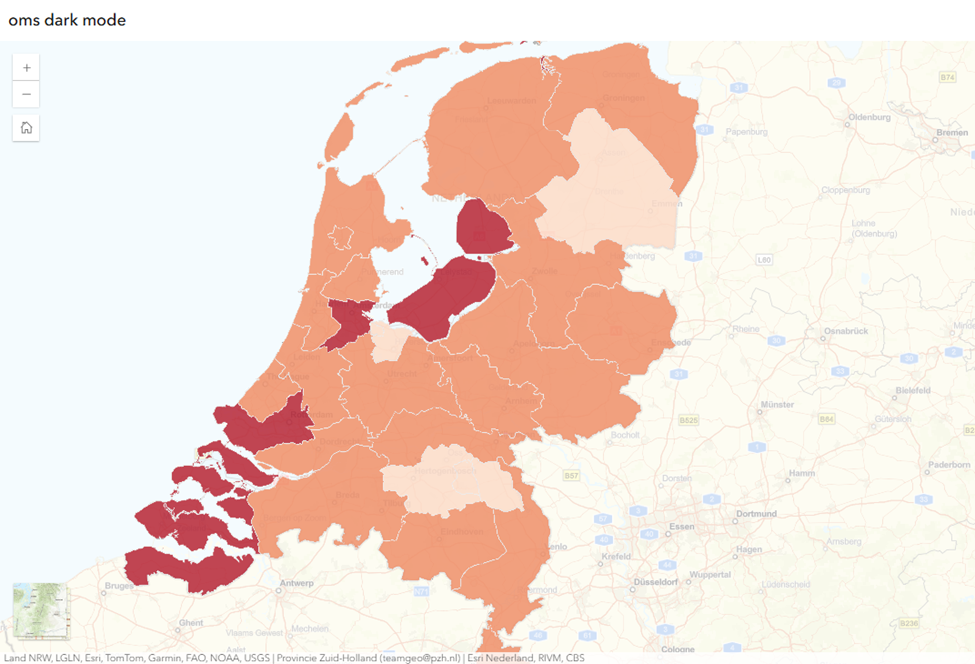
Use light mode to remove the dark background behind the basemap, preventing transparency from causing the basemap to appear darker. In the theme configuration, select Light from the Select a mode drop-down menu. Refer to ArcGIS Blog: Instant Apps theming tools - It has never been easier to add color and branding to your apps for more information.
The basemap appears lighter when light mode is used in ArcGIS Instant Apps, as demonstrated below.
Adjust the transparency of the basemap in ArcGIS Online Map Viewer
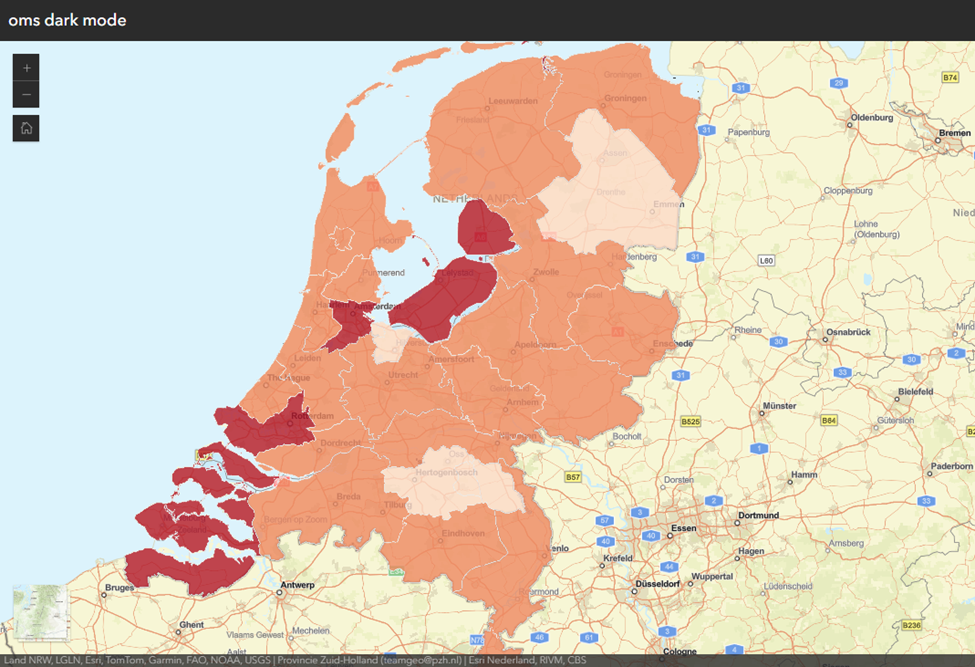
Set the Transparency slider to 0% to ensure the basemap is displayed at full opacity. This prevents the basemap from blending with the dark background in dark mode and eliminates the darker appearance. Refer to How To: Adjust the transparency of a basemap in ArcGIS Online (after June 2025 release) for instructions.
The basemap displays correctly in ArcGIS Instant Apps, as demonstrated below.
Article ID: 000039329
- ArcGIS Online
- Configurable Web Apps
Get support with AI
Resolve your issue quickly with the Esri Support AI Chatbot.


Related Information
Discover more on this topic

Search for related information

Find training related to this topic

Explore ideas and give feedback
Get help from ArcGIS experts
Start chatting now