
HOW TO
Split polygons intersected by lines in ArcGIS Pro
Summary
In ArcGIS Pro, splitting polygon features intersected by line features is a common workflow when polygons must be subdivided for more precise analysis, editing, or visualization. For example, land parcel polygons can be divided by newly constructed road alignments, or planning units can be created using engineering layouts or design lines. This article describes the workflow to split polygons intersected by lines.
Procedure
Use the Split tool
This workflow is recommended for simple overlaps or splitting a small number of polygon features, particularly when performing targeted edits or corrections requiring precise manual control. It is best used in situations where accuracy is required for specific areas rather than processing entire datasets, as the method becomes inefficient and impractical for large or complex datasets. Refer to How To: Split features with other features for instructions to split polygon features using line features.
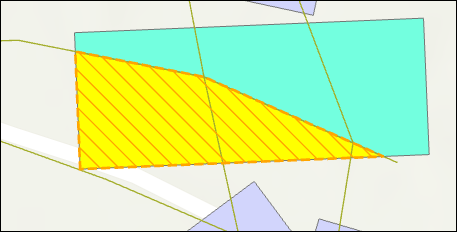
The image below illustrates the polygon split into two along the horizontal line.
Use the Feature To Polygon tool
This workflow is suitable for moderately complex datasets and offers a straightforward method to split polygons. However, the tool does not preserve the original attributes, so additional steps are required to restore attribute information.
- Open the ArcGIS Pro project.
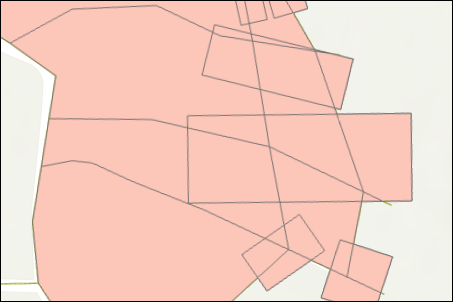
- Convert the existing polygon and line layers into a new polygon layer using the Feature To Polygon tool. Refer to ArcGIS Pro: Feature To Polygon for more information. In the Feature To Polygon pane, for Input Features, select the polygon and line feature layers from the drop-down list.
- Optionally, use the Spatial Join tool to update the attribute table of the newly created polygon layer by transferring attribute values from the original polygons. Refer to ArcGIS Pro: Spatial Join for more information.
- Remove unwanted polygons created during the process to clear the output. Refer to ArcGIS Pro: Delete a feature in a map for instructions.
Use the Intersect tool
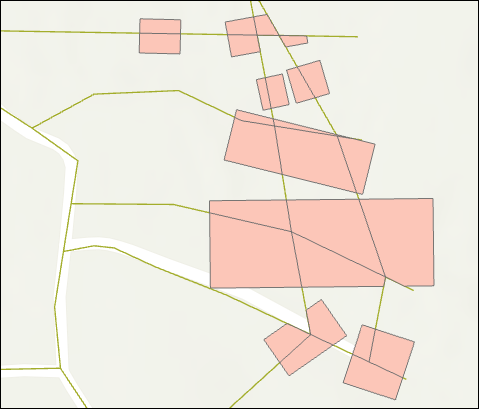
This workflow is recommended for complex datasets with multiple intersecting layers. Using the Intersect tool splits polygons at all intersection locations while preserving attributes from every input layer, making it useful in identifying relationships between overlapping features and conducting detailed spatial analysis. However, the output is not separated into clean individual polygons, so additional processing steps are required.
- Open the ArcGIS Pro project.
- Convert the polygon layer to a line layer. Refer to ArcGIS Pro: Polygon To Line for more information.
- Merge the output in Step 2 with the existing line layer using the Merge tool. Refer to ArcGIS Pro: Merge for more information.
- Intersect the merged line layer with the original polygon layer using the Intersect or Pairwise Intersect tool. Refer to ArcGIS Pro: Intersect and ArcGIS Pro: Pairwise Intersect for more information.
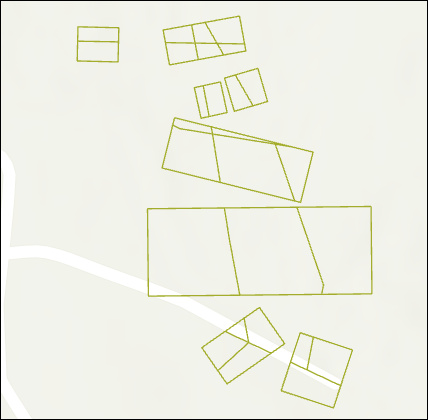
- Convert the intersected output to polygons using the Feature To Polygon tool to produce clean, visually meaningful splits. If attributes from the original polygon layer must be retained, perform a Spatial Join tool to transfer the appropriate fields to the new polygon features. Refer to ArcGIS Pro: Feature To Polygon and ArcGIS Pro: Spatial Join for more information.
Article ID: 000039383
- ArcGIS Pro
Get support with AI
Resolve your issue quickly with the Esri Support AI Chatbot.


Related Information
Discover more on this topic

Search for related information

Find training related to this topic

Explore ideas and give feedback
Get help from ArcGIS experts
Start chatting now