
ERROR
ArcGIS Pro: Splitting Line Features failed
Error Message
When using the Split tool to split polyline features in ArcGIS Pro, the operation fails and returns the error message:
Error:
Splitting Line Features failed.
Cause
This is currently a known limitation in ArcGIS Pro. The Split tool relies on the map's coordinate system to process the sketch geometry. When the map and layer use different spatial references, the geometry transformation between projections causes a misalignment, preventing the split operation from completing successfully.
Solution or Workaround
Match the map's coordinate system to the feature layer
- Open the ArcGIS Pro project.
- In the Contents pane, right-click the name of the map and click Properties.
- In the Map Properties window, click Coordinate Systems. In the Search box, search for the feature layer coordinate system. In this example, the coordinate system is WGS 1984.
- Click Apply > OK.
Reproject the feature layer to a different coordinate system
- Open the ArcGIS Pro project.
- On the top ribbon, click the Analysis tab > Tools.
- In the Geoprocessing pane, search for and click Project (Data Management Tools). The Project pane opens.
- In the Project pane, click Parameters.
- Click the drop-down menu of Input Dataset or Feature Class, and select the feature layer.
- For Output Dataset or Feature Class, specify a name for the output layer and its location.
- For Output Coordinate System, select the desired coordinate system. In this example, WGS 1984 is selected.
- Click Run.
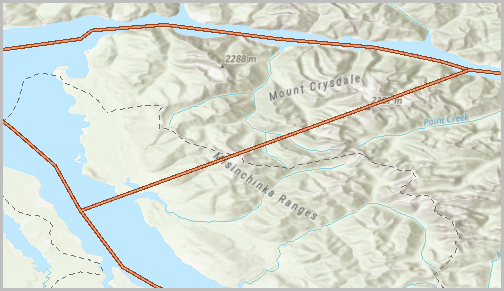
The image below shows the polyline feature is successfully split.
Article ID: 000038433
- ArcGIS Pro
Get support with AI
Resolve your issue quickly with the Esri Support AI Chatbot.


Related Information
Discover more on this topic

Search for related information

Find training related to this topic

Explore ideas and give feedback
Get help from ArcGIS experts
Start chatting now