
HOW TO
Prevent NULL and empty string values in an attribute table in ArcGIS Pro
Summary
In ArcGIS Pro, disabling a field’s Allow NULL property prevents storing null values in the database. However, this does not prevent the entry of empty strings ("") in text fields. Since the system treats NULL and empty strings as two distinct values, a field may appear blank in the attribute table despite containing data.
This article explains the workflow to enforce an attribute rule that ensures text fields are always populated with meaningful values.
Procedure
Create a constraint attribute rule in ArcGIS Pro
- Open the project in ArcGIS Pro.
- Add global IDs to the attribute table of the desired feature layer using the Add Global IDs tool.
- In the Contents pane, right-click the feature layer and click Data Design > Attribute Rules.
- In the Attribute Rules view, click Constraint, and then click Add Rule to create a new rule.
- In the details pane of the Attribute Rules view, click Expression
 to open the Expression Builder dialog box.
 - In the Expression Builder dialog box, for Expression, add the following Arcade expression in the expression box. Replace <Field_Name> with the target text field name.
if (IsEmpty($feature.<Field_Name>)) {
    return false;
}
return true;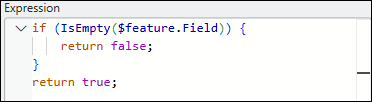
Note:
The IsEmpty() function evaluate both null values and empty strings. Returning false prevents the record from being saved if the field is empty. Meanwhile, returning true allows saving when a valid value is present.
- Click Validate > OK.
- For Triggers, check the Insert and Update check boxes.
- For Error, specify a desired value in the Error Number box and enter a descriptive text for Error Message.
- On the Attribute Rules tab, in the Manage Edits group, click Save to save the attribute rules.
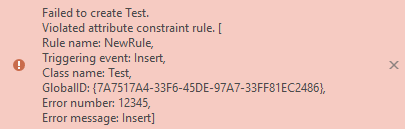
The error message below indicates NULL and empty string values are prevented in the attribute table.
Article ID: 000037890
- ArcGIS Pro
Get support with AI
Resolve your issue quickly with the Esri Support AI Chatbot.


Related Information
Discover more on this topic

Search for related information

Find training related to this topic

Explore ideas and give feedback
Get help from ArcGIS experts
Start chatting now