
HOW TO
Handle text fields with embedded numbers using Arcade
Summary
In some cases, attribute fields in ArcGIS Pro contain values that are a combination of text and numbers, such as "0.15 ACRES". Although they represent numeric data, these fields are stored as text, preventing proper symbology and numerical analysis. Since field types can't be changed after creation, Arcade expressions can be used to extract and convert the numeric portion for improved data management and calculation.
Procedure
To address the issue of mixed text and numeric values, for example, "0.15 ACRES", follow these steps to extract and convert the numeric portion using field calculation in ArcGIS Pro:
- Open the Attribute Table of the relevant layer.
- Locate the field containing the mixed values, for example, Frontage_o.
- Right-click the field header and choose Calculate Field from the context menu.
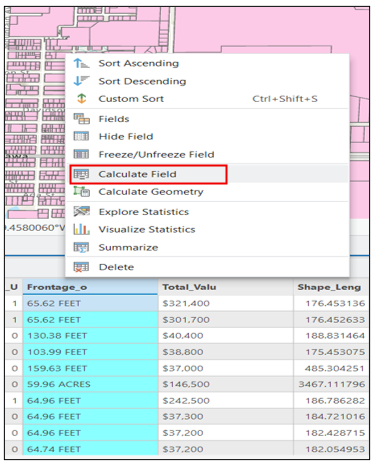
- Configure the field calculation Using Arcade:
- In the Calculate Field window, enter a name for the new field under Field Name.
- For example: Area_Acres
- Under Field Type, choose the appropriate numeric type.
- In this case, select Float (32-bit floating point) since the values contain decimals.
- Set Expression Type to Arcade, as you'll use an Arcade expression to extract numeric values.
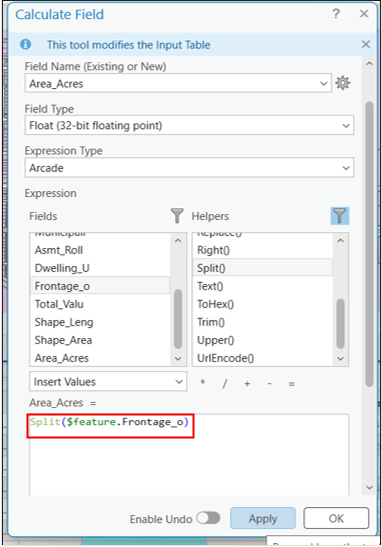
- Click the filter icon in the Helpers section and select Text to display only text-related Arcade functions, as shown in the next image.
- In the Calculate Field window, enter a name for the new field under Field Name.
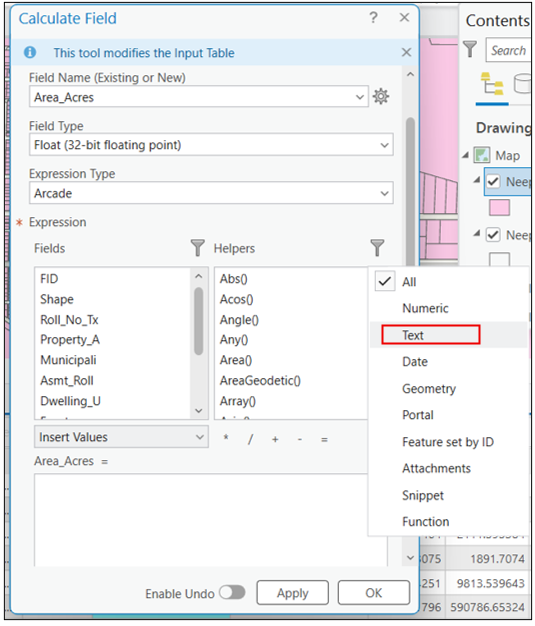
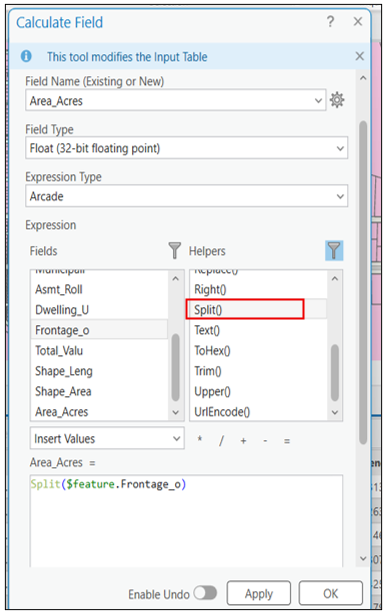
- Apply the Split() Function to Extract Numeric Values:
- In the Helpers section, under the filtered Text functions, select Split(), as shown in the image above.
- In the Expression box, use the Split() function to separate the number from the text in the Frontage_o field.
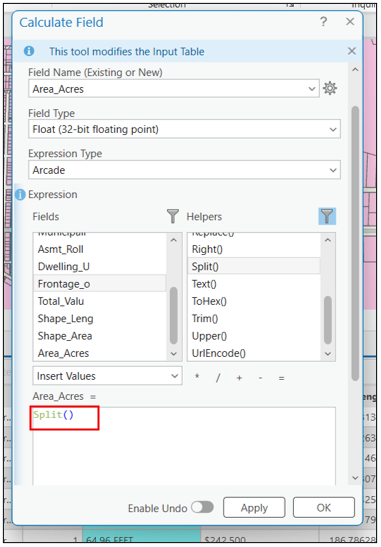
- Select the Field Containing Text Values for the Split() Function:
- After selecting the Split() function, click inside the parentheses.
- Choose the field, Frontage_o, that contains the text values to convert to numeric type, as shown in the preceding image.

- Finalize the Arcade expression to extract the numeric portion:
Note:
The Split() function divides a text value based on a specified character (in this case, a space ' ') and returns an array of values. Arrays are indexed starting from 0 in Arcade.
Complete the expression as follows:
Split($feature.Frontage_o, ' ')[0]
-
- Split($feature.Frontage_o, ' ') — Splits the text into two parts at the space, for example, "0.15 ACRES" becomes ["0.15", "ACRES"].
- [0] — Specifies which part of the split array to return. Here, [0] returns the first element (the numeric value), while [1] would return the second element (the text).
Important: Ensure there is a space between the quotes ' ' — it defines the character used for splitting.
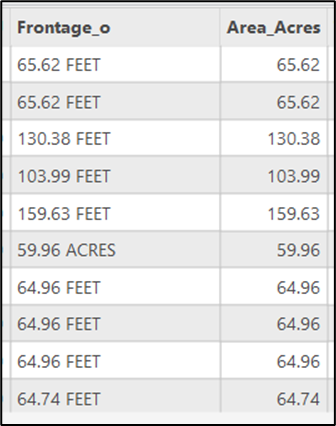
- Click Apply or OK to populate the Area_Acres field with numeric values extracted from the mixed text field, as shown in the image below.
Article ID: 000037290
- ArcGIS Pro
Get support with AI
Resolve your issue quickly with the Esri Support AI Chatbot.


Related Information
Discover more on this topic

Search for related information

Find training related to this topic

Explore ideas and give feedback
Get help from ArcGIS experts
Start chatting now