
Frequently asked question
What is the difference between Edit and Edit Multiple in ArcGIS Field Maps?
Answer
In ArcGIS Field Maps, editing an existing asset, whether individually or in a group, is necessary to keep data current and accurate. While the Edit and Edit Multiple options share similar core functionality, there are key differences in how edits are applied and in the range of attributes or features that can be modified. The key differences between these two editing options are summarized in the table below.
| Edit (single point) | Property | Edit Multiple |
| Allows moving feature locations on the map. | Geometry | Does not allow moving locations, and geometry edits are disabled. |
| All attribute fields can be edited, including coded values and domains. | Attributes | Only shared fields across selected features can be edited. Fields that are read-only, unique, or auto-calculated are not editable. |
| Adding and removing attachments (photos, videos, documents, or audio files) are supported. | Attachments | Adding or removing attachments is not supported when editing multiple features. |
| Related reports and pop-up information can be viewed and edited. | Related reports | Related reports cannot be edited. |
Characteristics of the Edit and Edit Multiple options
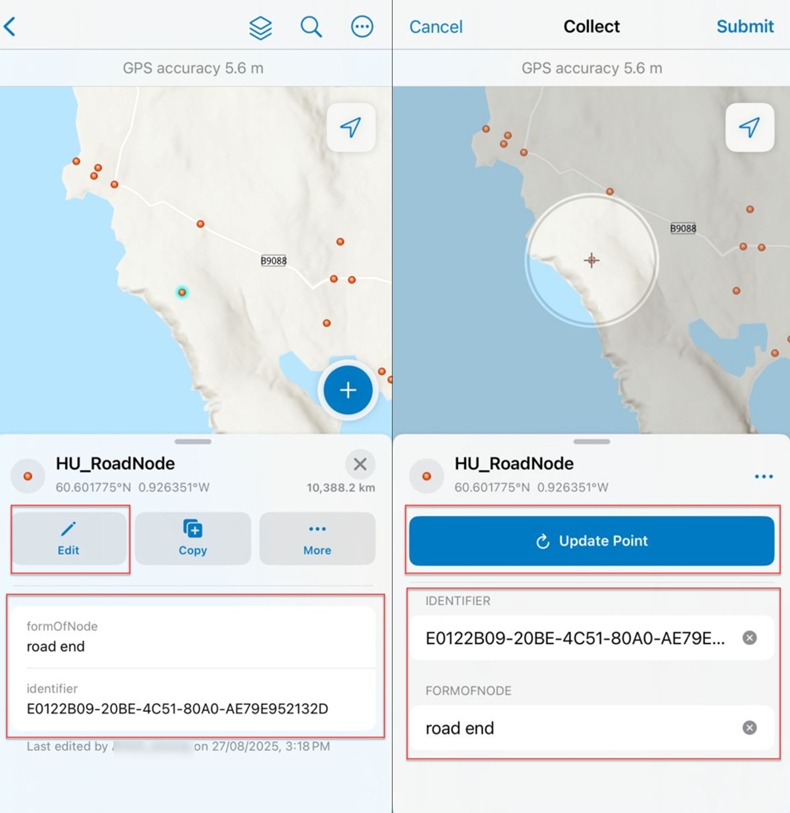
Editing or updating an existing asset using the Edit option offers full control over geometry, attributes, attachments, and related reports. This option allows users to verify and correct data accurately, ensuring positional accuracy and attribute completeness. It is helpful in quality control updates, resolving data errors, or capturing detailed information that applies to a single feature. It also maintains data integrity by allowing users to confirm each edit before submission, as shown in the image below.
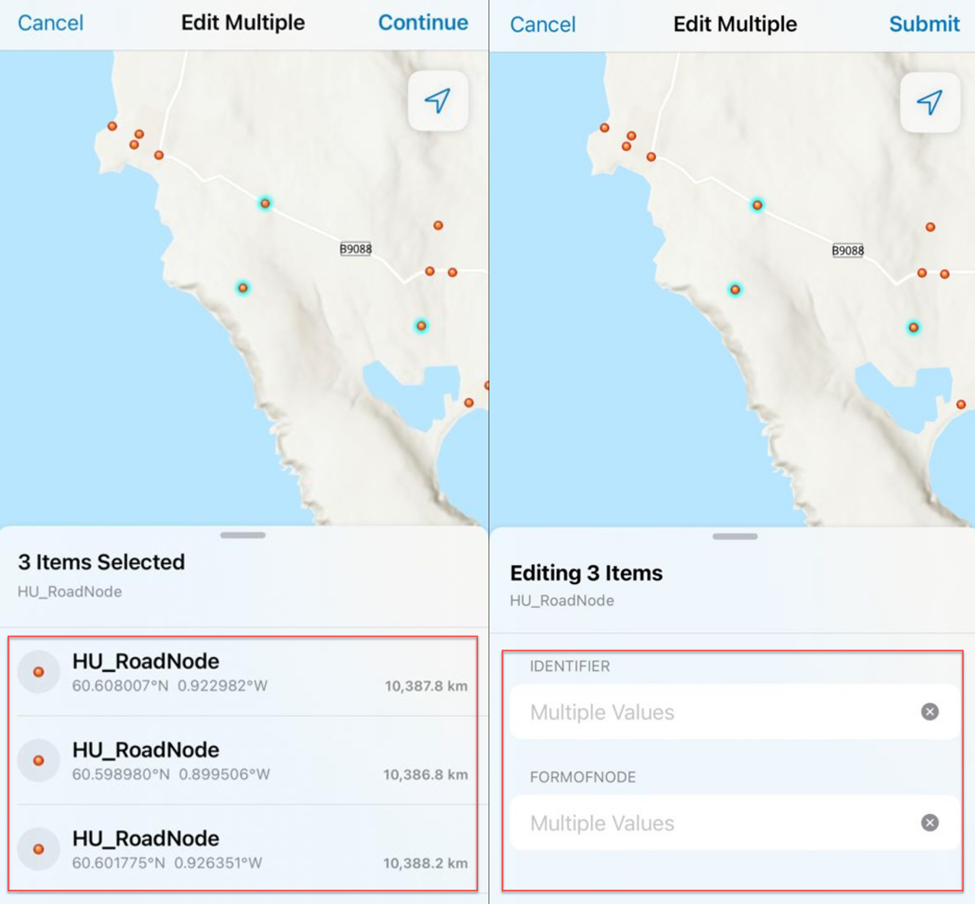
Editing multiple assets or updating the forms of multiple existing assets using the Edit Multiple option provides the ability to view a list of all selected features, including their latitude, longitude, and symbology, before continuing, as shown in the image below. This feature helps users troubleshoot synchronization issues by capturing a screenshot of unsynchronized points and using their coordinates as backup. This process serves as a temporary backup method. If points remain unsynchronized, uninstalling and reinstalling the app may result in data loss. To avoid this, the Edit Multiple option can be used to capture a list of unsynchronized points as backup, ensuring the coordinates and symbology are recorded before the app is uninstalled.
Article ID: 000038711
- ArcGIS Field Maps Android
- ArcGIS Field Maps iOS
Get support with AI
Resolve your issue quickly with the Esri Support AI Chatbot.


Related Information
Discover more on this topic

Search for related information

Find training related to this topic

Explore ideas and give feedback
Get help from ArcGIS experts
Start chatting now