
ERROR
ArcGIS Pro : The number of licenses assigned to users exceeds the number of licenses available. Contact administrator to reconfigure licenses
Error Message
Attempts to log in to ArcGIS Pro fail, and return the following error message:
Error:
The number of licenses assigned to users exceeds the number of licenses available in your organization. Please contact your administrator to reconfigure your organization's licenses.
Cause
- As of June 2025, following the license renewal, existing Personal Use subscriptions must be migrated to the updated user type.
- As of July 22, 2021, the changes made to the Personal and Student Use subscriptions require a user type update. Refer to FAQ: What changes were made to Personal and Student Use subscriptions on July 20, 2021? for more information.
- The ArcGIS Online URL in the Licensing configuration settings in ArcGIS Pro is incorrect.
Solution or Workaround
Depending on the cause, the workarounds provided are applicable.
Migrate the user type in ArcGIS Online
In ArcGIS Online, in the Important update about your subscription pop-up, click Migrate user type to migrate to the updated Personal Use user type and restore ArcGIS Pro access.
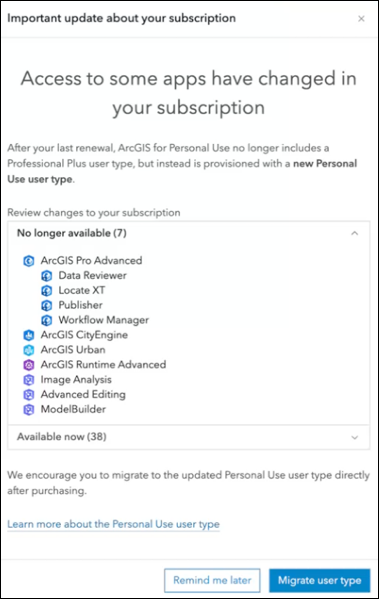
Update the user type in ArcGIS Online
Update the user type to GIS Professional Advanced. Refer to the How do the changes impact existing Personal or Student Use customers? section in FAQ: What changes were made to Personal and Student Use subscriptions on July 20, 2021? for instructions to do so.
If the Update user type prompt message is not returned, manually change the user type to GIS Professional Advanced. Refer to ArcGIS Online: Change user types for instructions to do so.
Change the ArcGIS Online URL in the Licensing configuration settings
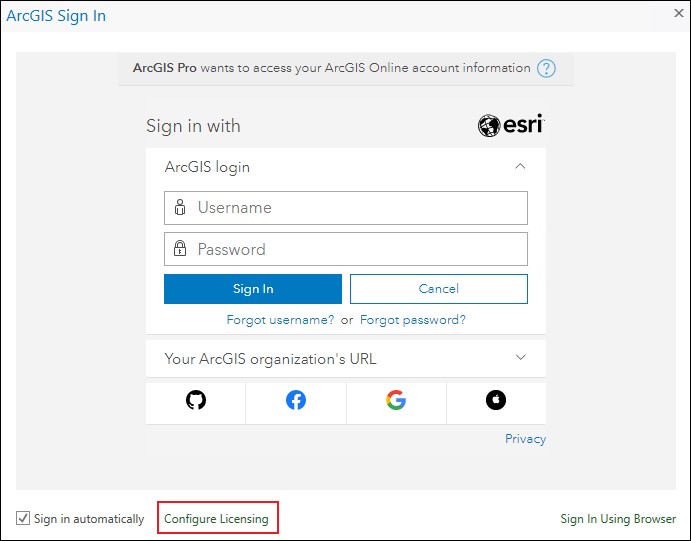
- Open ArcGIS Pro. The ArcGIS Sign In window opens.
- In the ArcGIS Sign In window, click Configure Licensing.
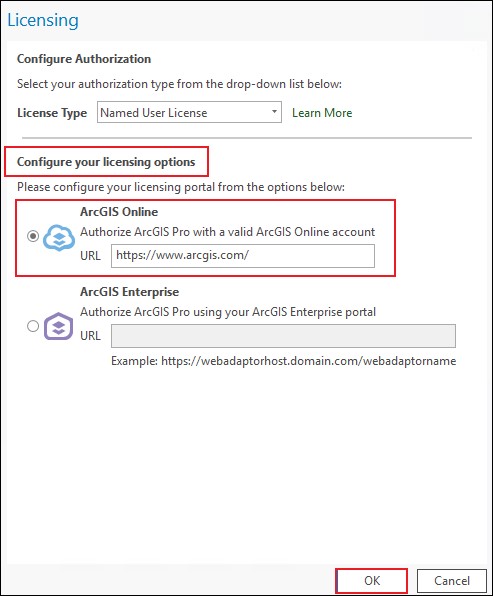
- In the Licensing window, under Configure your licensing options, for URL under ArcGIS Online, copy and paste the following URL:
https://www.arcgis.com/
- Click OK.
Article ID: 000026384
- ArcGIS Online
- ArcGIS Pro 2 8 x
- ArcGIS Pro 2 7 x
Get support with AI
Resolve your issue quickly with the Esri Support AI Chatbot.


Related Information
Discover more on this topic

Search for related information

Find training related to this topic

Explore ideas and give feedback
Get help from ArcGIS experts
Start chatting now