
问题
问题:在 ArcGIS Enterprise 10.8.1 中下载 Ortho Maker Geotiff 产品失败
描述
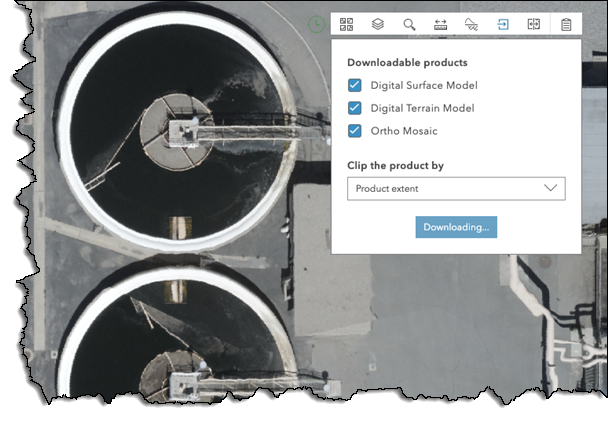
In ArcGIS Enterprise version 10.8.1, issues may be encountered in Ortho Maker when downloading GeoTIFF products for offline use. When downloading products as GeoTIFF files via the map tool, the download fails to complete, and the Downloading dialog persists until the page is refreshed.
原因
This is a known issue in an ArcGIS Enterprise environment that contains more than one machine. It is caused by the Raster Utilities Service URL not being set correctly to the Raster Analysis server or Image Hosting server when they are in the environment. In addition, the permission of the Raster Utilities Service is not set correctly in this environment. This will be addressed in next release.
解决方案或解决方法
- Manually update the Raster Utilities Service to point to correct URL
Before updating the Raster Utilities Service URL, use the following criteria to determine what the correct Raster Utilities Service URL should be:
- If there is no RasterAnalytic or Image Hosting server configured, the Raster Utilities Service URL is on the hosting server (current behavior)
- If there is only a RasterAnalytics server configured, the Raster Utilities Service URL should be on RasterAnalytics server
- If both RasterAnalytics and Image Hosting servers are configured and are different server sites, the Raster Utilities Service URL should be on the RasterAnalytics server
Once you have identified the Raster Utilities Service URL, follow the steps below:
- Sign in to your portal's sharing page as the portal administrator: https://<portalUrl>/<WebAdaptor>/sharing/rest
- Click Portals > Self > Update.
- Find the Raster Utilities Service property, and update it to the correct Raster Utilities Service URL
- Click the Update Organization button.
- Share Raster Utilities Services to organization
- Sign in to the portal as the Administrator.
- Search for RasterUtilities.
- You may find a few RasterUtilities items, find the one that has the URL pointing to the URL set above in your ArcGIS Enterprise environment.
- Click Share, and choose to share to Organization.
- Save the changes.
文章 ID: 000023855
获得人工智能支持
使用 Esri Support AI Chatbot 快速解决您的问题。


相关信息
发现关于本主题的更多内容

Search for related information

Find training related to this topic

Explore ideas and give feedback
获取来自 ArcGIS 专家的帮助
立即开始聊天