
操作方法
操作方法:移除 ArcGIS Server 默认打印服务布局模板或者打印格式
摘要
在某些情况下,可能需要从 Windows 操作系统的下拉列表中移除 ArcGIS Enterprise 服务器的默认打印服务布局模板或者打印格式。
Caution:
From the Esri Technical Support perspective, we highly recommend creating and publishing custom print services rather than modifying the default out-of-the-box printing service, as modifying/tampering with this service causes the service to become outside of the scope of support.
可以通过 ArcGIS Server 安装目录中打印服务的工具箱找到并修改默认打印服务的布局模板下拉列表选择。
过程
CAUTION:
Make sure to take a backup copy of the PrintingTools.tbx file if it is necessary to revert back to the original printing tool or if any issues occur.
此过程将使用 ArcGIS Pro 来探索并修改 ArcGIS Server 引用的打印服务工具箱:
- 在 ArcGIS Pro 中打开一个新工程,并创建指向以下工具箱位置的新文件夹连接:
<ArcGIS Server Installation Directory>\framework\runtime\ArcGIS\Resources\ArcToolBox\Services
- 在“目录”中,展开 Services 文件夹并定位 PrintingTools.tbx,如下图所示。
Note:
If you do not have an ArcGIS Pro installed on the ArcGIS Server machine and cannot connect from an ArcGIS Pro client, you can take the PrintingTools.tbx as a copy to a machine that ArcGIS Pro can connect to via a folder connection and proceed with the same modifications, and then replace the toolbox manually in the directory by overwriting/copy-paste.
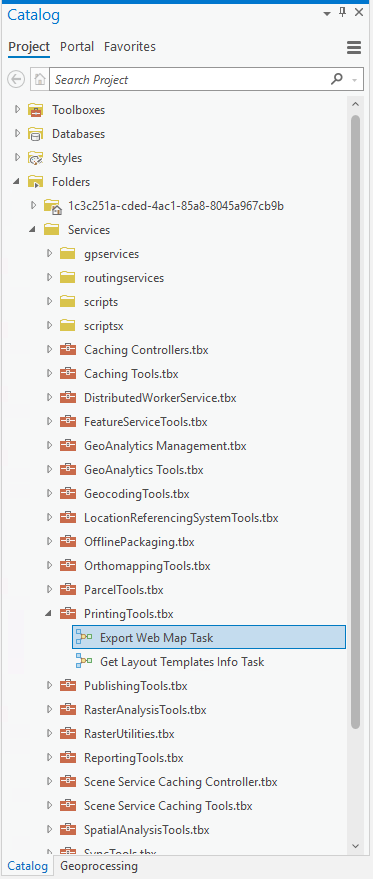
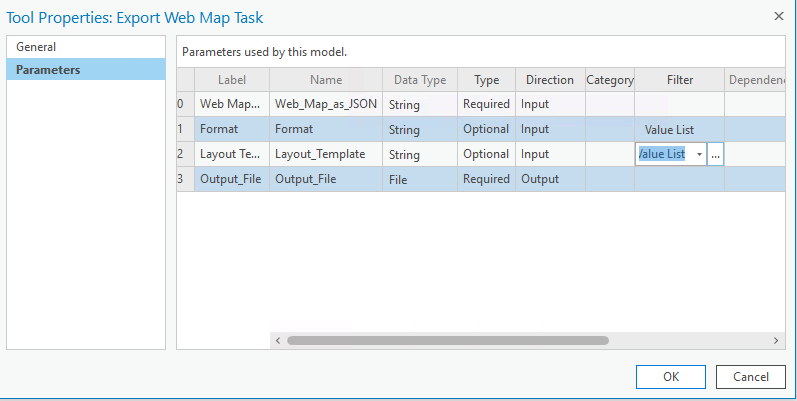
- 右键点击导出 Web 地图任务 > 属性 > 参数。
- 在 Layout Template 行的 Filter 列下方,单击 Value List 旁的三个点,如下图所示。
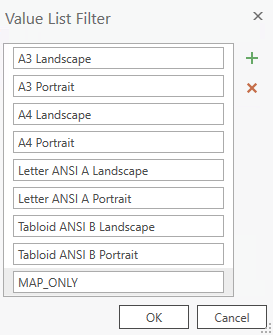
- 删除任何您不希望在使用默认模板时显示在可用选择中的布局模板,然后单击确定。
- 导航至 ArcGIS Server Manager 界面,网址为 https://Machine.Domain.com/<WebAdaptor>/manager。
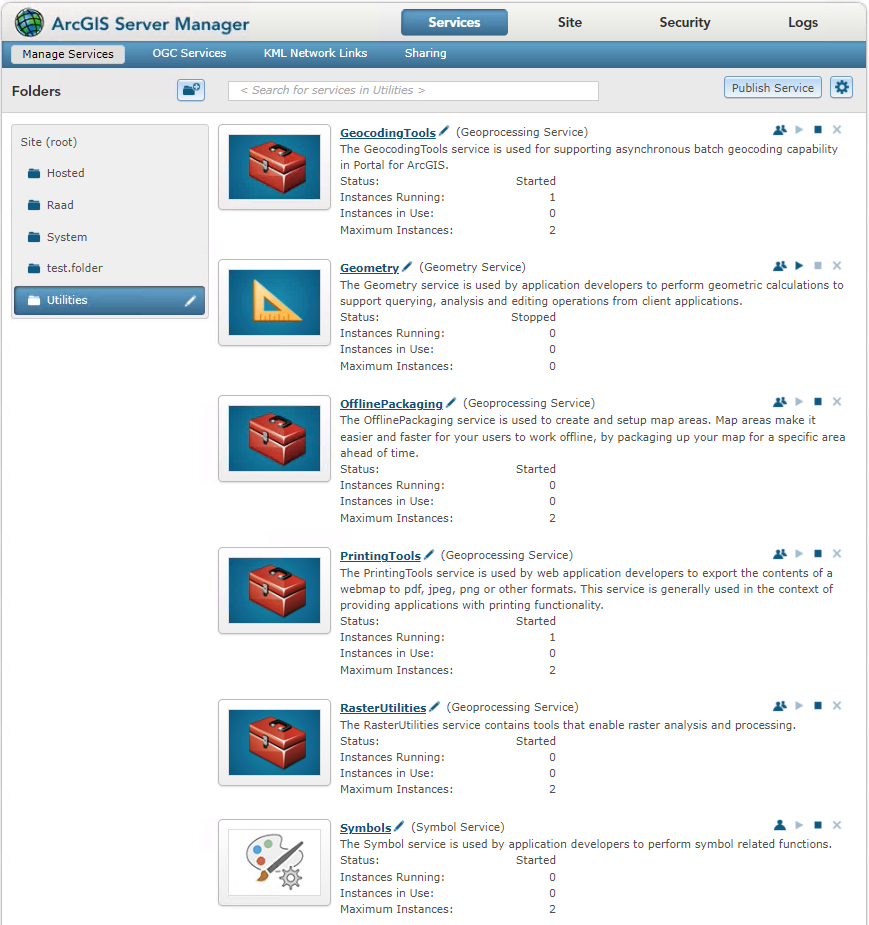
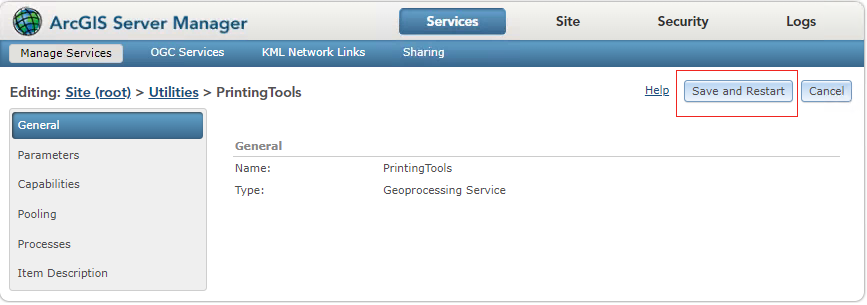
- 转至服务 > 实用程序,然后在服务详细信息页面的右上角选择打印工具 > 保存并重新启动,如下图所示。
当在 web 应用程序或 Map Viewer 中使用打印服务时,已删除的布局模板将不再显示在选择列表中。
文章 ID: 000032742
获得人工智能支持
使用 Esri Support AI Chatbot 快速解决您的问题。


发现关于本主题的更多内容

Search for related information

Find training related to this topic

Explore ideas and give feedback
获取来自 ArcGIS 专家的帮助
立即开始聊天