
HOW TO
Improve image quality in ArcGIS Survey123 feature reports
Summary
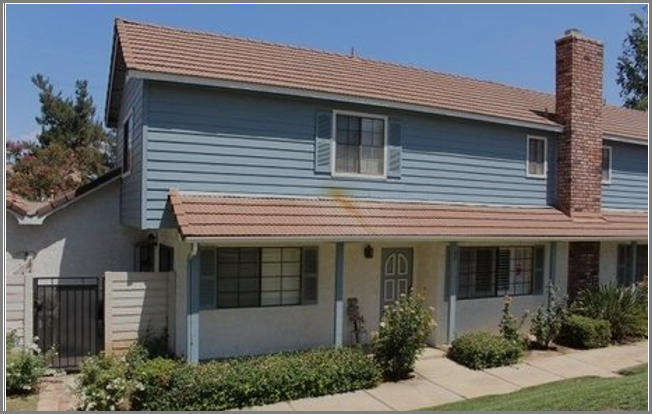
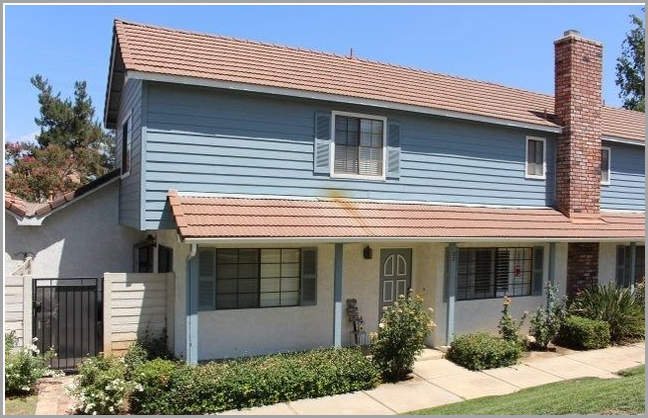
When generating feature reports from ArcGIS Survey123, the images attached in the survey forms are of low quality. This article describes the workflow to improve the quality of the images in ArcGIS Survey123 feature reports.
The following example image is an image with low quality in an ArcGIS Survey123 feature report.
Procedure
- Open the desired survey form in the ArcGIS Survey123 website, and download the sample template. Refer to ArcGIS Survey123: Report templates.
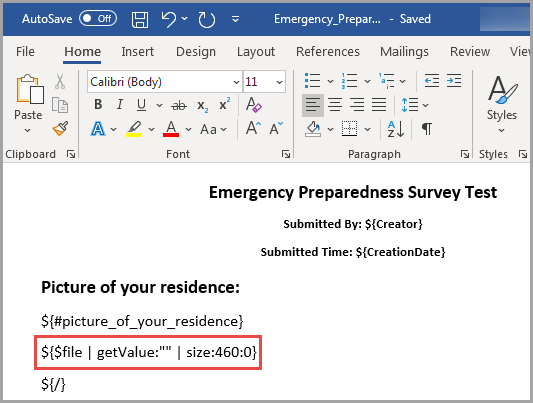
- Open the downloaded sample template, and navigate to the image section.
- Add getValue:"" to the expression. In this example, getValue:"" is added to the expression in the picture section.
- Save the changes.
- In the ArcGIS Survey123 website of the desired survey, click Data > Report > Manage templates.
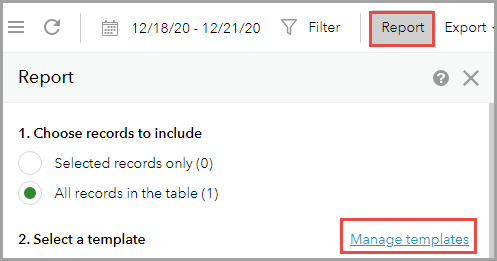
- In the Manage Templates window, click New template to upload the edited template.
- Close the Manage Templates window, and generate the feature reports.
Article ID: 000024860
Software:
- ArcGIS Survey123 Website
Get support with AI
Resolve your issue quickly with the Esri Support AI Chatbot.


Related Information
Discover more on this topic

Search for related information

Find training related to this topic

Explore ideas and give feedback
Get help from ArcGIS experts
Start chatting now