
HOW TO
View labels for polygon or line features in Google Earth by converting to KML using ArcGIS Pro
Summary
Keyhole Markup Language (KML) is a format based on XML to represent spatial data that is commonly used to share with non-GIS users. It supports various feature types, including points, lines, polygons, and raster images, and can be saved with either a .kml or .kmz file extension. This article describes how to view a label for a polygon or line feature in a KML format using ArcGIS Pro in Google Earth.
To display labels for line or polygon features in KML or KMZ, midpoints or centroids for those feature classes must be created as point layers in ArcGIS Pro and imported along with the polygon KML layer to Google Earth.
Procedure
Create centroids (or midpoints) using the Feature to Point tool
- Add the polygon or line layer to the map. Refer to: Add layers to a map or scene
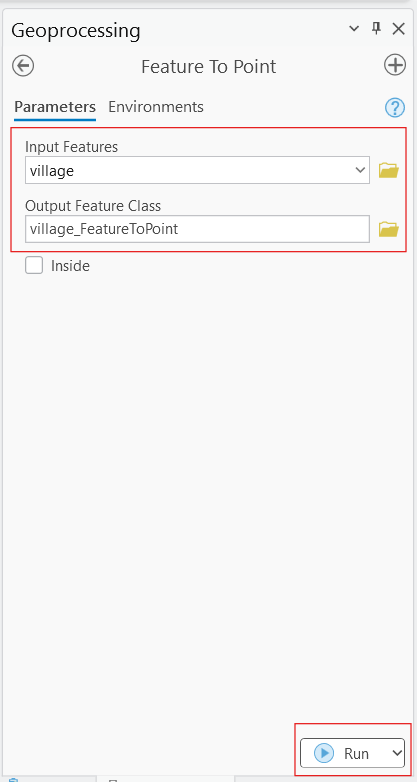
- Use the Feature to Point tool to create points from the line or polygon data.
- Select the polygon or line layer as the Input Features, and specify the location for the Output Feature Class and Run the tool.
Label the features
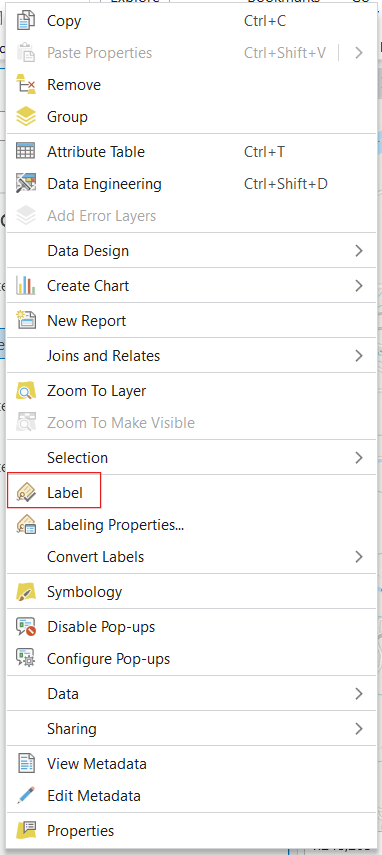
- Label the point feature class generated from the Feature to Point tool in the previous step.
- Right-click the layer and enable Label in the pop-up menu, refer to Labeling in ArcGIS Pro for more information.
Step 3: Convert to KML and export to Google Earth
- Use either of the following tools to convert the layer to KMZ or KML:
-
- The Layer to KML tool converts a feature or raster layer to KML format (.kmz or .kml file). The output KML contains a translation of Esri feature geometries, raster cells, layer symbology, and other properties.
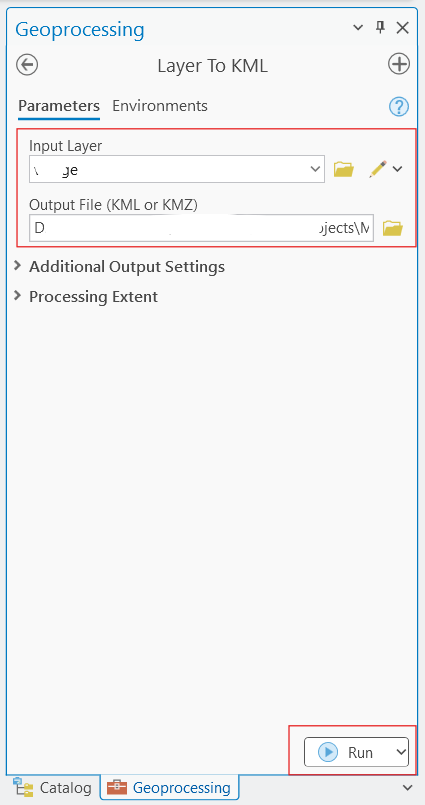
- In the Geoprocessing pane, search for the Layer to KML tool.
- Select the polygon or line layer and the point layer generated from the Feature to Point tool as the Input Layer, specify the location for the Output File, and click Run.
- The Layer to KML tool converts a feature or raster layer to KML format (.kmz or .kml file). The output KML contains a translation of Esri feature geometries, raster cells, layer symbology, and other properties.
-
- The Map to KML tool converts a map containing feature or raster layers to KML format (.kmz file). The output KML contains a translation of Esri feature geometries, raster cells, layer symbology, and other properties.
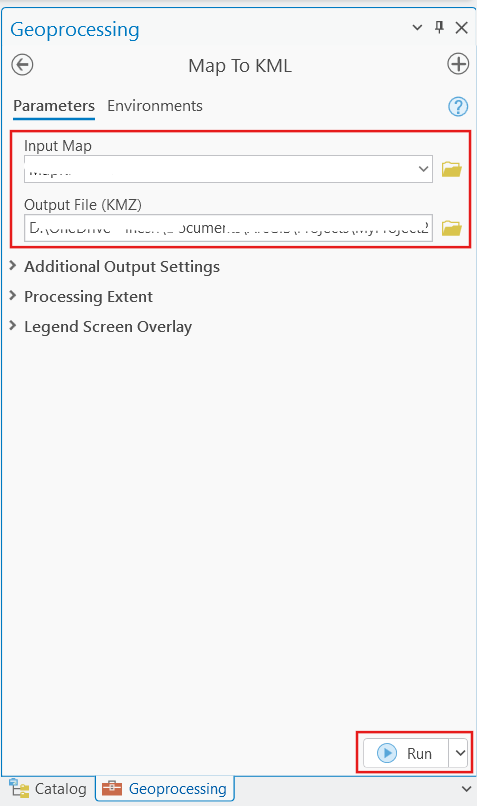
- In the Geoprocessing pane, search for the Map to KML tool.
- Select the map that contains the layers along with the point layer generated from the Feature to Point tool as the Input Map, specify the location for the Output File, and click Run.
- The Map to KML tool converts a map containing feature or raster layers to KML format (.kmz file). The output KML contains a translation of Esri feature geometries, raster cells, layer symbology, and other properties.
- The polygon or point KML layer (exported using the Layer to KML tool) or map file (exported using the Map to KML tool) created using ArcGIS Pro can now be opened Google Earth Pro.
Article ID: 000036397
- ArcGIS Pro
Get support with AI
Resolve your issue quickly with the Esri Support AI Chatbot.


Related Information
Discover more on this topic

Search for related information

Find training related to this topic

Explore ideas and give feedback
Get help from ArcGIS experts
Start chatting now