
PROBLEM
Uploading an SSL certificate to ArcGIS Monitor returns the error message “unsupported”
Description
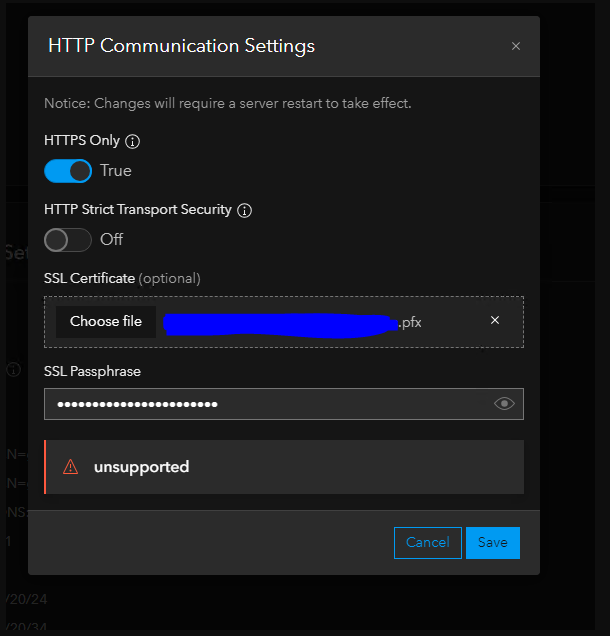
In ArcGIS Monitor, when trying to upload an SSL certificate, the error “unsupported” is returned, as shown in the image below.
Cause
The certificate file is encrypted using the pbeWithSHA1And40BitRC2-CBC algorithm, which relies on RC2 (Rivest Cipher 2).
RC2 is not FIPS-compliant (Federal Information Processing Standards), meaning it is considered insecure and disabled in modern security environments.
Because ArcGIS Monitor 2023 and later versions enforce FIPS compliance, the certificate is rejected, leading to the "unsupported error" when importing.
Solution or Workaround
- Check the ArcGIS monitor logs.
- Verify that the ArcGIS Monitor service account has Full Control permissions on the ArcGIS Monitor internal folder.
C:\ProgramData\Esri\Monitor\
- To help isolate the issue, try creating a self-signed certificate and importing it into ArcGIS Monitor. If the import is successful, it would indicate that the original issue is related to the certificate file.
- In Command Prompt, there is a way to inspect certificate details on Windows.
- Run the following command:
certutil -dump <path-to-cert>
- When you run that command, you'll typically see output like
- Version: (e.g., v3)
- Serial Number
- Issuer: Who issued the certificate
- Subject: Who the cert is for
- Valid From / To: The certificate’s validity period
- Thumbprint (SHA1 hash)
- Key Usage, Extended Key Usage
- Public Key Info
- Signature Algorithm
- Run the command: openssl version
- If OpenSSL is not installed, the certificate inspection cannot be completed.
- Run the following command:
openssl pkcs12 -info -in <certName>.pfx -noout
- Enter the import password.
- Check the encryption for the certificate file:
- PKCS7 Encrypted data: pbeWithSHA1And40BitRC2-CBC
- Check if it is encrypted with pbeWithSHA1 and 40BitRC2-CBC like the example above.
- If so, the recommended solution is to remove RC2 encryption from the PFX certificate.
Article ID: 000035839
- ArcGIS Monitor Administrator
Get support with AI
Resolve your issue quickly with the Esri Support AI Chatbot.


Related Information
Discover more on this topic

Search for related information

Find training related to this topic

Explore ideas and give feedback
Get help from ArcGIS experts
Start chatting now