
ERROR
Unable to find required property 'dir.data' in the Portal configuration file
Error Message
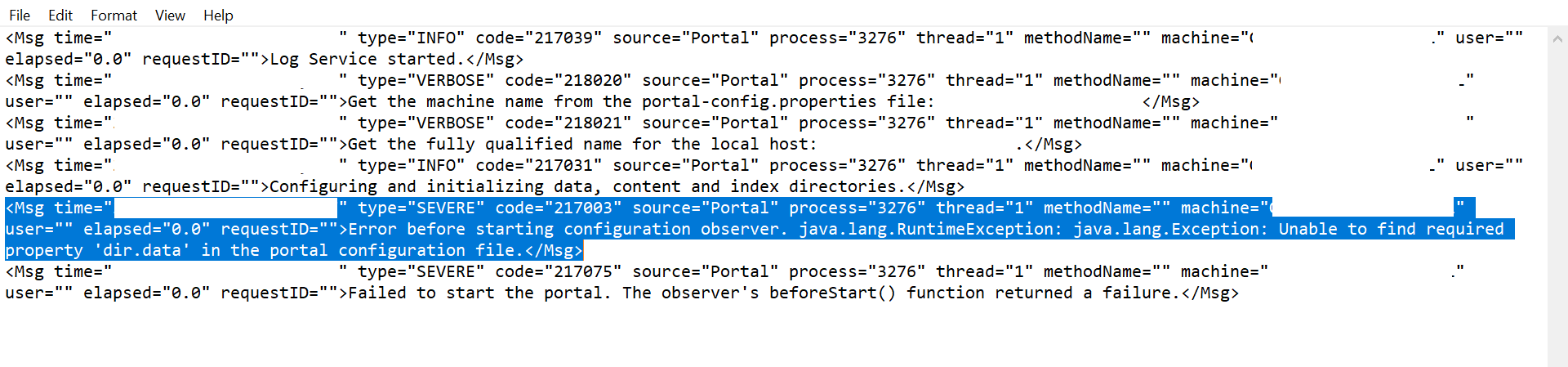
Unable to access Portal for ArcGIS. Examination of the log files reveals the error below. The log files may be found in: C:\arcgisportal\logs\<MachinenameFQDN>\portal
<Msg time="YYYY-MM-DDTHH:MM:SS,SSS" type="SEVERE" code="217003" source="Portal" process="3536" thread="1" methodName="" machine="HOSTNAME.DOMAIN.COM"
user="" elapsed="0.0" requestID="">Error before starting configuration observer. java.lang.RuntimeException: java.lang.Exception: Unable to find required
property 'dir.data' in the portal configuration file.</Msg>
Cause
The most likely cause for this error is corrupted configuration files after the installation and configuration of Portal for ArcGIS. As a result, the Javaw.exe file will not start for Portal for ArcGIS and is unable to access Portal using either the Web Adaptor or the Local URL.
The corrupted configuration file for this scenario is the portal-config.properties file in the Portal installation directory: C:\Program Files\ArcGIS\Portal\framework\etc
In this file, the dir.data entry is not found.
Solution or Workaround
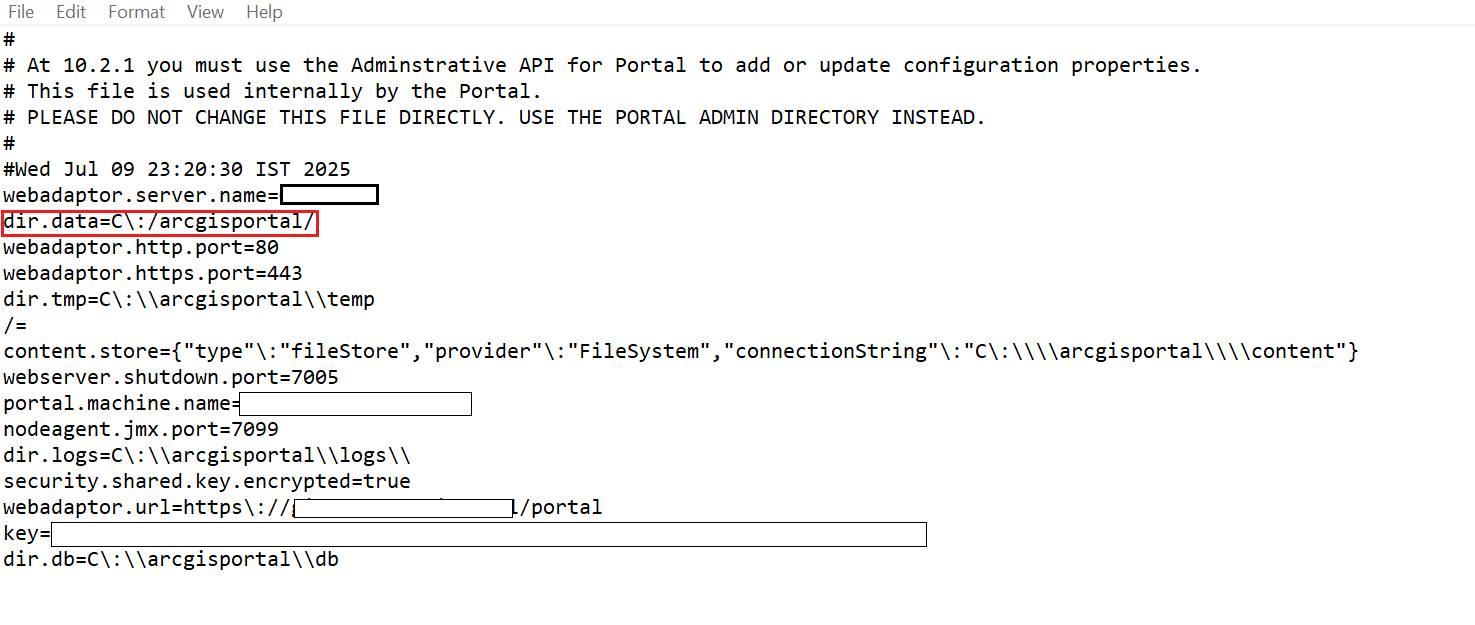
Ensure that the portal-config.properties have the dir.data entry as shown below:
webadaptor.server.name=hostname
dir.data=C\:/arcgisportal/
webadaptor.http.port=80
webadaptor.https.port=443
dir.tmp=C\:\\arcgisportal\\temp/=
If the dir.data parameter is not mentioned correctly there, follow these steps:
- Stop the ArcGIS Portal Services by navigating to Search > services, right-click the Portal for ArcGIS service, and click Stop.
Note:
Due to this misconfiguration, sometimes Portal for ArcGIS doesn't allow stopping the service manually. In this scenario Open Task Manager > Details > right-click "ArcGISPortal.exe" and click Stop.
- Once the service is stopped, navigate to C: > Program Files > ArcGIS > Portal > framework > etc
- Open the portal-config.properties file in a text editor.
- After webadaptor.server.name parameter, mention the line "dir.data=C\:/arcgisportal/". Substitute the correct path if the default path has been changed while configuring Portal, as shown in the following image.
- Save the config file.
- Start the Portal for ArcGIS service by navigating to Search, type services, right-click Portal for ArcGIS, and click Start.
Article ID: 000037049
- Portal for ArcGIS
Get support with AI
Resolve your issue quickly with the Esri Support AI Chatbot.


Discover more on this topic

Search for related information

Find training related to this topic

Explore ideas and give feedback
Get help from ArcGIS experts
Start chatting now