
PROBLEM
Unable to access Portal for ArcGIS 11.4 via Web Adaptor in single-machine deployment
Description
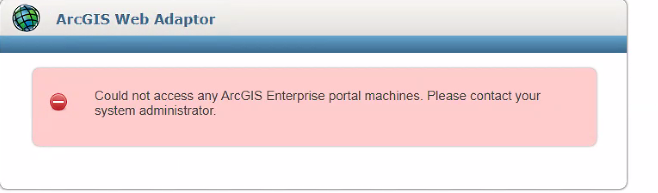
In an ArcGIS Enterprise 11.4 single-machine deployment, the Portal is accessible via port 7443 but not via the configured ArcGIS Web Adaptor URL. Despite repeated reconfiguration and reinstallation of the Web Adaptor, access through the Web Adaptor URL fails, and returns an error similar to the following:
Could not access any ArcGIS Enterprise portal machines. Please contact your system administrator.
Note:
It is recommended to take the machine backup before performing the following steps.
Cause
The root cause appears to be related to how the Web Adaptor is resolving or routing traffic from the public domain to the internal Portal, despite correct configuration. Possible contributors include:
- IIS Web Adaptor Bindings:
There may be incomplete or incorrectly configured bindings in IIS for the Web Adaptor, leading to traffic not being properly directed to the Portal. - Portal Registration Issues:
The Web Adaptor instance might not be properly registered with the Portal, which can result in routing or authentication failures. - SSL/TLS Configuration or Network Interference:
Misconfigured SSL/TLS certificates or interruptions caused by intermediary network components—such as proxies, firewalls, reverse proxies, or load balancers—could be affecting secure communication. - Portal Index Synchronization Problems:
The index status may not be synchronizing correctly within the ArcGIS Portal Administrator Directory, potentially disrupting search and content discovery. - Failure in Indexer Reconfiguration:
Attempts to reconfigure or restart the indexing service may not be taking effect. - Network-Level Restrictions or Recent Changes:
Changes in network policies or firewall rules could be inadvertently blocking or rerouting traffic necessary for Portal-Web Adaptor communication. - Unplanned Service Outage:
A temporary or unplanned outage: either within the Portal environment or affecting supporting infrastructure might also be contributing to the observed behavior.
Solution or Workaround
- Make sure that the ArcGIS Portal and ArcGIS Server are federated and validating.
- Verify that third-party dependencies for the Web Adaptor are up to date. For example: These components are essential for hosting the Web Adaptor in IIS and enabling seamless integration with Portal and Server components.
- Import the certificate at the Portal end point. For example: Portal Admin Directory > Machine > MachineName > SSL
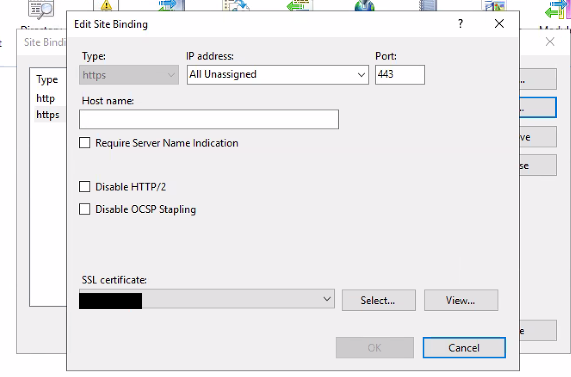
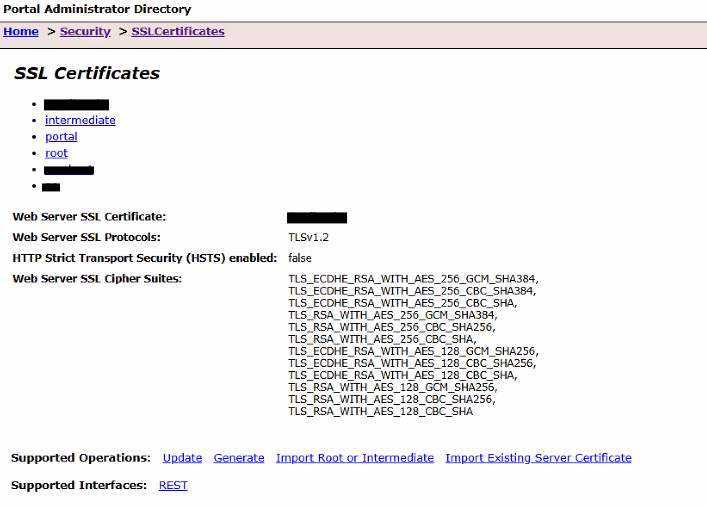
- Validate that SSL certificates match across IIS and Portal services, as shown in the next two images.
-
- Cross-check the SSL certificate configured in IIS with the one imported into Portal. Both certificates must be identical and valid to avoid browser trust issues or service disruptions
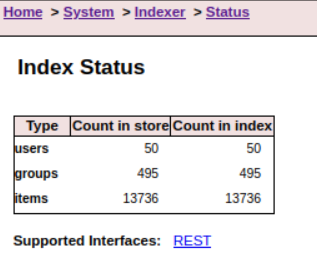
- Log in to the ArcGIS Portal Administrative Directory via the portal URL and navigate to Home > System > Indexer > Index Status. Check if it is matching. If not, perform a "Full" mode Reindex.
- Perform both automated and manual reindexing steps:
- Exported site
- Cleared arcgisportal directory except pgsql_x.x.x and sql
- Created new site and imported the backup
- Navigate to Portal Admin > Home > System > Indexer > Reindex.
- Install and configure the Web Adaptor:
- Reinstall the Web Adaptor component, making sure to use the same Web Adaptor name as previously used.
- ArcGIS Portal site will be accessible via the Web Adaptor. (https://machine.domain.com/webadaptor)
Article ID: 000037402
- ArcGIS Enterprise
- ArcGIS Web Adaptor
Get support with AI
Resolve your issue quickly with the Esri Support AI Chatbot.


Discover more on this topic

Search for related information

Find training related to this topic

Explore ideas and give feedback
Get help from ArcGIS experts
Start chatting now