
HOW TO
Share content from Site Scan for ArcGIS to an ArcGIS Enterprise portal
Summary
Site Scan for ArcGIS is end-to-end, cloud-based drone mapping software designed to revolutionize imagery collection and site management. Users can share and/or publish products generated by Site Scan into their ArcGIS Enterprise portal, which is subject to an additional security layer.
This article describes the workflow to publish data from Site Scan for ArcGIS to an ArcGIS Enterprise portal using ArcGIS Pro.
Procedure
Processing
- Sign in to Site Scan with the email ID.
- Go to All Projects, and click the Name of the project in which the mission is saved.
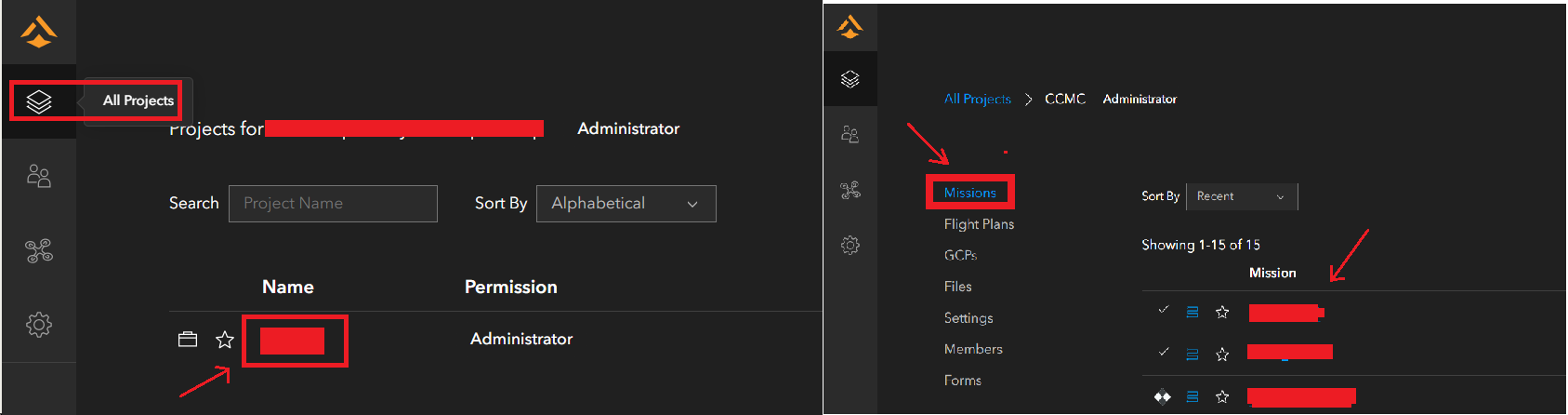
- Under Missions, click the mission to publish, and click Share to ArcGIS on the bottom left.
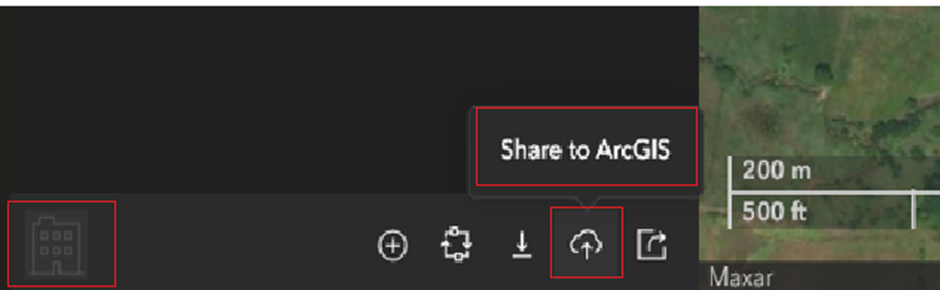
- When prompted to sign in to ArcGIS Enterprise, sign in with the credentials that have the Publishing role.
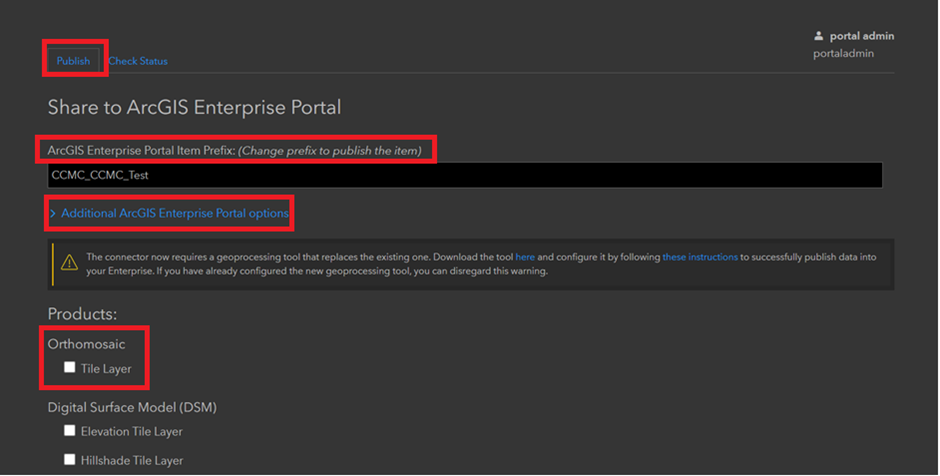
- In the Publish window, under Share to ArcGIS Enterprise Potal, update the Name as required, select the Additional ArcGIS Enterprise Portal options, if needed.
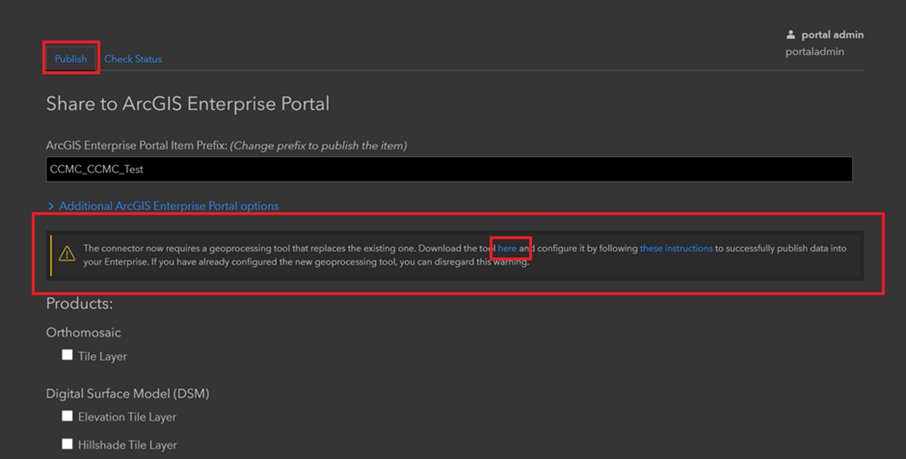
- Under Products: Orthomosaic, select Tile Layer, as shown in the image below.
- Scroll to the bottom and click Create Package.
Once done, a message displays stating: "Processing should be complete within an hour".

Publishing
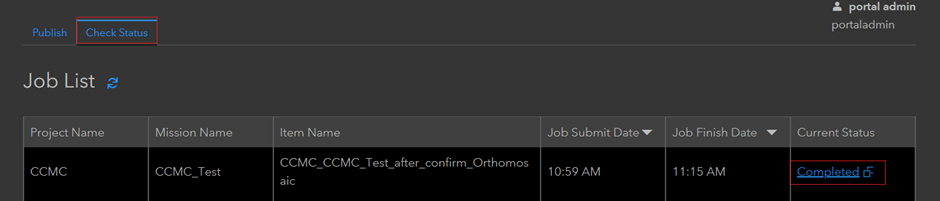
- After an an appropriate interval, click the Check Status tab and confirm if the processing is Completed or Under process. Click the Completed button under the Current Status column to download a .tpkx file that confirms processing is successful.
- In the Publish tab, under the Additional ArcGIS Enterprise Portal options, download the geoprocessing tool by clicking the here link. This downloads a zipped folder named SSFA_PublishingPackagestoArcGISEnterprise. Extract and copy it into a local folder.
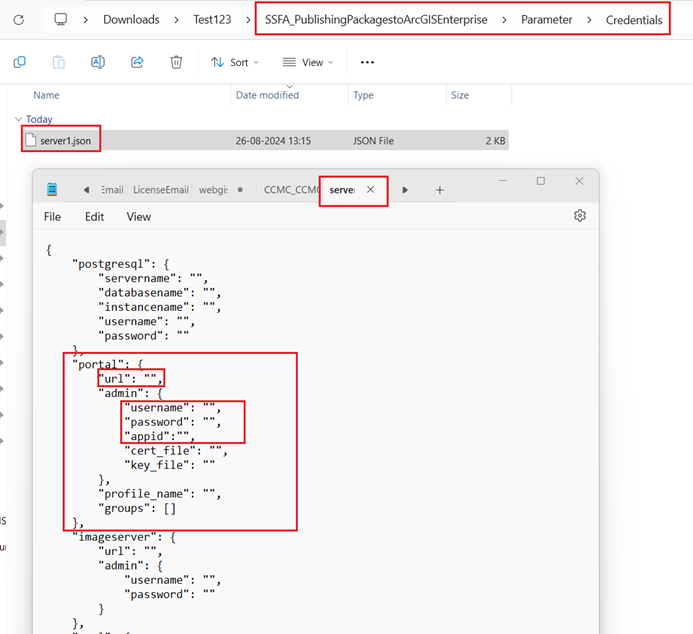
- Open the folder, click Parameter, go inside Credentials, and open the server1.json file in a text editor. Update the following parameters as shown below, and save the file:
- Portal URL
- Portal admin username
- Portal admin password
- app id
"portal":  {
	"url":  "",
	"admin":  {
		"username":  "",
		"password":  "",
		"appid": "",
		"cert_file":  "",
		"key_file":  "",
	},
	"profile_name":  "",
	"groups":  []
},
- Launch ArcGIS Pro. Create a new map and make sure the portal to which the data must be published is added to the Portals page in ArcGIS Pro, signed in, and Set as active Portal.
- Go to Catalog Pane, right-click Toolboxes > Add Toolbox. Navigate to the extracted folder SSFA_PublishingPackagestoArcGISEnterprise. Navigate to tools, select the tool, and click open. Multiple command prompt windows pop up, do not close them and let the process run, once finished, the tool is added under Toolboxes in the Catalog pane. Expand Toolboxes, expand SSFA_connector.pyt, double-click the tool and Publish SiteScan Package.
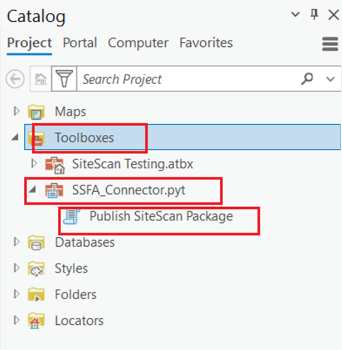
Upon clicking the tool, the Publish SiteScan Package window opens. Under select item are listed the items owned by the current logged in portal user in the portal connection.
- Select the items, and under the output options, select Download and Publish.
To view all the packages created within the organization's portal account, check the search entire Organization option at the bottom.
- Click Run. Once the publishing is completed, a Publish Site Scan package completed messege is returned.
- Navigate to the portal Home page, Content tab, and note the Tile Package and a Tile layer (Hosted) added in the portal as content/items.
Article ID: 000033566
- ArcGIS Pro
- Portal for ArcGIS
- Site Scan Manager for ArcGIS
Get support with AI
Resolve your issue quickly with the Esri Support AI Chatbot.


Related Information
Discover more on this topic

Search for related information

Find training related to this topic

Explore ideas and give feedback
Get help from ArcGIS experts
Start chatting now