
HOW TO
Set up Content Store for ArcGIS from the ArcGIS Online Marketplace
Summary
This article outlines a method for installing, setting up, and accessing Content Store for ArcGIS through Marketplace in ArcGIS Online. It includes a step-by-step workflow to create the connection with the Content Store for ArcGIS and make it accessible for the selected members in the ArcGIS Online organization.
Procedure
Installation
- Access ArcGIS Marketplace:
- Go to the ArcGIS Marketplace.
- Sign in with your ArcGIS Online administrator account.
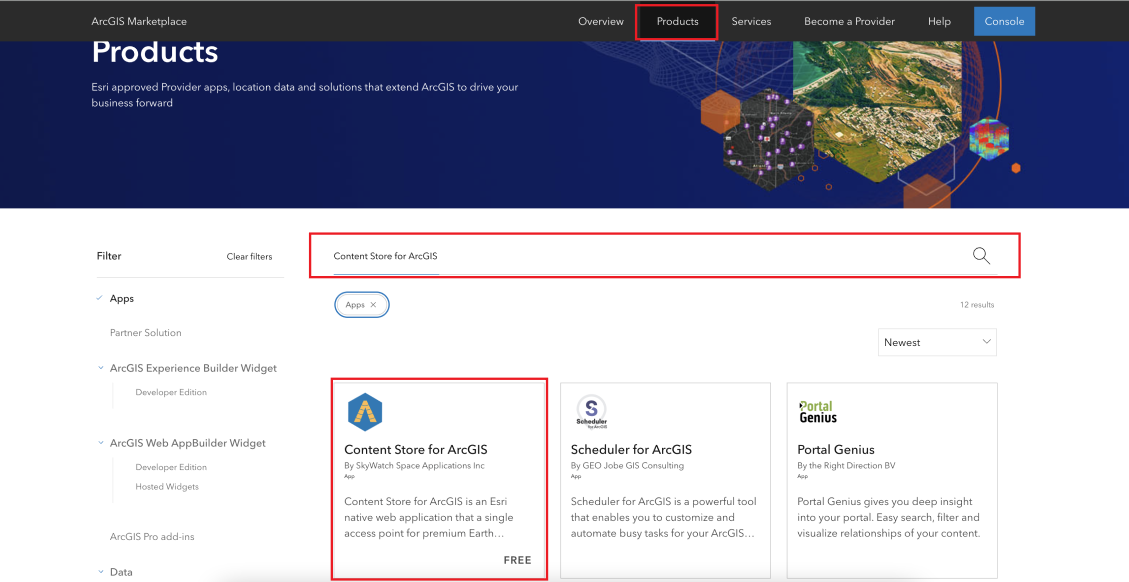
- Search for the Content Store:
- In the search bar, type: Content Store for ArcGIS
- Locate the item in the search results.
- Get the app:
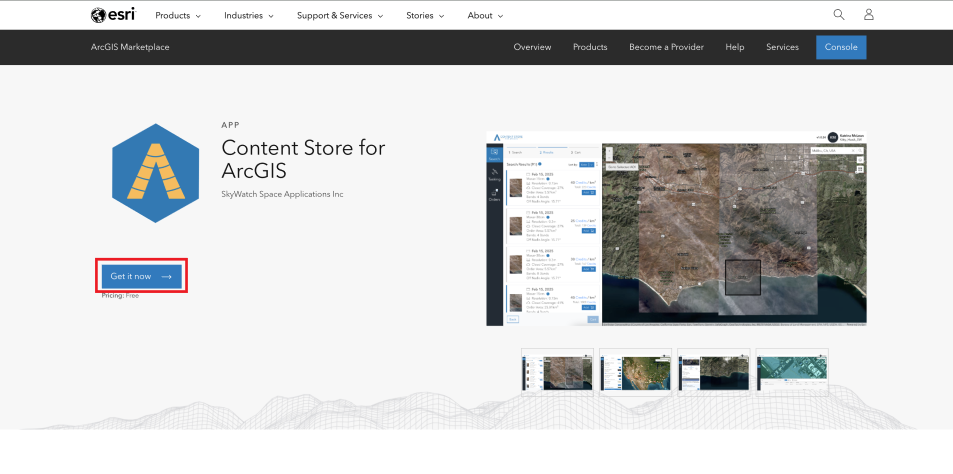
- Click on the Content Store for ArcGIS listing.
- Click the Get it now button.
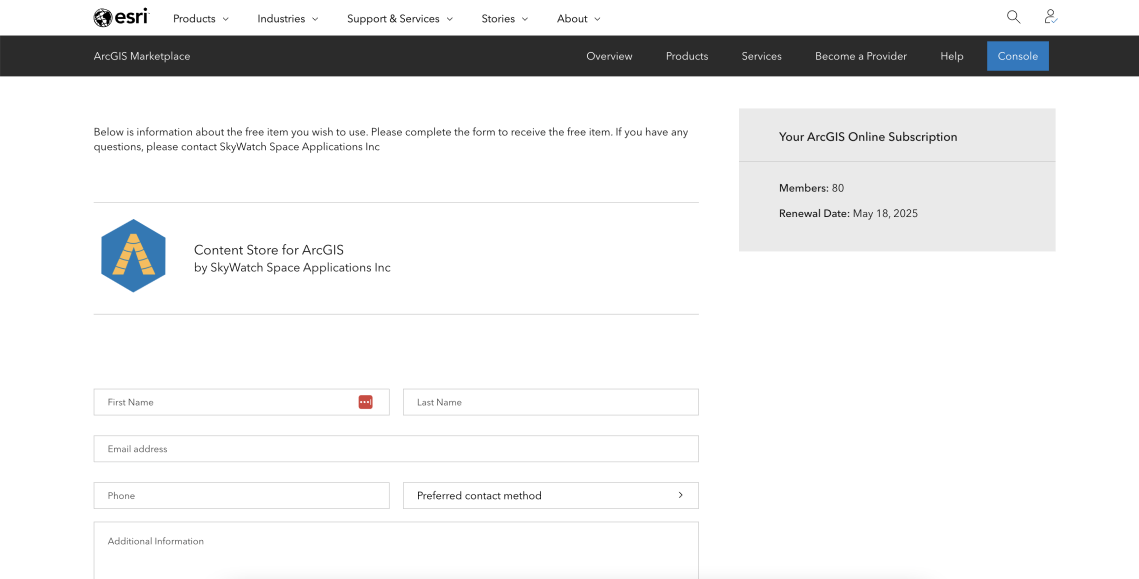
- Fill out the contact information:
- Complete the required contact details in the form.
- Click Submit to proceed.
Note:
Since Content Store is free, no payment information is required.
- Confirm the application is added to your environment:
- After submission, the Content Store application will be added as an item in your ArcGIS Online content.
- You can now manage access and provision it to specific users within your organization.
Configure the user environment
Once your organization has acquired the Content Store for ArcGIS application, the administrator can control who is allowed to use it. Since the application enables ordering high-resolution remote sensing data—each product costing Content Store credits—it's important to manage access carefully.
- Create a user group:
- In ArcGIS Online, go to the Groups section.
- Click Create Group.
- Name the group something like 'Content Store for ArcGIS Users'.
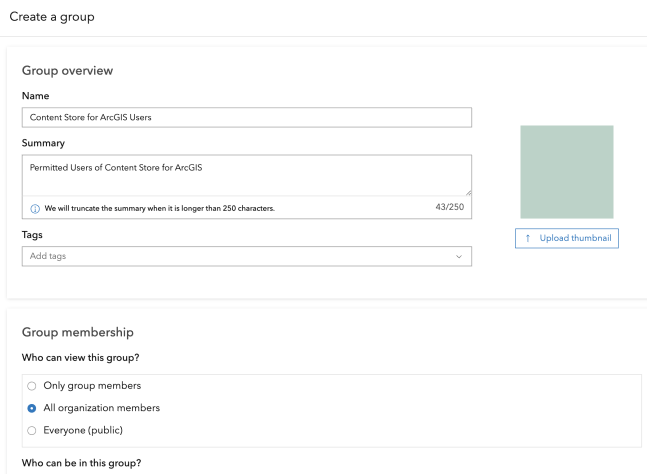
- Set the group permissions to restrict access so that only added members can use the application.
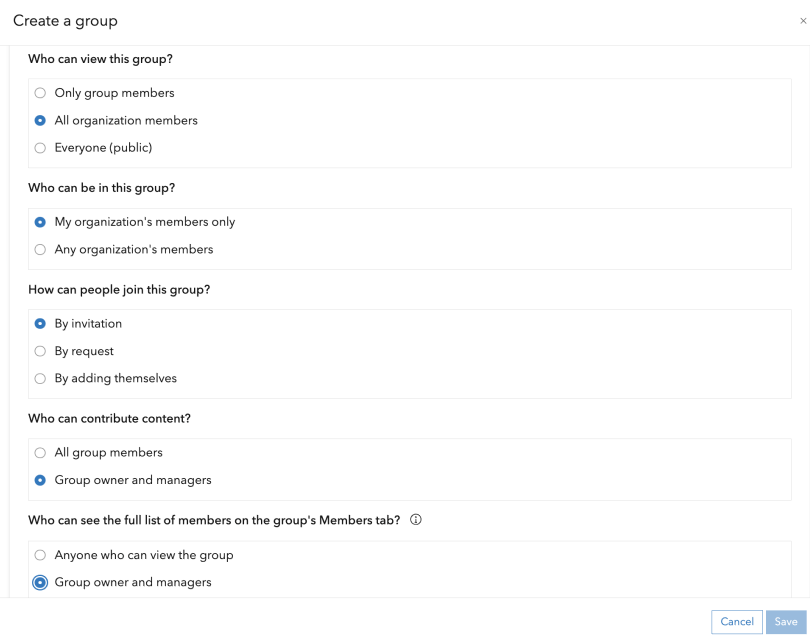
- Click Save & Create Group.
- Share the application with the group:
- Go to the ArcGIS Marketplace.
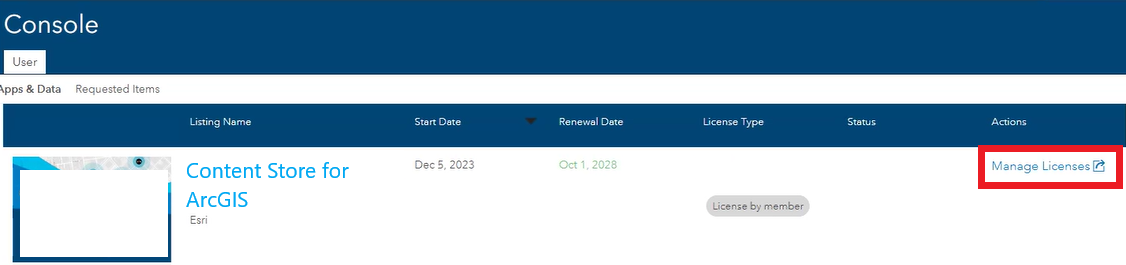
- Navigate to Console > User > Apps and Data (My Purchased Items).
- Find the Content Store for ArcGIS application.
- Click Manage Licenses.
- Share the application with the group you just created.
Now, only users who are members of the Content Store for ArcGIS Users group can access and use the application.
Once Content Store for ArcGIS has been added to your organization’s account and users have been granted access, users can access the application.
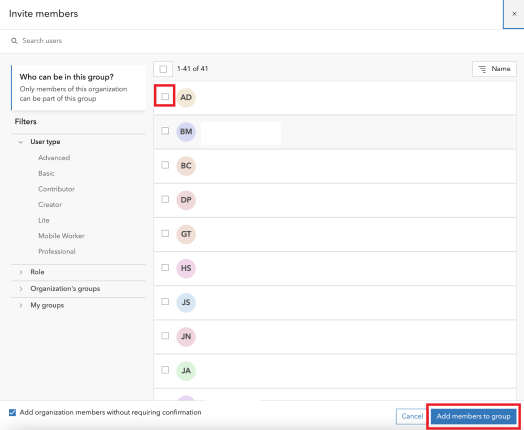
- Add users to the group. In this example, an administrator has already created a group called Content Store for ArcGIS Users.
- Navigate to the group.
- Click Invite members.
- Select the users to add.
- Click Add Members to group.
Once added, users receive a notification upon logging into their ArcGIS account. Clicking the notification link takes them directly to the group, where they can view the shared content.
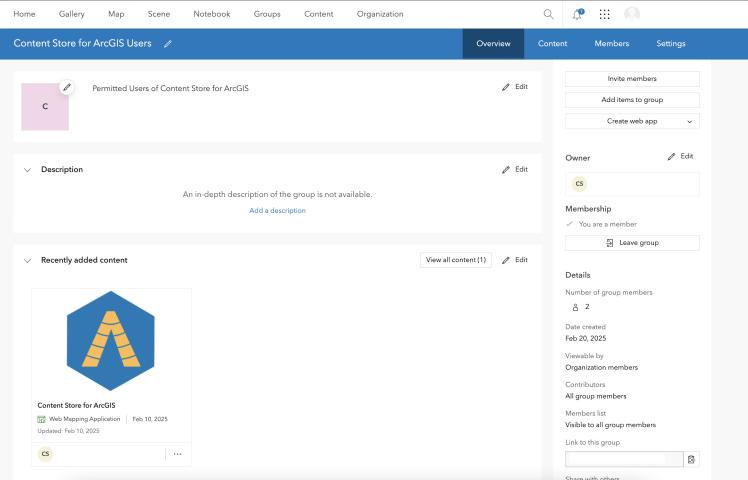
- Access the application. Within the group, users will see the Content Store for ArcGIS item.
- Click on the item.
- Click View to launch the application.
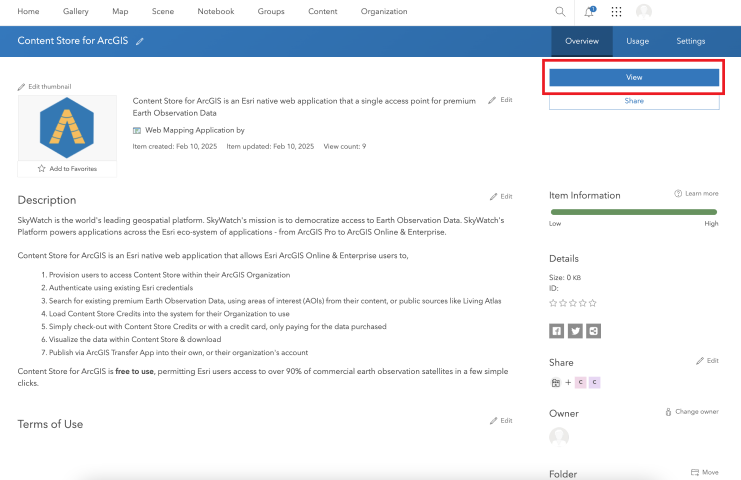
Users can now log in using their ArcGIS credentials.

Troubleshooting sign-in issues
If users encounter issues signing in, follow these steps:
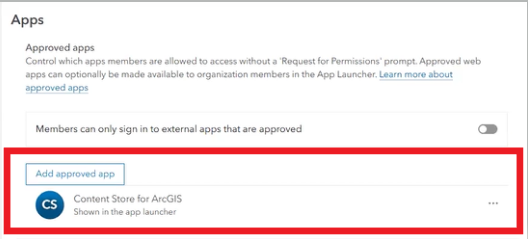
- Go to ArcGIS Online > Organization > Settings.
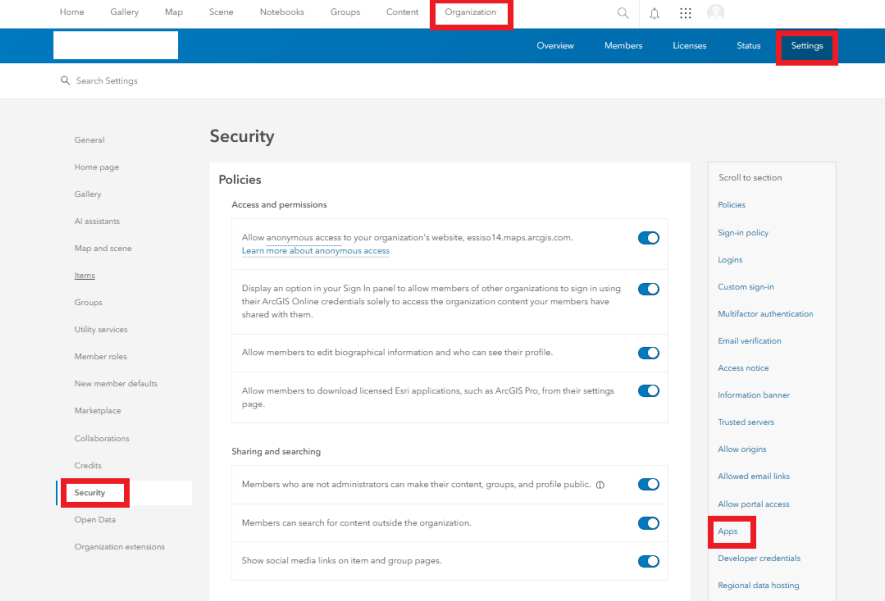
- Navigate to Security > Apps > Approved apps.
- Toggle off the setting: Members can only sign in to external apps that are approved.
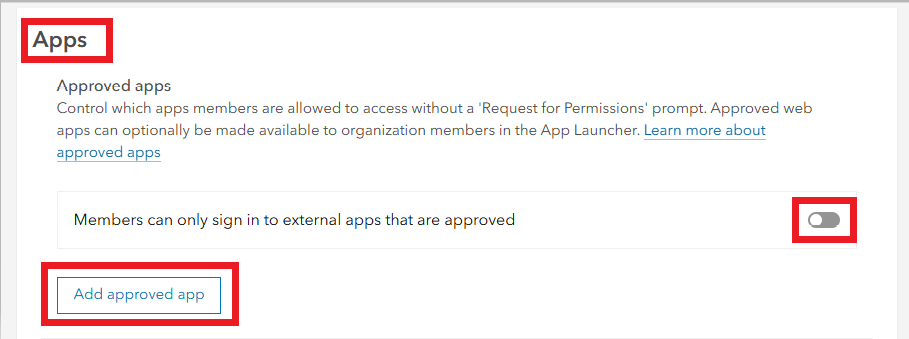
- Click Add approved app and add the Content Store for ArcGIS as an approved app using its item URL.
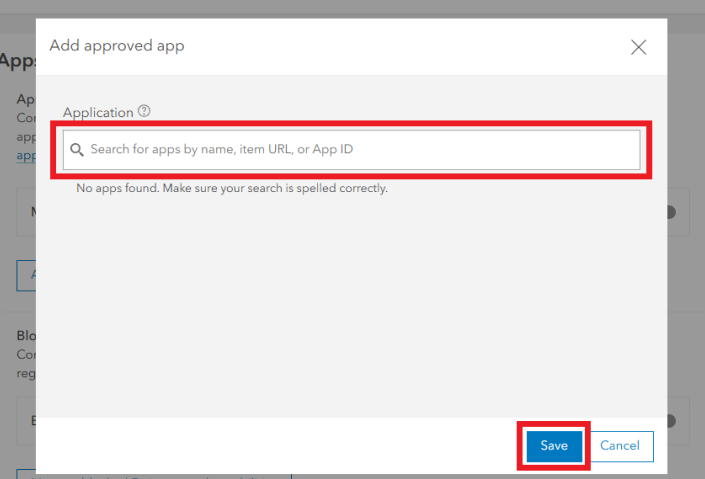
- The app should now be visible under the Approved apps.
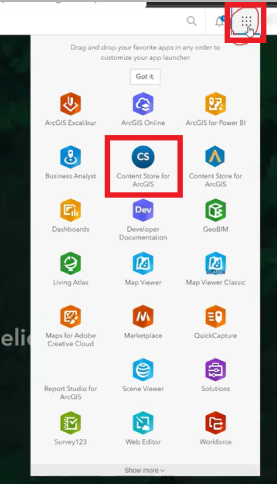
- Access Content Store for ArcGIS via the app launcher.
- Log in using ArcGIS Online credentials.
Article ID: 000037246
- ArcGIS Online
Get support with AI
Resolve your issue quickly with the Esri Support AI Chatbot.


Related Information
Discover more on this topic

Search for related information

Find training related to this topic

Explore ideas and give feedback
Get help from ArcGIS experts
Start chatting now