
PROBLEM
Clipped raster layer loses its raster function after the data source has been repaired
Description
When a Raster function is applied to a raster layer in the ArcGIS Pro map, a new raster layer is created. This new raster layer refers to the same data source as the original raster layer.
However, if the data source of the original raster is changed and the raster layers in the map lose their data source, the raster function on the layer will be lost.
In this example, the original raster was clipped by using the Clip raster function and polygon feature, which has been used as clip mask.
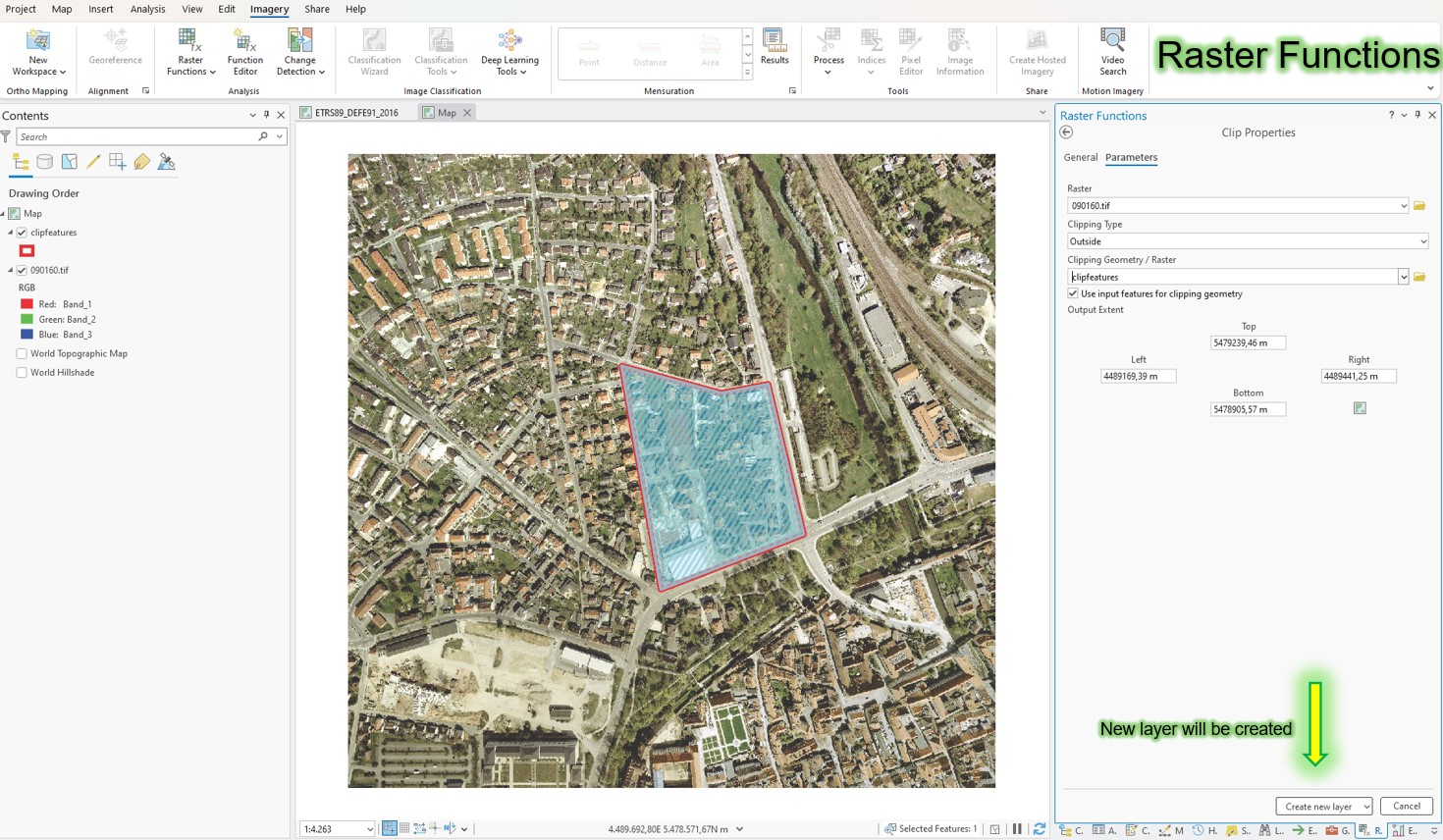
However, this does not create any new data; instead, the new raster layer “knows” which function is applied to it and how, and initially retains this information.
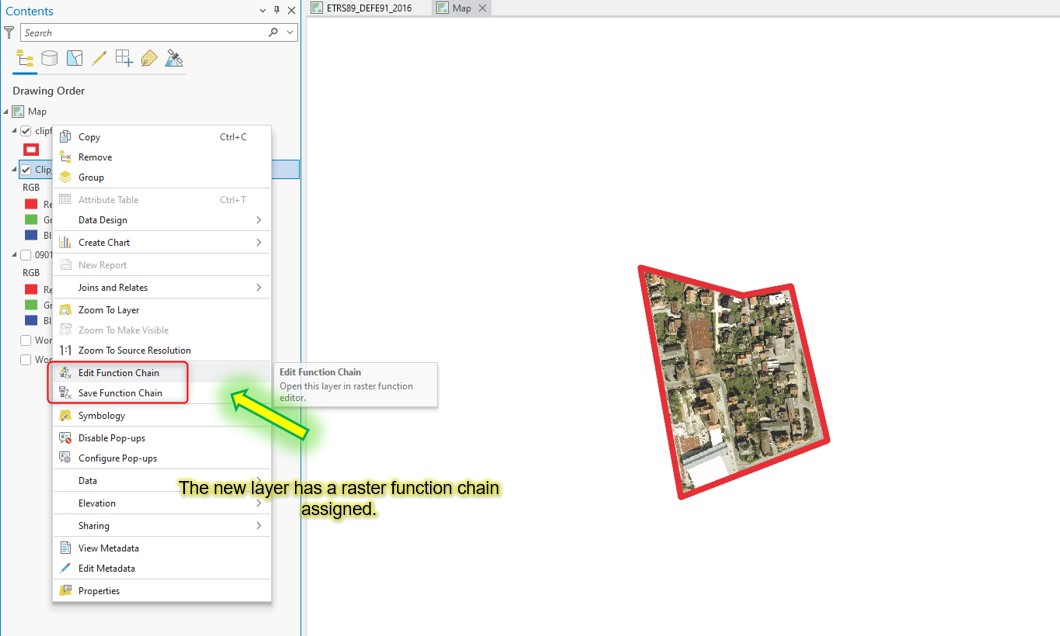
You can also edit and change the raster function, as shown in the next image, by right-clicking on the layer in the TOC or save it as a Raster function template.
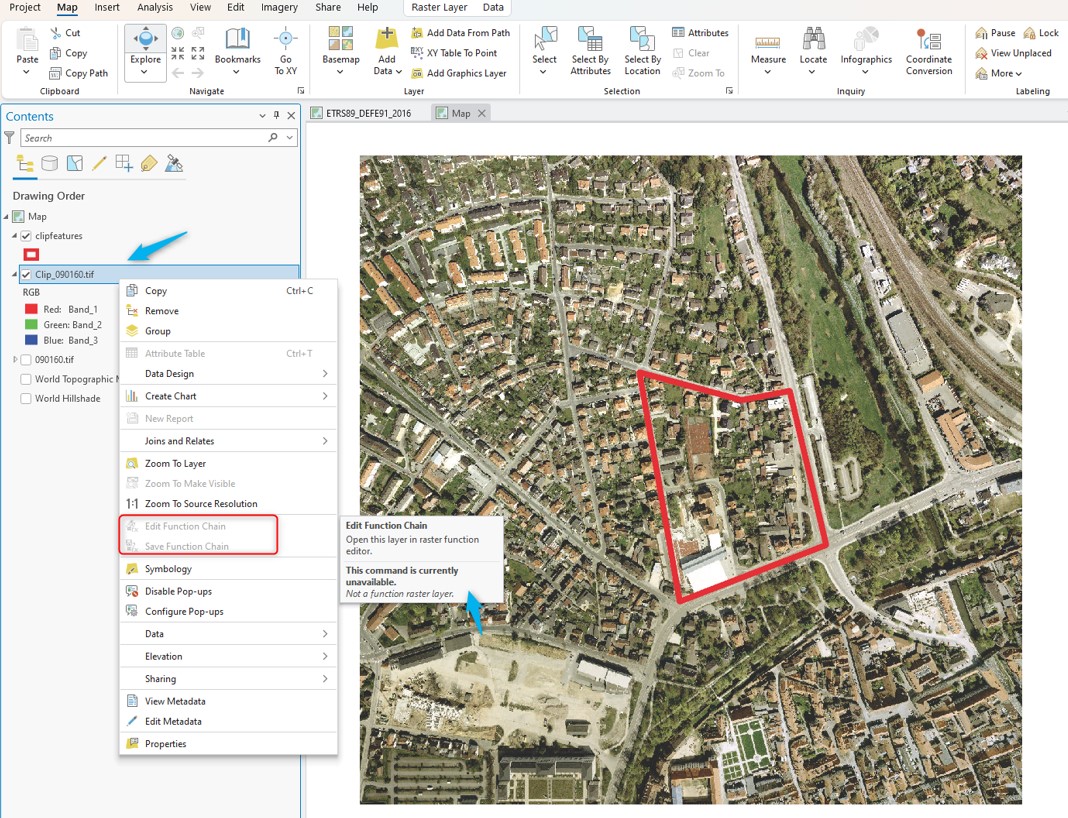
Once the data source has been repaired, the raster function on the layer can no longer be accessed, it is inactivated (grayed out), as shown in the image below.
Cause
A raster function was used to clip the raster. However, this does not create any new data.
The result was not saved as a new physical raster, in the file system or in the geodatabase for example, and was therefore not saved.
Solution or Workaround
You can export a raster clipped out using the raster function by right-clicking on the layer an selecting Data > Export raster. A clip mask geometry can also be specified.
The raster clipped by using the raster function can also be exported using geoprocessing tool Raster To Other Format. The processing extent must specified in the Geoprocessing environment settings.
Article ID: 000034499
- ArcGIS Pro
Get support with AI
Resolve your issue quickly with the Esri Support AI Chatbot.


Related Information
Discover more on this topic

Search for related information

Find training related to this topic

Explore ideas and give feedback
Get help from ArcGIS experts
Start chatting now