
PROBLEM
Videos configured to autoplay in the ArcGIS StoryMaps immersive blocks play without audio
Description
In ArcGIS StoryMaps, videos uploaded directly to immersive blocks, such as map tour or sidecar, and configured to autoplay, play correctly, but the audio is muted during playback.
Cause
This is by design. Videos uploaded to a story through immersive builders autoplay without audio by default to prevent unexpected sounds from disrupting the narrative of the story. Additionally, most web browsers suppress audio during autoplay to ensure a smooth viewing experience.
Solution or Workaround
Refer to any of the following workarounds to solve the issue.
Host the video externally and add the video using the embed block
This workaround requires the intended media to be hosted externally and referenced in an embed block using the iframe HTML code. The tags require specific edits to enable autoplay and audio.
- Open the story on the story map's edit page.
- Add the video to the immersive block. In this example, the video is embedded in a sidecar block.
- On the sidecar block media panel, click Add and click Embed.
- Copy the embed URL from the video.
- In the Embed window, paste the copied embed URL.
Note:
Include both autoplay and encrypted-media in the allow attribute to enable playback with sound and autoplay.
The following shows the complete iframe structure used in this example.
<iframe width="560" height="315" src="Third-party embed URL?autoplay=1" allow="autoplay; encrypted-media" allowfullscreen></iframe>
- Click Add.
Enable the 'Autoplay with control' playback option for the uploaded video
This workaround keeps the autoplay enabled, but manual unmuting is required for the audio.
- Open the story with the uploaded video on the story map's edit page.
- Configure the playback setting for the uploaded video. In this example, the video is uploaded to a sidecar block.
- On the sidecar block slide panel, select the slide with the video if necessary.
- On the sidecar media panel, click Options
 .
. - In the Video options window, click the Playback tab.
- On the Playback tab, select Autoplay with controls.
- Click Save.
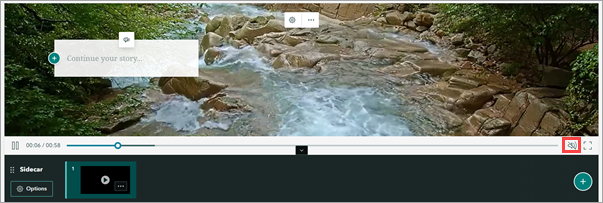
The audio button is displayed on the bottom right side of the video playback, allowing users to manually enable sound.
Article ID: 000038276
- ArcGIS StoryMaps
Get support with AI
Resolve your issue quickly with the Esri Support AI Chatbot.


Related Information
Discover more on this topic

Search for related information

Find training related to this topic

Explore ideas and give feedback
Get help from ArcGIS experts
Start chatting now