
PROBLEM
Polygon vertices shift when split at small scales in ArcGIS Pro
Description
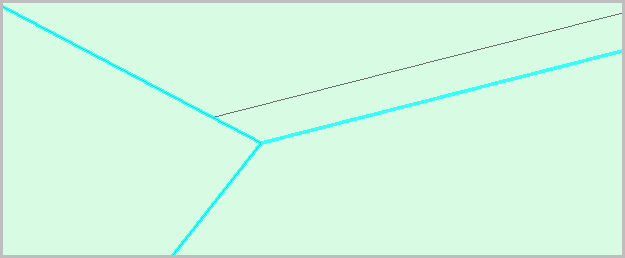
When a polygon feature is split using the Split tool at small scales in ArcGIS Pro, the vertices shift from their original positions. This occurs when the endpoint of the sketch line snaps to an existing vertex or aligns with the polygon edge.
The image below shows the vertices of the polygon feature displaced after the split.
Cause
Editing polygons at very small scales in ArcGIS Pro can cause vertices to shift due to snapping, display, and floating-point precision limitations.
Solution or Workaround
Add an extra vertex to the sketch line
Add an extra vertex when sketching the split line to prevent the endpoint from snapping directly to the polygon edge in ArcGIS Pro. Refer to ArcGIS Pro: Split a polygon feature for instructions. In Step 7, place an additional vertex just before the final endpoint, close to the polygon boundary, so the split line does not snap on an existing edge or vertex.
Align polygon edges using the Align Features tool
Use the Align Features tool to correct displaced vertices that occur after splitting a polygon. It can also be used to close gaps between adjacent features, such as parcel boundaries or complex feature geometry. Refer to ArcGIS Pro: Align features to a traced line for instructions.
Alternatively, use the Align Features geoprocessing tool to align the polygons simultaneously. When the polygons and their boundaries are created in separate feature layers, the boundary polylines can be used as the reference layer to align the features and ensure consistency. This approach is particularly useful for large datasets.
Create a topology to validate and correct polygon features
In ArcGIS Pro, create a topology to identify, validate, and correct overlaps, gaps, or misalignments in polygon features after splitting. Validation with the Error Inspector highlights gaps or overlaps between features, which can be corrected using the Align Edge tool. Refer to ArcGIS Pro: Align topological edges for instructions and more information.
The image below shows the vertices of the polygon features maintained at their original positions.

Article ID: 000037844
- ArcGIS Pro
Get support with AI
Resolve your issue quickly with the Esri Support AI Chatbot.


Related Information
Discover more on this topic

Search for related information

Find training related to this topic

Explore ideas and give feedback
Get help from ArcGIS experts
Start chatting now