
PROBLEM
Migrating ArcMap MXD with converted graphics to ArcGIS Pro displays blank map
Description
When importing an ArcMap map document (.mxd) into ArcGIS Pro, the map appears blank. For example, when features symbolized as bar charts are converted to graphics in ArcMap and the MXD is imported into ArcGIS Pro, the resulting map does not display any content.
Cause
The 'Convert Features to Graphics' tool in ArcMap is executed with the 'Only draw the converted graphics' condition configured. With this condition, the original feature layer is hidden and only graphic elements are displayed. These graphics are stored within the MXD as elements rather than feature layers with a backing data source. ArcGIS Pro requires valid data sources; and these graphics may not migrate properly, resulting in a blank display.
Solution or Workaround
Note:
ArcMap is in Mature support and will retire March 1, 2026.
- In ArcMap, use the Convert Features to Graphics tool. Refer to ArcMap: Converting features into graphics for instructions.
- Select the Draw the converted graphics and draw the features option.
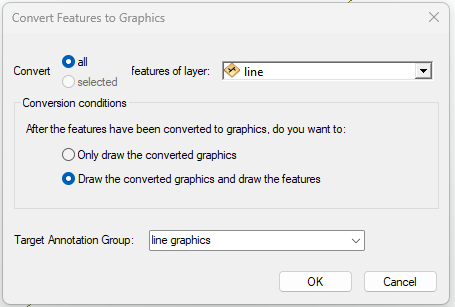
- Save the MXD and import it into ArcGIS Pro. Refer to ArcGIS Pro: Tutorial: Import an ArcMap document for instructions.
Article ID: 000037945
- ArcMap
- ArcGIS Pro
Get support with AI
Resolve your issue quickly with the Esri Support AI Chatbot.


Related Information
Discover more on this topic

Search for related information

Find training related to this topic

Explore ideas and give feedback
Get help from ArcGIS experts
Start chatting now