
PROBLEM
Location Alerts screen loads on map launch when geofencing is enabled in ArcGIS Field Maps
Description
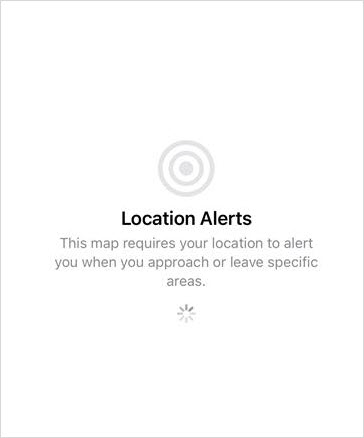
In the ArcGIS Field Maps app, opening a map that includes geofences and enabling the Location Alerts toggle causes the app to remain on the Location Alerts screen for an extended duration before the map loads, or, in some cases, causes the app to crash.
Cause
The issue occurs due to the complexity and size of the feature layer used for geofencing. Large or complex datasets require extensive processing to evaluate geofence conditions, which causes the ArcGIS Field Maps app to stall on the Location Alerts screen and eventually crash.
Solution or Workaround
Reduce the size and complexity of the feature layer used for geofencing.
Clip the dataset to create a subset feature layer
In ArcGIS Pro, use the Clip tool to reduce the dataset to only the geographic area required for field operations and publish the clipped dataset to ArcGIS Online as a new hosted feature layer. In Field Maps Designer, add geofences to the map using the subset feature layer.
Add a filter to the geofence
In Field Maps Designer, apply an attribute filter to limit the features used as geofences based on specific field values or categories. This reduces the number of features the app must process, lowering computational load and improving map loading performance. Refer to Step 7 in ArcGIS Field Maps: Add geofences for instructions.
Article ID: 000038173
- ArcGIS Field Maps Android
- ArcGIS Field Maps iOS
- ArcGIS Field Maps Designer
Get support with AI
Resolve your issue quickly with the Esri Support AI Chatbot.


Related Information
Discover more on this topic

Search for related information

Find training related to this topic

Explore ideas and give feedback
Get help from ArcGIS experts
Start chatting now