
PROBLEM
Labels are not displayed after publishing a vector tile layer from ArcGIS Pro in ArcGIS Online Map Viewer
Description
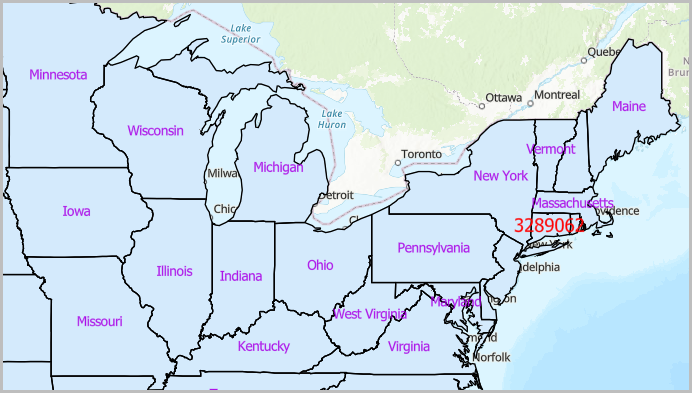
When a map containing multiple labeled polygon feature layers is published from ArcGIS Pro as a vector tile layer, some labels are not displayed in ArcGIS Online Map Viewer. This behavior is consistent regardless of whether the Maplex Label Engine is enabled.
The image below shows some labels are not displayed in Map Viewer.
Cause
This is a known limitation of the vector tile labeling engine. During vector tile generation, labels that overlap or have nearly identical positions across multiple layers are suppressed. Unlike dynamic feature layers, vector tiles store static label placements and do not adjust overlapping labels at display time.
Solution or Workaround
As a workaround, select one of the options below.
Use the Maplex Label Engine Boundary placement style in ArcGIS Pro
- Open the ArcGIS Pro project with the labeling enabled.
- Place the labels around the polygon features using the Boundary placement style. Refer to ArcGIS Pro: Label using the Boundary placement style for instructions.
- Share the feature layer as a vector tile layer to ArcGIS Online. Refer to ArcGIS Pro: Share a vector tile layer using the default configuration for instructions.
Configure offset for the label positions in Map Viewer
- Log in to ArcGIS Online and click Content > My content.
- Browse to and click the tile layer. In the item page, click Open in Map Viewer.
- On the Contents (dark) toolbar, click Layers.
- In the Layers pane, click the desired layer.
- On the Settings (light) toolbar, click Labels.
- Click the label class to expand it.
- Under Label style, click the Edit label style drop-down arrow to open the Label style pane.
- Under Offset, specify the Offset X and Offset Y distance values.
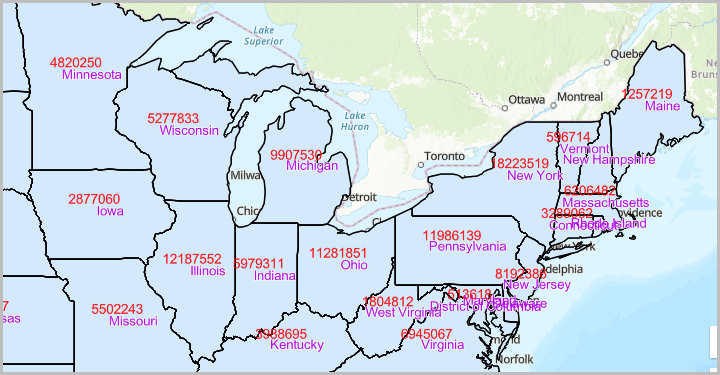
The image below shows the labels are displayed correctly in Map Viewer.
Article ID: 000038529
- ArcGIS Pro
- ArcGIS Online
Get support with AI
Resolve your issue quickly with the Esri Support AI Chatbot.


Related Information
Discover more on this topic

Search for related information

Find training related to this topic

Explore ideas and give feedback
Get help from ArcGIS experts
Start chatting now