
PROBLEM
Inconsistent search results returned in ArcGIS Instant Apps Nearby template
Description
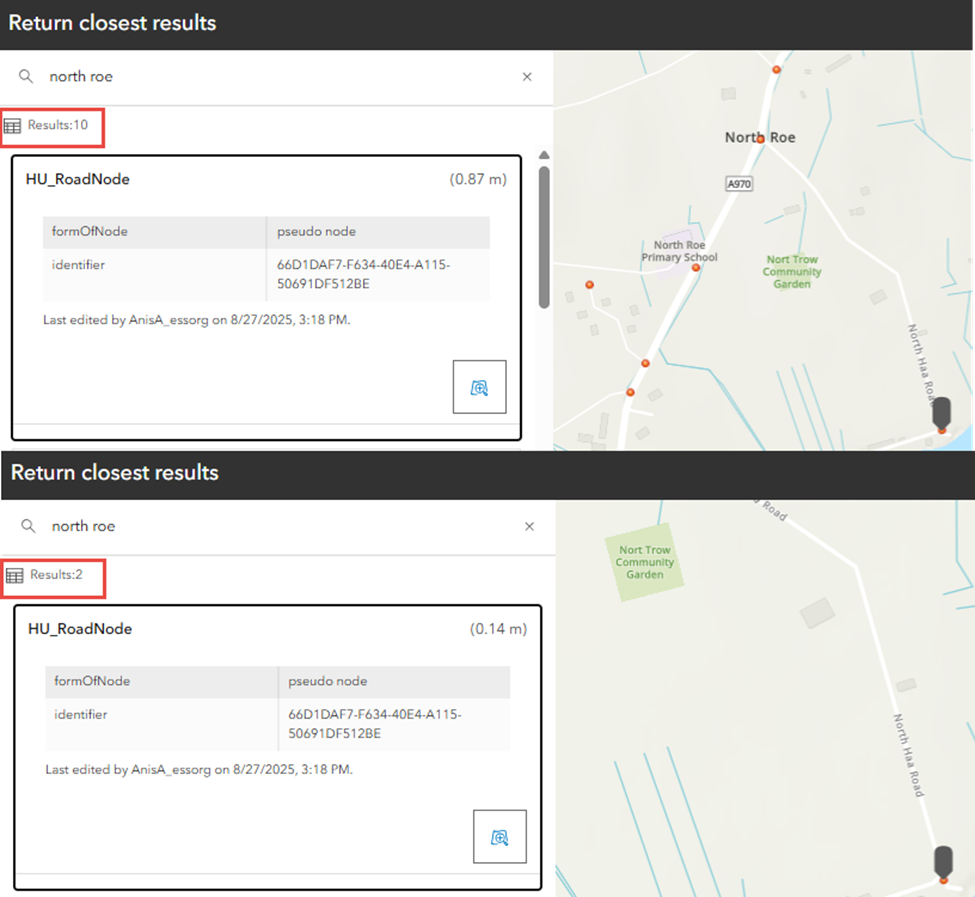
A location search using the ArcGIS Instant Apps Nearby template search bar returns multiple and inconsistent results instead of the preferred, closest result.
The images below show two separate searches for the same location returning inconsistent results, one with 10, and another with two.
Cause
- The 'Return closest results' setting is not enabled, which causes all matching features to be returned instead of only the nearest.
- By default, the search method is set to map extent. As a result, all search results within the map view are displayed rather than limiting the results to the closest feature.
Solution or Workaround
Enable the ‘Return closest results’ setting
- Log in to ArcGIS Instant Apps and click the My Apps tab.
- Browse to the app and click Configure.
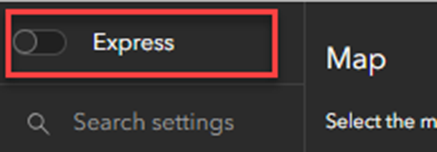
- In the configuration panel, toggle Express off to access the app's complete configuration settings.
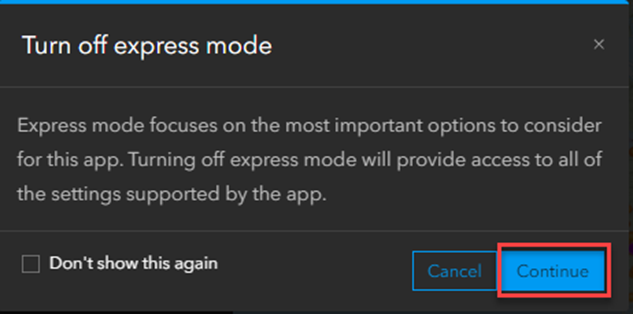
- In the Turn off express mode window, click Continue.
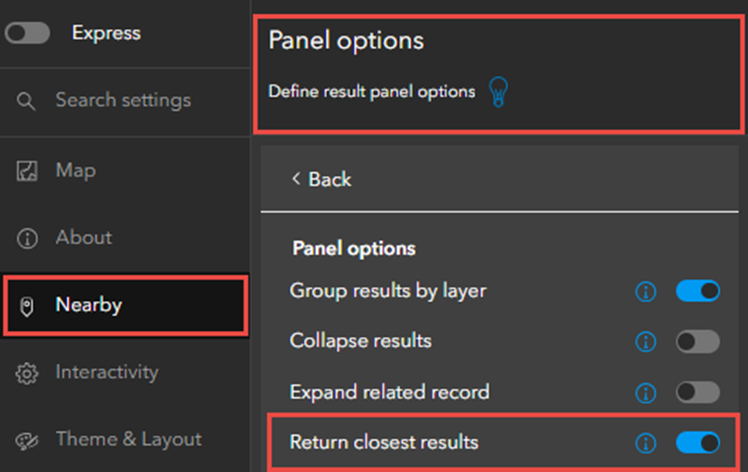
- Click Nearby > Panel options.
- Toggle Return closest results on.
Note:
Optionally, click Search settings on the side panel, search for and click Return closest results to access the setting.
The ArcGIS Instant Apps Nearby template shows only the closest result.
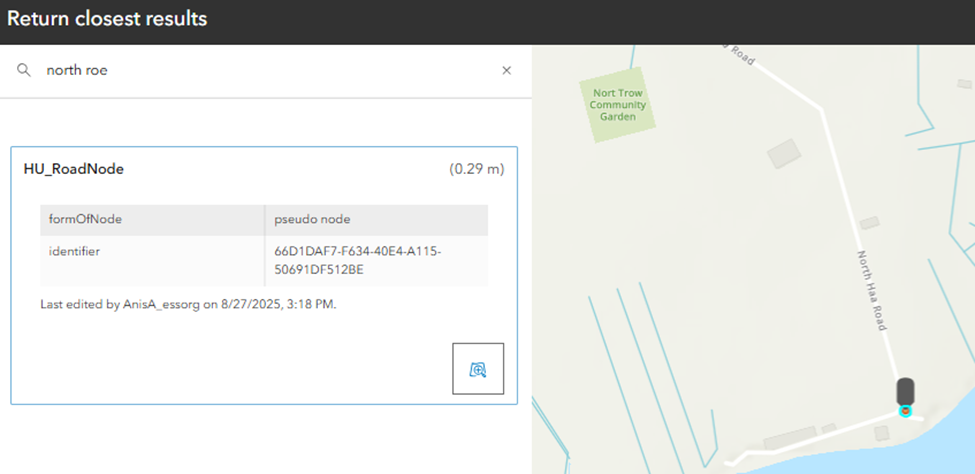
Use the search radius method to return results
Use the search radius instead of the map extent method to limit the results to features within a specified distance of the search location.
- Log in to ArcGIS Instant Apps and click the My Apps tab.
- Browse to the app and click Configure.
- In the configuration panel, toggle Express off to access the app's complete configuration settings.
- In the Turn off express mode window, click Continue.
- Click Nearby > Search method.
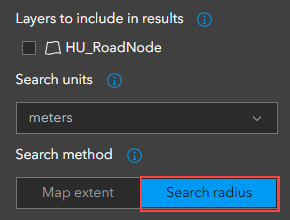
- Under Search method, click Search radius.
- For Search units, specify the default unit for the search distance from the drop-down list.
- For Default distance, specify the Minimum search distance, Maximum search distance, and Default distance.
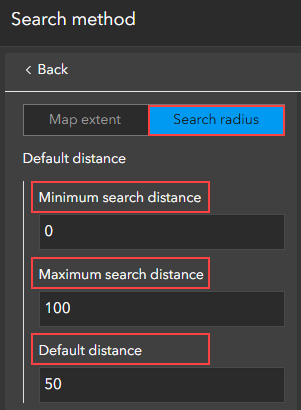
Article ID: 000038277
- ArcGIS Online
- Configurable Web Apps
Get support with AI
Resolve your issue quickly with the Esri Support AI Chatbot.


Related Information
Discover more on this topic

Search for related information

Find training related to this topic

Explore ideas and give feedback
Get help from ArcGIS experts
Start chatting now