
PROBLEM
Coordinates not displayed in the ArcGIS Experience Builder Coordinates widget
Description
The Coordinates widget displays real-time coordinates from the Map widget and is updated dynamically based on the cursor’s position without requiring user interaction. However in some cases, hovering over the map does not update the coordinates, and clicking the map does not return coordinate values.
Cause
- The Coordinates widget and the web map are configured with different well-known IDs (WKIDs). Converting between WKIDs requires asynchronous requests, which prevents coordinate values from being returned immediately as the cursor moves.
- The web experience is viewed on a low-resolution display or with excessive browser zoom, causing the compass icon in the Coordinates widget to be hidden and preventing users from switching between hover and click modes.
- The Coordinates widget is not connected to the correct Map widget. Each Coordinates widget can be connected to only one Map widget.
Solution or Workaround
Depending on the cause, the workarounds described below are applicable.
Configure the Coordinates widget to match the web map’s WKID and display coordinates based on the cursor’s location
- In the ArcGIS Experience Builder web experience, select the Coordinates widget on the layout.
- In the Coordinates pane, on the Content tab, for Output coordinate system, click New coordinate system.
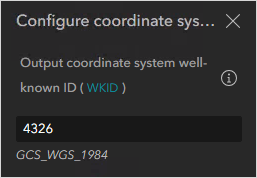
- In the Configure coordinate system pane, for Output coordinate system well-known ID (WKID), specify the WKID.
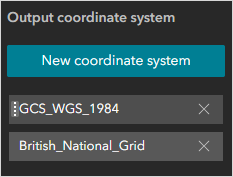
- In the Coordinates pane, drag the coordinate system matching the web map to the top of the list.
- Save, preview, and publish the experience.
Adjust the Coordinates widget layout settings to keep the widget fully visible
- In the ArcGIS Experience Builder web experience, select the Coordinates widget on the layout.
- Click the Style tab.
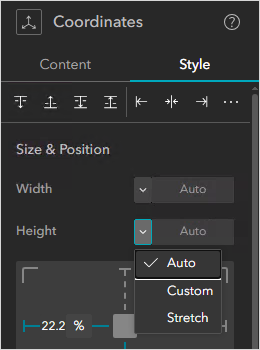
- Under Size & Position, for Width and Height, click the drop-down arrow and select Auto.
- Save, preview, and publish the experience.
Connect the Coordinates widget to the correct Map widget
- In the ArcGIS Experience Builder web experience, select the Coordinates widget on the layout.
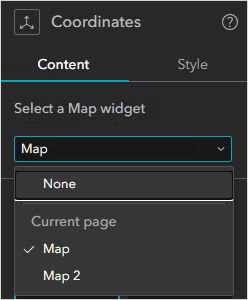
- On the Content tab, for Select a Map widget, click the drop-down arrow and select the map the widget to be referenced.
- Save, preview, and publish the experience.
Article ID: 000039376
- ArcGIS Enterprise
- ArcGIS Experience Builder
Get support with AI
Resolve your issue quickly with the Esri Support AI Chatbot.


Related Information
Discover more on this topic

Search for related information

Find training related to this topic

Explore ideas and give feedback
Get help from ArcGIS experts
Start chatting now