
PROBLEM
All attributes are appended to target features when using the Spatial Join tool in ArcGIS Pro
Description
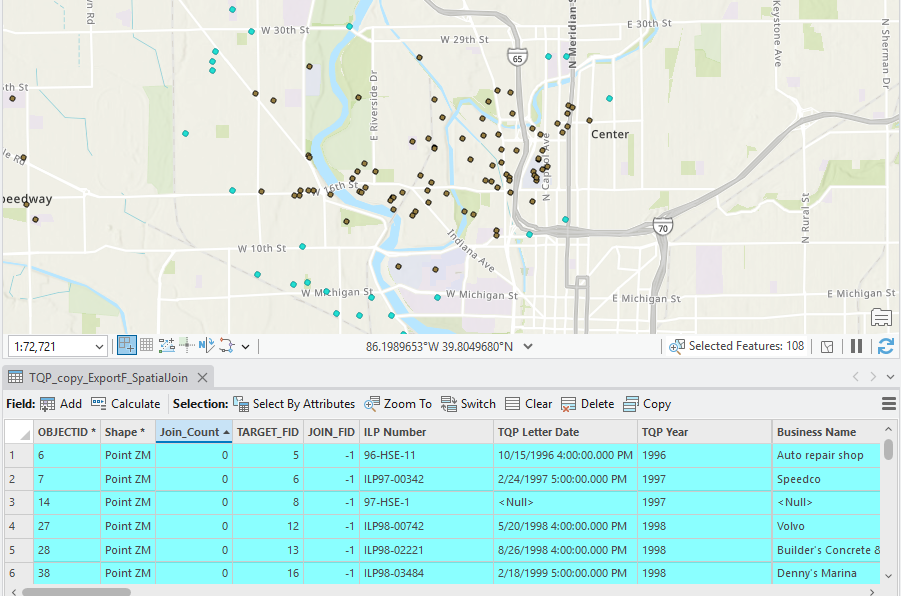
When joining attributes based on a specified search distance using the Spatial Join tool in ArcGIS Pro, all attributes from the join features are appended to the target features and copied to the output feature class.
The image below shows all attributes appended, with highlighted features representing attributes that should not appear in the output.
Cause
The 'Keep all target features' option is enabled by default. It retains all target features in the output, regardless of the specified distance, causing the distance limit to be ignored.
Solution or Workaround
Disable the 'Keep all target features' option
When joining attributes based on a spatial relationship, ensure the 'Keep all target features' option is disabled. When this option is disabled, only the target features sharing the specified spatial relationship with the join features are retained in the output feature class. Refer to ArcGIS Pro: Parameters for more information.
Select and copy the joined attribute values to a new feature layer
- Open the project in ArcGIS Pro.
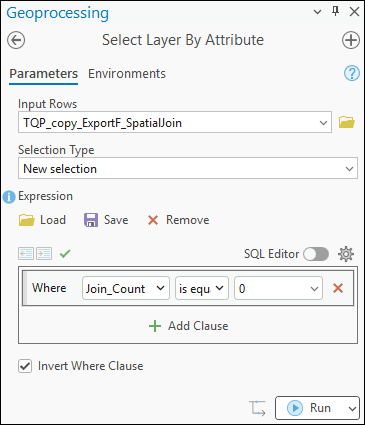
- Select the joined attributes values using the Select Layer By Attribute tool.
- In the Select Layer By Attribute pane, for Input Rows, select the joined feature layer.
- For Selection Type, select New selection from the drop-down list.
- For Expression, insert the appropriate query to select the attribute value in the Clause mode.
Where 'Join_Count' 'is equal to' '0'
- Check the Invert Where Clause check box.
- Click Run.
- Copy the selected joined features to a new feature layer using the Copy Features tool.
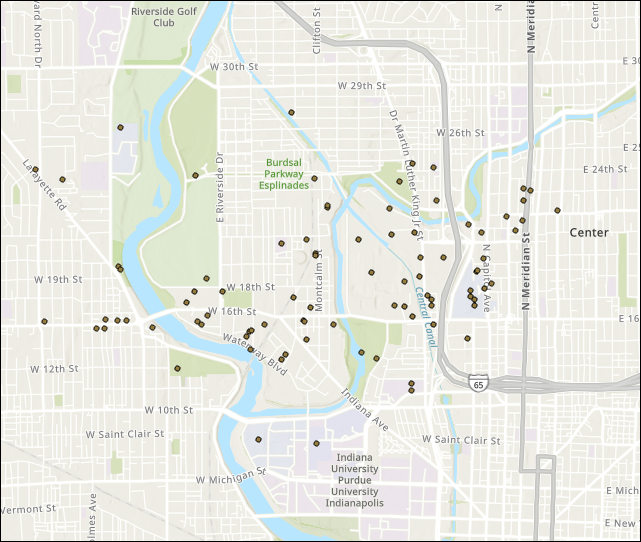
The image below shows the joined features within the specified distance in ArcGIS Pro.
Article ID: 000038948
- ArcGIS Pro
Get support with AI
Resolve your issue quickly with the Esri Support AI Chatbot.


Related Information
Discover more on this topic

Search for related information

Find training related to this topic

Explore ideas and give feedback
Get help from ArcGIS experts
Start chatting now