
PROBLEM
Add Join tool returns partial records when using one-to-many joins in ArcGIS Pro 3.5
Description
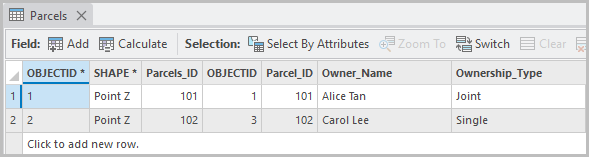
Running the Add Join tool using a one-to-many join operation in ArcGIS Pro 3.5 returns only partial records in the attribute table. In this example, only two out of four records are returned, as shown in the image below.
Cause
The input datasets are not stored in the same file geodatabase. In ArcGIS Pro 3.4 and earlier, a one-to-many join works as expected when both datasets have an ObjectID field. However, starting with ArcGIS Pro 3.5, both datasets must be stored in the same file geodatabase to support a one-to-many join. If they are in different locations, the tool defaults to a one-to-first join, returning only partial records.
Solution or Workaround
To resolve the issue, apply the following steps to add the input and join tables to the same file geodatabase.
- Open the ArcGIS Pro project with the tables.
- Export the join or input table to the same file geodatabase. Refer to ArcGIS Pro: Export Table for more information. In this example, the join table is exported to the same file geodatabase as the input table.
- In the Catalog pane, under Databases, right-click the join table and click Export > Table(s) To Geodatabase....
- In the Table To Geodatabase pane, under Parameters, for Input Table, ensure the input table is specified.
- For Output Geodatabase, click Browse.
- In the Output Geodatabase window, under Name, double-click Databases and click the input table's file geodatabase.
- Click OK > Run.
- Run the Add Join tool using a one-to-many join operation. Refer to ArcGIS Pro: Add Join (Data Management) for more information.
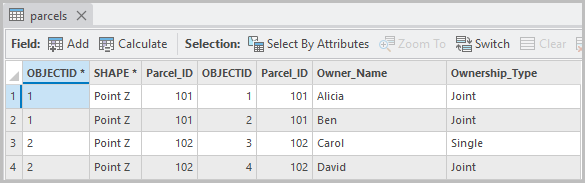
The image below shows the complete records of the one-to-many join in the attribute table.
Note:
Alternatively, use the Join Field tool to add the joined attributes directly into the input dataset in ArcGIS Pro. Refer to ArcGIS Pro: Join Field (Data Management) for more information.
Note:
The Join Field tool creates a permanent join by adding the joined attributes directly into the input dataset, whereas the Add Join tool creates a temporary join that can be removed without altering the original data.
Article ID: 000038521
- ArcGIS Pro
Get support with AI
Resolve your issue quickly with the Esri Support AI Chatbot.


Related Information
Discover more on this topic

Search for related information

Find training related to this topic

Explore ideas and give feedback
Get help from ArcGIS experts
Start chatting now