
HOW TO
Move ordered reports in the Business Analyst Web App from one project to another
Summary
Reports available in the Business Analyst Web App (BA Web App) provide details that help understand trade areas, market potential for finding new markets, and more. In some cases, reports are created within the incorrect project or must be shared to another project in the BA Web App, so the reports must be moved to another project folder. However, the BA Web App interface does not provide an option to move the reports to another project folder.
The reports can be moved by using ArcGIS Online, since ArcGIS Online allows reports to be shared to other project(s). The instructions provided describe how to move the ordered reports to another project folder in the BA Web App through ArcGIS Online.
Procedure
- Sign in to ArcGIS Online as the user who ordered the reports.
Note:
Users are only able to view the content of the projects created by them or the projects shared with them. Refer to the following document for more information on the content of the Business Analyst Web App projects in ArcGIS Online: Business Analyst Web App: Your content in ArcGIS Online.
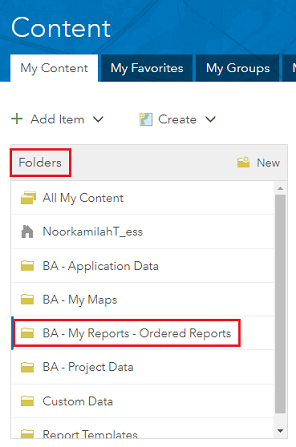
- Click Content > My Content tab.
- In the Folders section of the My Content page, click BA - My Reports - Ordered Reports.
 <
<
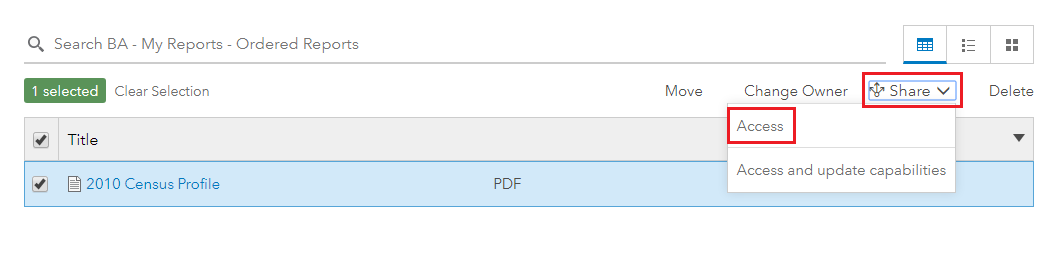
- Check the check boxes of the reports that are to be moved.
- Click Share > Access.
Note:
The Share option is only available when at least one of the reports is checked.
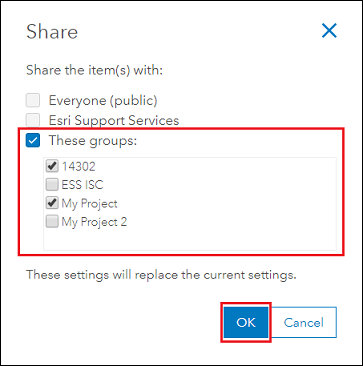
- In the Share dialog box, under These groups:, check the check boxes of the project(s) where the reports must be moved.
Note:
Sharing reports to another project in ArcGIS Online allows the reports to be listed in the content of the selected project when viewed in the BA Web App. The report is no longer listed in the content of the project where the report is originally created if the project is not left checked when sharing the report.
- Click OK.
Article ID: 000016055
- More Products
Get support with AI
Resolve your issue quickly with the Esri Support AI Chatbot.


Related Information
Discover more on this topic

Search for related information

Find training related to this topic

Explore ideas and give feedback
Get help from ArcGIS experts
Start chatting now