
HOW TO
Locate geometry breaks in ArcGIS Pro
Summary
Locating geometry breaks is important to accurately identify the source of geoprocessing failures, as small but significant disconnections in line or polygon geometry can cause tools such as the Split tool to fail even when no geometry errors are reported.
Geometry breaks such as line gaps or disconnected polygon vertices may cause geoprocessing tools to fail when features are used as inputs, especially when an input feature contains broken segments that appear connected but are not.
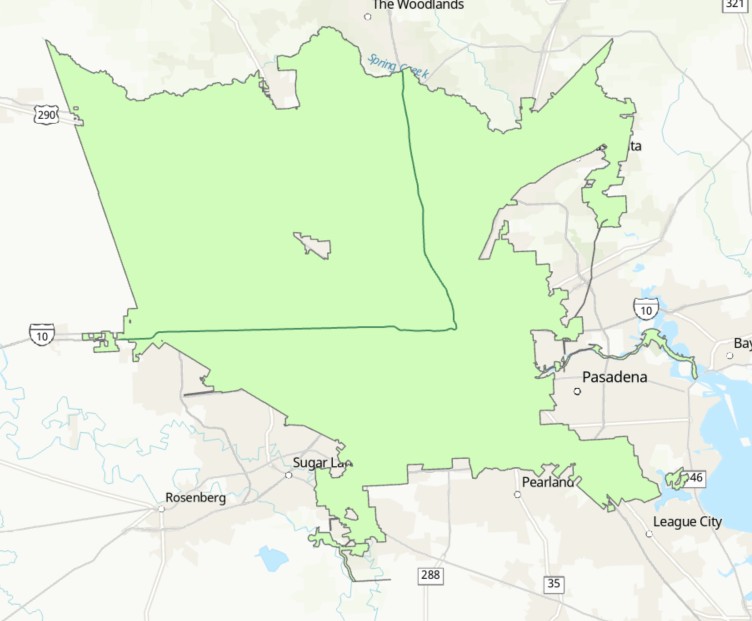
In ArcGIS Pro, when a line feature is used to split a polygon feature using the Split tool, the tool repeatedly fails and returns the error message below.
Error:
Split failed. Geometry must intersect polylines and polygons in two or more places.
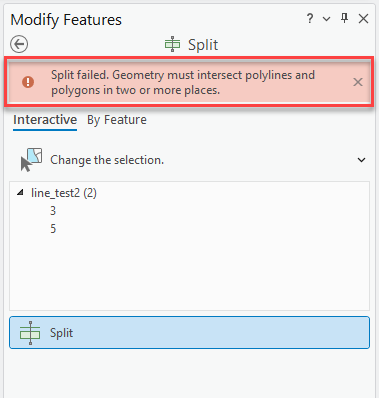
Running the Check Geometry or Repair Geometry tool as described in the article, Error: ArcGIS Pro: Split failed. Geometry must intersect polylines and polygons in two or more places does not return any errors or resolve the issue. This occurs because the line breaks are too large to be identified as geometry issues but too small to be observed without examining the full length of the line at a high zoom level.
This article outlines options to locate the broken segments of a line or polygon feature in ArcGIS Pro.
Procedure
Use the Feature Vertices To Points tool
- In ArcGIS Pro, click the Analysis tab on the ribbon, and click Tools.
- In the Geoprocessing pane, search for and select the Feature Vertices To Points (Data Management Tools) tool.
- In the Feature Vertices To Points pane, select the layer for Input Features.
- For Point Type, select the Dangling vertex option from the drop-down menu.
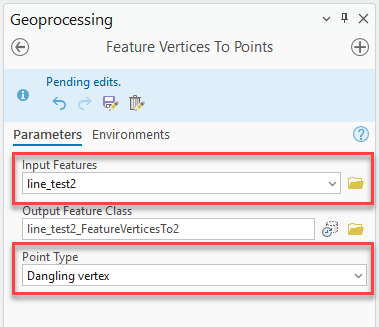
- Click Run. The output is a point feature class with points at every line end, including the line breaks that are easily detectable.
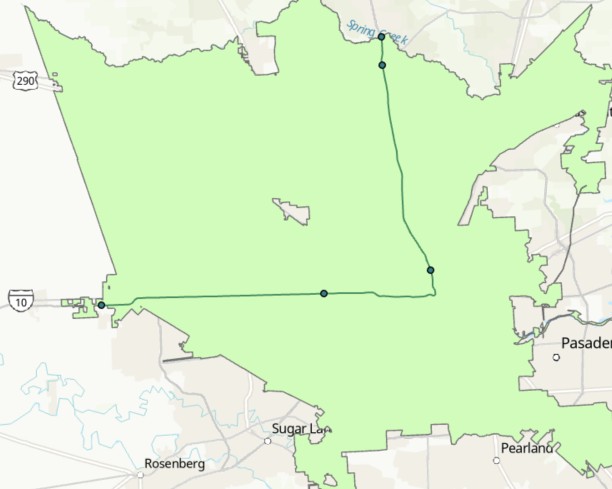
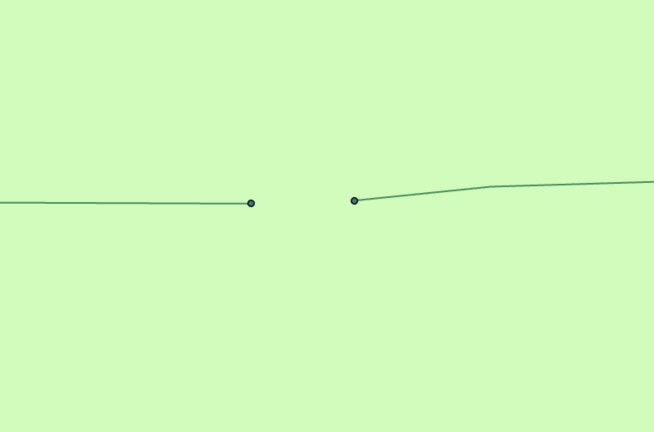
- To repair the discontinuous segments of the line, use the Edit Vertices or Integrate tool.
Use the Trace tool
As a manual workaround, create a new polyline feature class and use the Trace tool to trace along the existing line feature. If the trace unexpectedly stops, this may indicate the approximate location of a disconnected segment or gap in the original geometry. Refer to ArcGIS Pro: Create segments by tracing other features for more information.
Note:
The Trace tool does not identify geometry errors and cannot detect breaks within a single feature. It can only be used to visually infer possible disconnections based on where tracing stops.
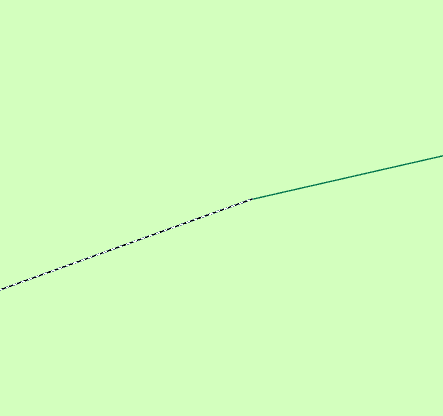
To repair the discontinuous segments of the line, use the Edit Vertices or Integrate tool.
Article ID: 000035135
- ArcGIS Pro
Get support with AI
Resolve your issue quickly with the Esri Support AI Chatbot.


Related Information
Discover more on this topic

Search for related information

Find training related to this topic

Explore ideas and give feedback
Get help from ArcGIS experts
Start chatting now